Adding Attributes
Attributes make components dynamic by telling SketchUp what to do. You can choose from predefined attributes or create custom attributes:
Predefined attributes enable you to quickly and easily set up dynamic behaviors for common features, such as constraining a dynamic component’s size or applying a material. You can browse predefined attributes in the Component Attributes dialog box, or check out the Dynamic Component Predefined Attributes Reference .
Custom attributes enable you to add your own attributes.
To add attributes, follow these steps:
Select the component you want to make dynamic.
On the Dynamic Components toolbar, click the Component Attributes tool (
 ) or select Window > Component Attributes . Either way, the Component Attributes dialog box opens, as shown in the following figure. In this example, the Component Attributes dialog box shows the DynamicCylinder component.
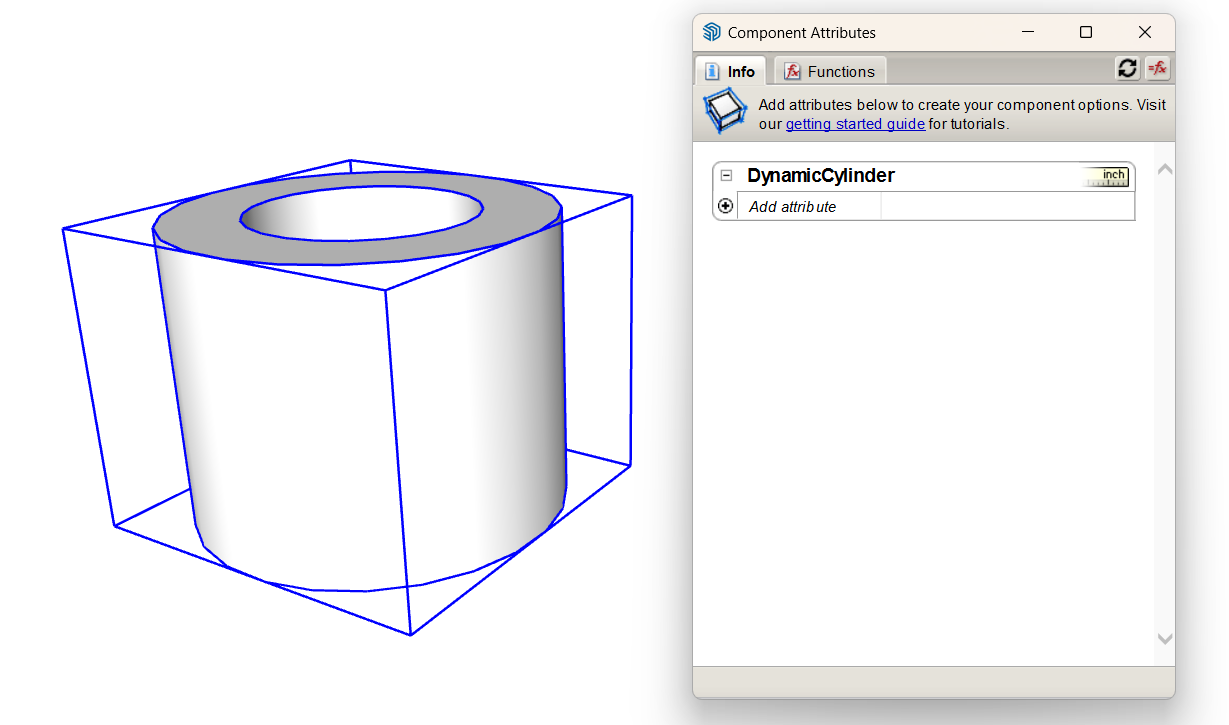
Click the Add Attribute plus sign icon to see a list of options.
Select a predefined attribute or select the Or Enter a Custom Name option at the bottom. If you selected a predefined attribute, you’re ready to add values.
If you selected to add a custom name, type a name to replace the
Enter Nameplaceholder text that appears.Tip: An attribute’s name must start with a letter and cannot contain any spaces. Otherwise, you can name the attribute anything you want. Choosing a name that reminds you what the attribute does is helpful.
Note: If you need to rename a custom attribute, double-click its name and type a new one. (You can change the names of custom attributes only, not a predefined attribute.) If you need to delete an attribute, just click the Delete Attribute minus sign icon next to the attribute’s name.
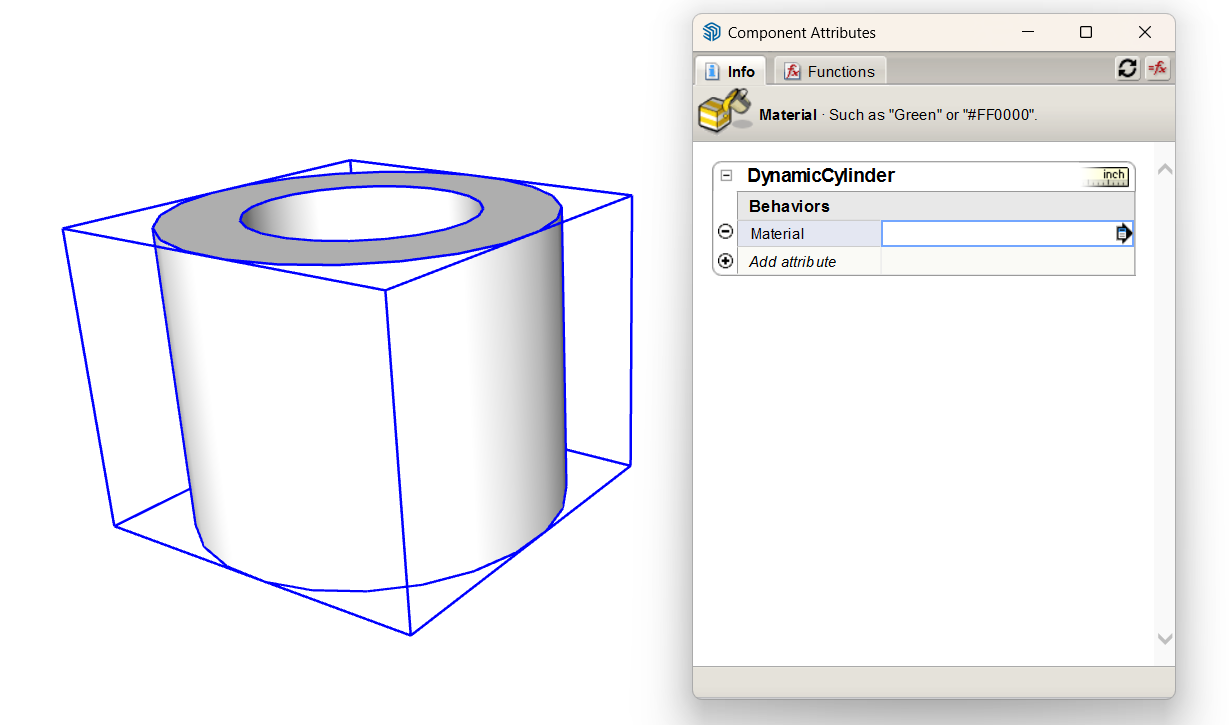
In this example, you see the Material attribute added to the DynamicCylinder component.