
绘制基本形状
许多模型都从基本形状开始。在 SketchUp 中,形状工具能帮助您绘制矩形、圆形和多边形。您可以在 Getting Started(开始)工具栏、Drawing(绘图)工具栏和 Large Tool Set(大工具集)工具栏找到这些工具。
绘制矩形或正方形
在 SketchUp 中,您几乎可以在任何位置绘制矩形:
在水平面上
在垂直面上
在现有面上
现有几何体之外的位置(与轴面对齐)
从现有几何体推导的位置
要使用矩形工具绘制矩形,请按照以下步骤操作:
从工具栏中选择 矩形 工具 (
 ),或按 R 键。
Tip: To start over at any point during these steps, press Esc .
沿对角线方向移动光标,确定所需的矩形大小和形状。若要绘制具有精确尺寸的矩形,请使用测量框。
使用 SketchUp 的推导引擎查看矩形与现有几何体的关系。
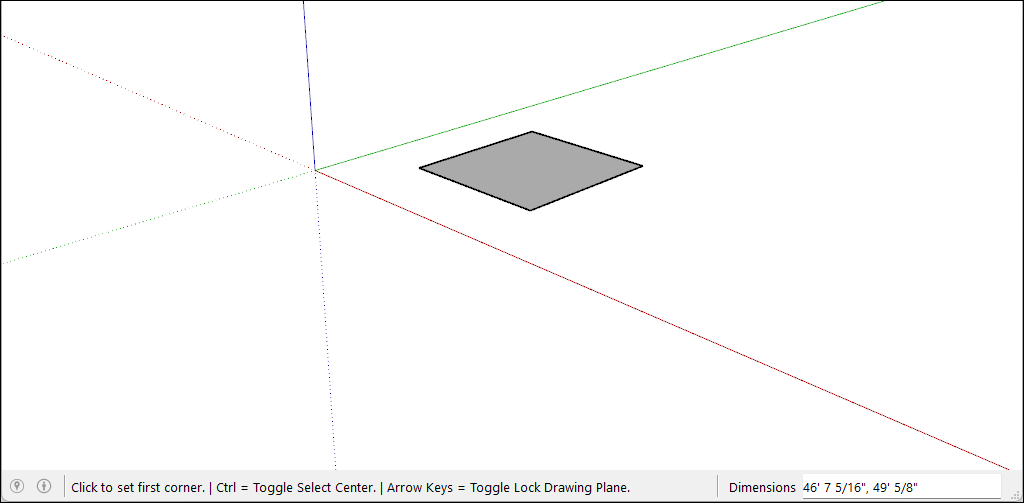
绘制矩形时,测量框可帮助您精确地建模,如下所示:
长度和宽度。 输入长度值、逗号、宽度值,然后按 Enter 。例如,输入 8‘,20’ ,然后按 Enter 。如果仅输入数字,则 SketchUp 会使用当前文档的单位设置。您也可以覆盖文档的单位设置,指定英制(如 1’6" )或公制(如 3.652m )单位。
仅长度或宽度。 如果输入一个值和一个逗号(如 3‘, ),则新值将应用于第一个尺寸,第二个尺寸保持不变。同样,如果输入一个逗号和一个值(如 ,3’ ),则只有第二个尺寸会变化。
矩形的位置。 如果输入负数(如 –24, –24 ),则 SketchUp 会在绘制时反方向应用该值。
在选择矩形工具的情况下移动光标时, SketchUp 推导引擎 将显示以下提示:
正方形: 当矩形的比例刚好为正方形时,屏幕上将出现蓝点和正方形屏幕提示。
黄金分割: 黄金分割是指长宽比为黄金比例的矩形。当矩形是黄金分割时,屏幕上将出现蓝点和黄金分割屏幕提示。
You can hold down the Shift key to lock this inference while dragging.
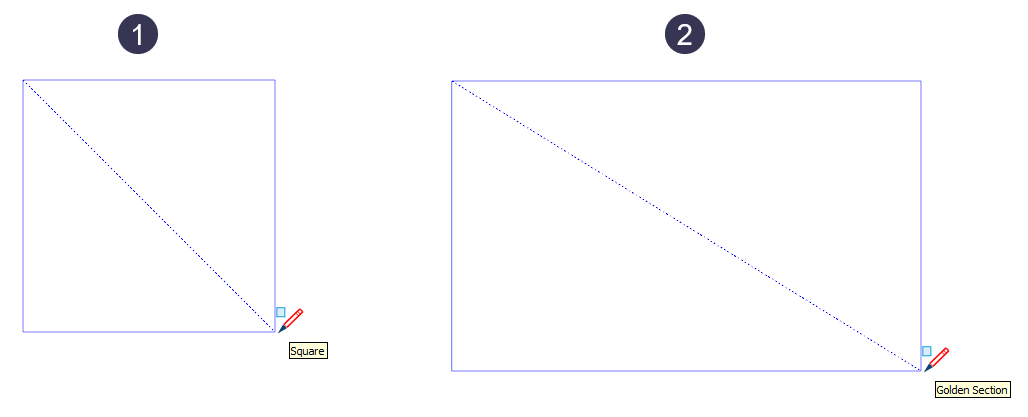
在视频中,您可以看到矩形工具的这些功能效果。
提示: 一旦您绘制了矩形,则在执行其他操作后将无法修改其宽度或长度。这意味着如果您绘制另一个矩形或选择另一个工具,您将需要擦除该矩形或使用比例尺工具对其进行更改。
绘制旋转的矩形
旋转的矩形工具可在与 SketchUp 的默认红色、绿色或蓝色轴或其他几何体成一定角度时绘制矩形。
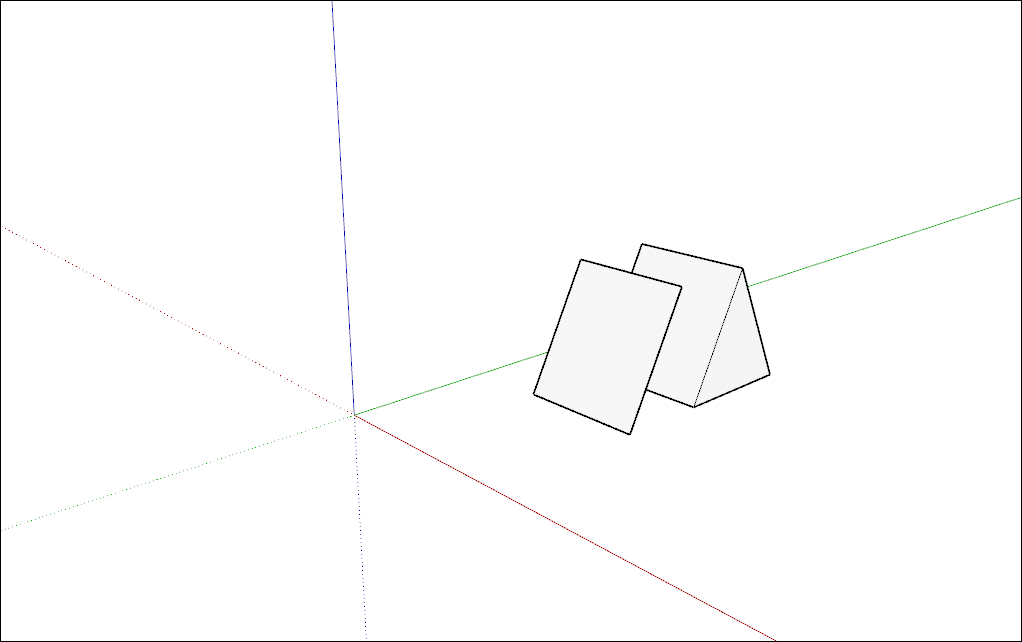
要创建旋转的矩形,请按照以下步骤操作:
在工具栏上,从 Shape Tools(形状工具)菜单中选择 Rotated Rectangle(旋转的矩形)工具 (
 )。或者从菜单栏中选择 Draw > Shapes > Rotated Rectangle (绘制 > 形状 > 旋转的矩形)。
(可选)按箭头键为旋转的矩形设置平面。例如,按向左箭头键将旋转的矩形所在的平面限制为绿色平面。
单击以设置矩形的第一个角。
创建旋转的矩形的第一条边,方法如下:
输入精确的尺寸,然后按 Enter 。
或者使用 SketchUp 推导引擎将光标移动到您想要放置该边第二个端点的位置。
Tip: You can use a few modifier keys as you complete this step. Hold down the Shift key to keep the first edge to its current direction. The Alt (Windows) or Command (macOS) key locks the protractor plane. The arrow keys can help align the first edge to an axis.
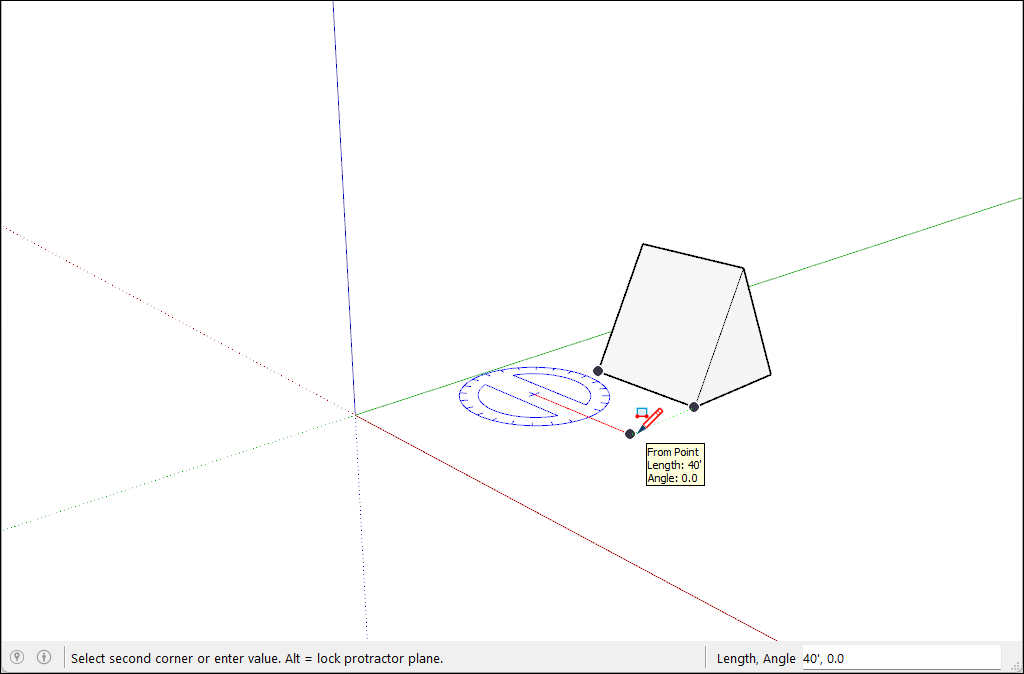
设置矩形的宽度和角度:转动量角器可设置角度,将光标从量角器的中心移开可设置宽度。要限制角度,请按住 Shift 键。
单击以完成创建旋转的矩形。
提示: 按 Alt (Windows) 或 Command (macOS) 键可将量角器基线设置在光标当前的位置,然后移动光标可测量与所设基线的角度。随后出现一条虚线,以便您可以看到新的基线。
Drawing a circle or ellipse
Before you draw a circle, it’s helpful to understand how SketchUp creates circle entities:
Circle entities have a radius and connect multiple line segments.
These segments act as a single line by defining the edge of a face and dividing a face. Selecting one segment selects the entire circle entity.
SketchUp’s inference engine still sees the segments in the circle. So, if you hover your mouse around the circumference of the circle entity, you’ll see endpoint and midpoint inferences.
To draw a circle, follow these steps:
On the toolbar, select the Circle tool (
 ) or press the C key. The Measurements box indicates the default number of sides. To change the number of sides, type a value in the Measurements box.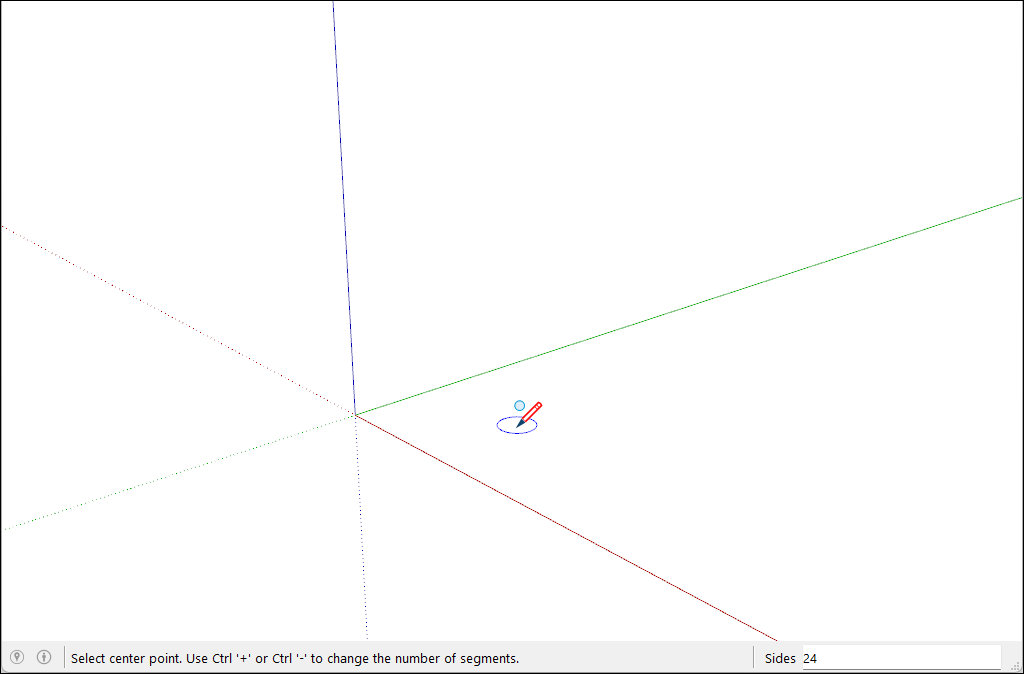
Move the cursor out from the center point to define the circle’s radius. As you move the cursor, the radius value is displayed dynamically in the Measurements box. Press Esc at any point to start over.
Click to finish the circle. SketchUp creates a circle-shaped face, as shown in the figure.
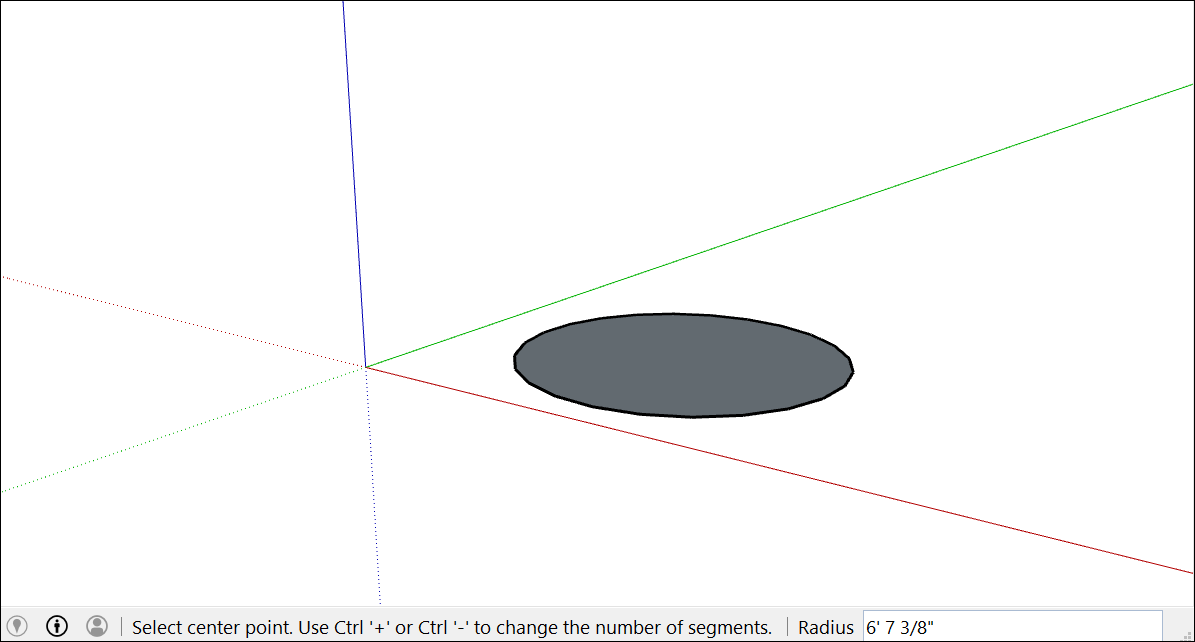
(Optional) Until you select a new tool or draw a new circle, you can use the Measurements box to change the circle’s radius or the number of sides:
To change the radius: Type a number and a unit (if desired), such as 6” , 8’ , 34cm , or 7m . Then press Enter or Return .
Tip: The Entity Info dialog box offers a handy way to edit the sides and radius values anytime. See Editing shapes later in this article for details.
To draw an ellipse or oval, follow these steps:
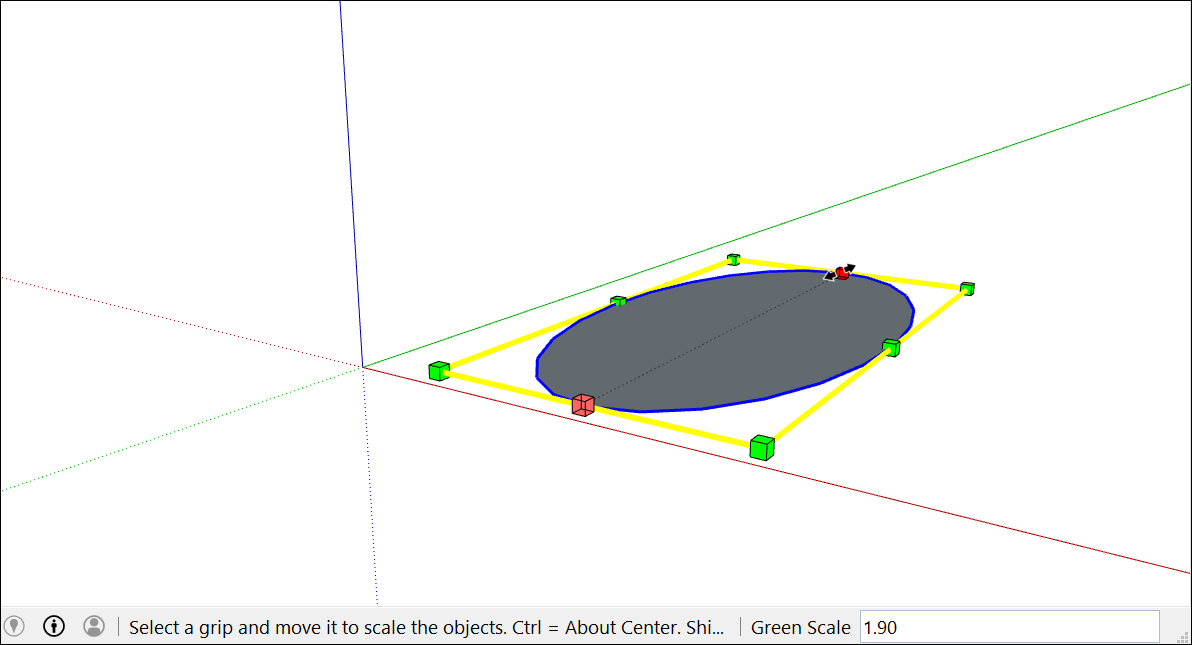
Draw a circle with the Circle tool.
Select the Scale tool (
 ).
).Click the circle. A bounding box with eight green grips is displayed around the circle.
Click one of the middle grips (not one of the corner grips) and move the mouse to pull the circle into an ellipse, as shown here.
Click again when you’re done scaling the circle.
Drawing a polygon
You can create polygon entities with the Polygon tool. Here are a few facts that may come in handy when you create them:
In SketchUp, a polygon has a radius and 3 or more sides measured from a center point. The number of sides determines the type of polygon you draw. A pentagon has 5 sides; an octagon has 8 sides.
Polygon entities act as a single line both defining an edge and dividing a face. Selecting one side of the polygon selects the entire polygon.
The SketchUp inference engine sees each side of a polygon as a segment. As you hover your cursor over a polygon, you see endpoint, midpoint, and from point inferences.
You can draw polygons on faces or separate from existing geometry.
Follow these steps to draw a polygon:
Select the Polygon tool (
 ) on the toolbar. The Measurements box indicates the current number of sides. To change the number of sides in your polygon, type a number value.
Move the cursor out from the center point to define the radius of your polygon. As you move the cursor, the radius value is displayed dynamically in the Measurements box. To specify the radius, type a value and press Enter . You can also press Esc to start over.
Click a second time to finish the polygon.
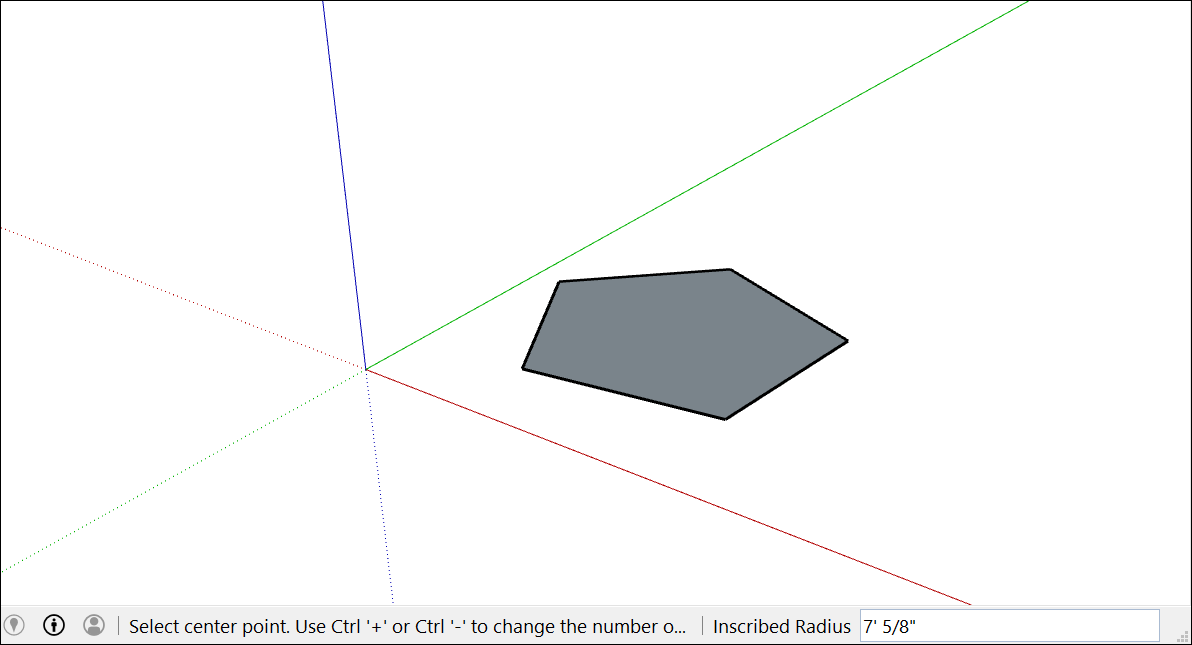
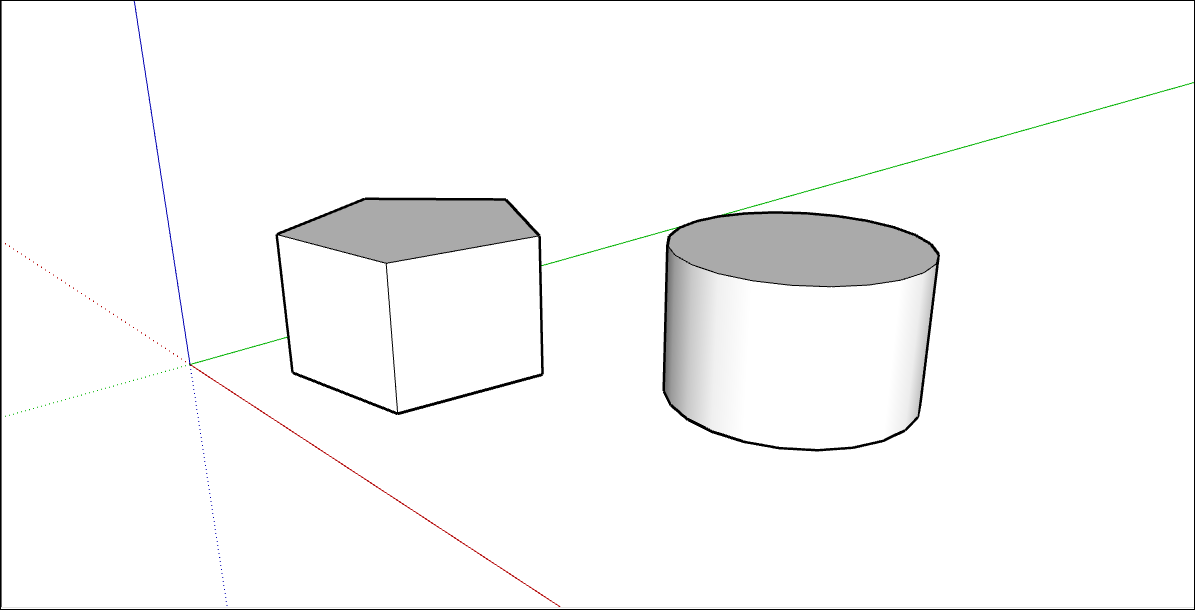
(Optional) Until you select a new tool or draw a new polygon, you can use the Measurements box to change the radius or the number of sides. Although the Polygon tool works similarly to the Circle tool, when you push/pull a circle or polygon into a 3D shape the circle’s edges look smooth, but a polygon’s edges show distinct sides.
Editing shapes
The Entity Info dialog box can help you change a circle or polygon’s radius or sides anytime after you create the shape. To make changes to a shape you have drawn:
Context-click an edge (not the face) of a circle or polygon that you want to edit.
Select Entity Info from the context menu that appears, as shown here.
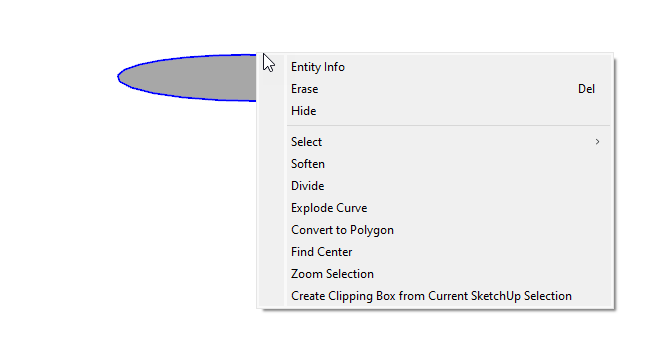
In the Entity Info panel, click in the Radius or Segments box, change the value, and press Enter (Microsoft Windows) or Return (Mac). After you press Enter or Return, your shape reflects your changes.