
Importing CAD Data into LayOut
Computer Aided Design (CAD) is a general term describing software used to create, modify, analyze, or optimize 2D or 3D designs. LayOut's CAD file importer is a flexible tool that helps you import the data you need from CAD files and work with that data in different ways.
Importing a CAD file using Paper Space Options
LayOut handles imported CAD data into paper space in the following ways:
Paper space information such as title blocks, legends, and north arrows import at full size (1:1 scale) as native LayOut entities.
If the file contains model space information, clearing or checking SketchUp model reference determines how LayOut imports that information:
If Import model space viewports as SketchUp model references instead is not checked LayOut imports the information as native LayOut entities using the scale in the imported file.
If Import model space viewports as SketchUp model references instead is checked LayOut imports the information as a scaled SketchUp model reference and the data appears in a SketchUp model viewport.
LayOut entities are organized into groups based on layers in the original CAD file.
Use the following steps to import a CAD file using the paper space options:
Select File > Insert .
Navigate to the CAD file you want to import, select the file, and click Open . The DWG/DXF Import Options dialog box appears.
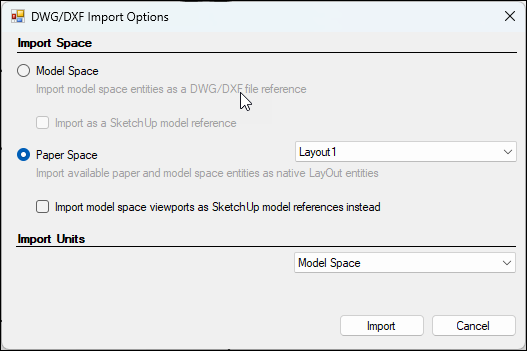
Make sure the Paper Space option is selected.
If importing a CAD file with multiple sheets or pages, select one using the drop-down list.
If importing a model with units defined use the Model Space Units drop-down list and select desired unit of measurement.
Select Import model space viewports as SketchUp model references instead If you want model space information to be imported as a SketchUp model reference.
Click Import on Windows or OK on Mac.
Importing only model space data from a CAD file
If you want to import only model space information, LayOut helps you to do that. You can choose to import that model data as LayOut entities or as a SketchUp model reference.
Follow these steps to import only model space data from a CAD file into LayOut:
Select File > Insert .
Navigate to the CAD file you want to import, select the file, and click Open . The DWG/DXF Import Options dialog box appears.
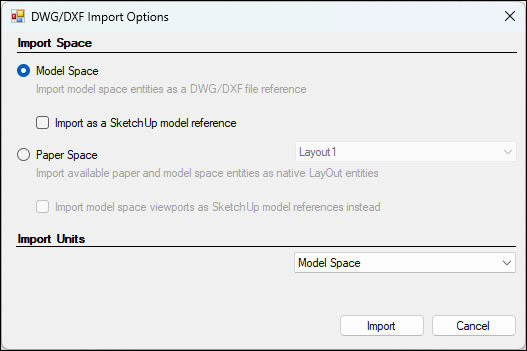
Select the Model Space option.
If importing a model with units defined, use the Model Units drop-down list and select your desired unit of measurement.
Select Import as a SketchUp model reference If you want model space information imported as a SketchUp model reference.
Click Import on Windows or OK on Mac.
Support for CAD elements in LayOut
The LayOut CAD file importer supports many CAD elements. The following list outlines what elements are supported.
3D faces
3D solids
Arcs
AutoCAD regions
Circles
Dimensions
Ellipses
Entities with thickness
Faces
Hatching
Images
Layers (Groups based on layers)
Leaders
Lines
Line Styles
Line weights
MInsert blocks
Polylines
Splines
Text (both Mtext and Dtext)
XREFs
The LayOut CAD importer does not support proprietary ADT or ARX objects.
Tip : Imported DWG files can be managed as references like image files or .skp files. See Managing Changes and Updates to SketchUp Files within LayOut for more information.