
Face Styles
You can edit any of SketchUp’s default styles to better match your workflow. When editing a style, SketchUp provides options that can change how faces look in your model.
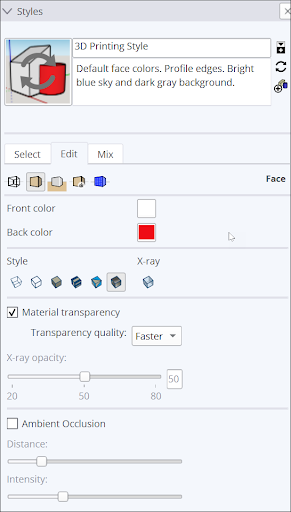
The following style options are available under Face Settings in the Styles panel:
After choosing a face style, there are a few more options you can adjust:
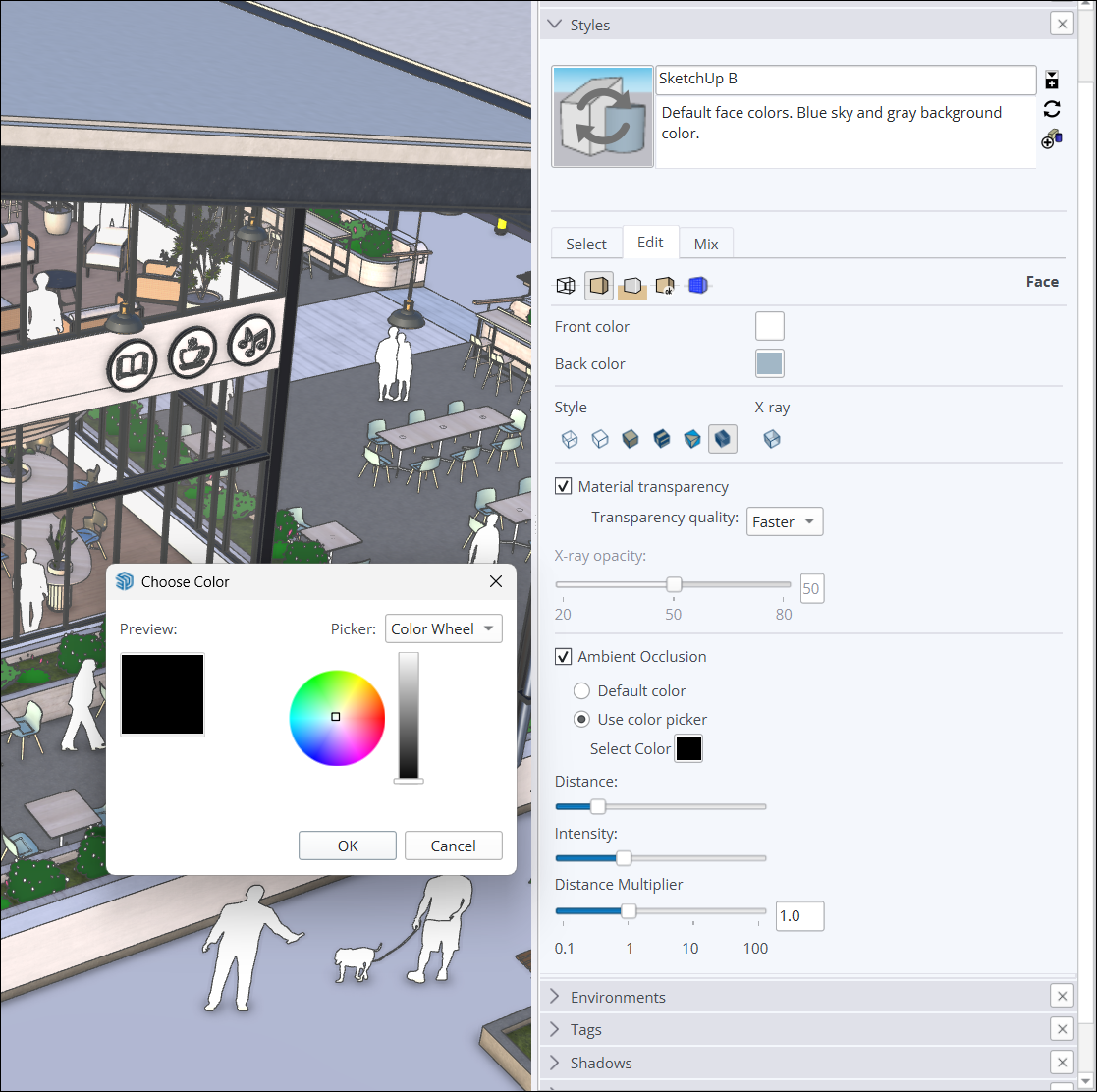
Material Transparency – Toggles global material transparency on or off.
Transparency Quality – Change speed and quality of transparency sorting between Faster or Nicer. Faster provides faster rendering, but has lower quality. Nicer won’t render as fast but looks better.
Ambient Occlusion – Enabling Ambient Occlusion provides the following additional options:
Color Controls – Choose between the default colors in your model, or use the color options to choose a color. The color you chose applies dynamic shading effects.
Distance – Increase or decrease how far away the effect of occlusion is from your edges.
Intensity – Increase or Decrease the depth and strength of the shading used on your edges and faces.
Distance Multiplier – Control the distance at which occlusion effects appear in your models. A higher number means occlusion effects will still be visible when zoomed out.