
Materials Panel
The Materials panel (  ) is where you can find, manage, and create materials to use in your SketchUp models. Selecting the Paint Bucket tool (
  ) will also open the materials panel.
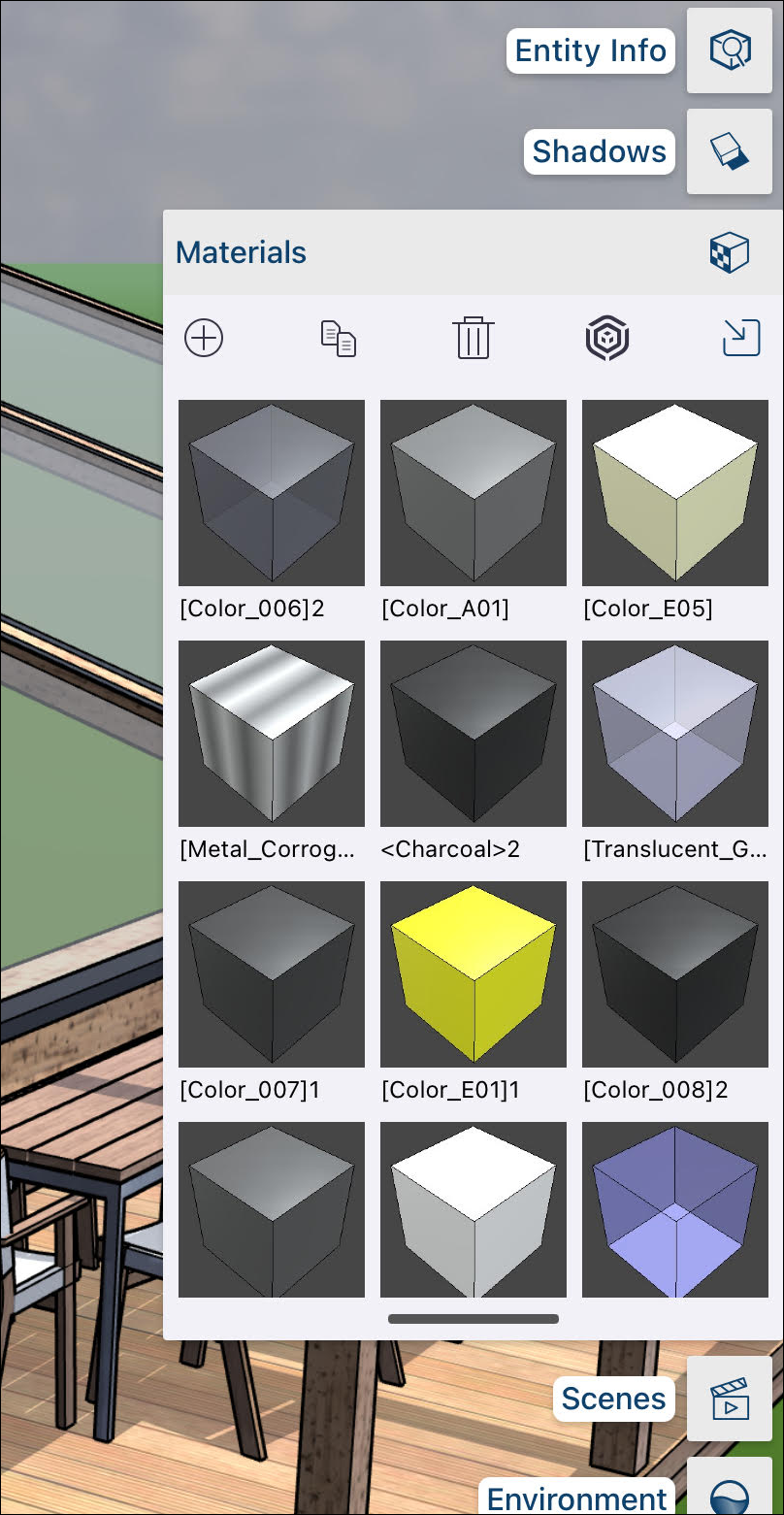
The following options are available in SketchUp for iPad’s Materials panel:
Edit Material Details – Long press or double click a material to open Edit Material Details where you can edit the name, color, texture map settings, or opacity of the selected material.
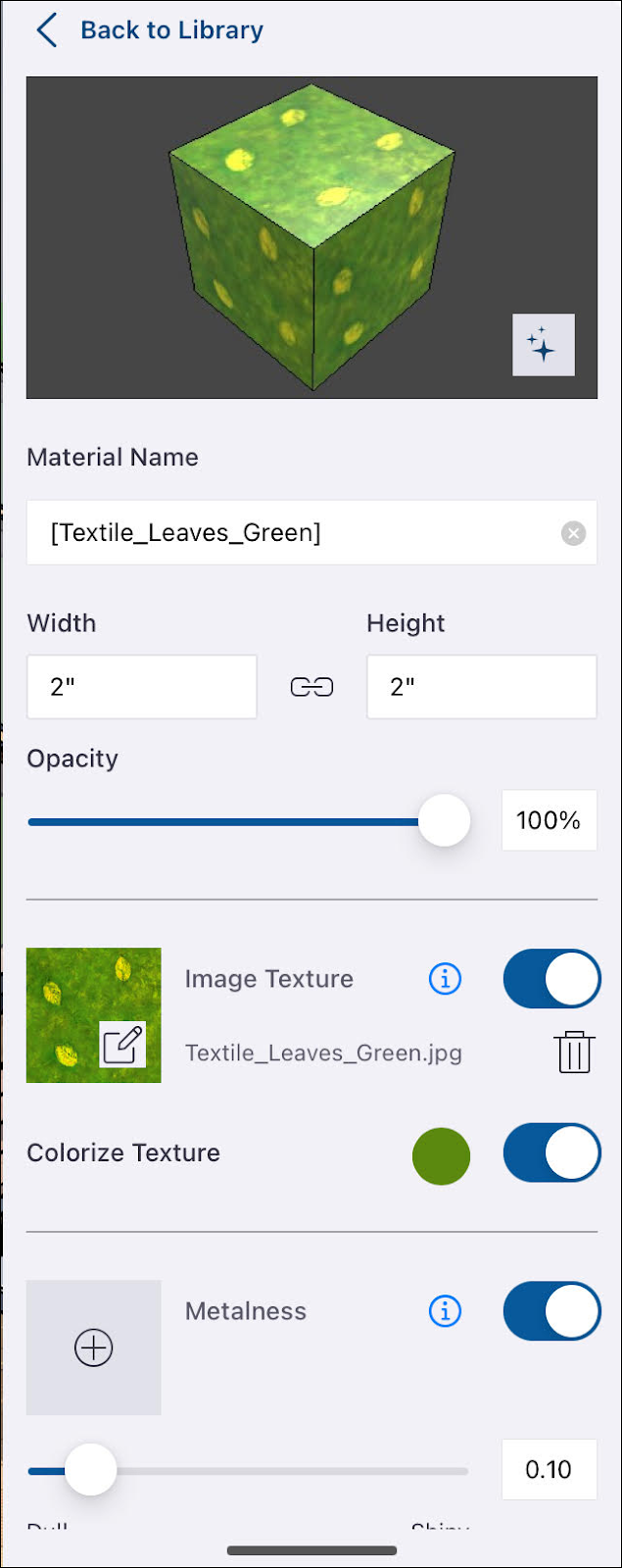
Tip: Clicking Generate Textures (  ) in the Edit Material Details preview window can help you create Physically Based Rendering (PBR) texture maps for materials that don’t have them, or update those that do. For more information on how it works, see Generate Textures .
Add (
 ) – Create your own material in the Edit Material Details modal by selecting a name, choosing a color, adding texture maps, or adjusting the opacity.
Copy (
 ) – Available when a material is selected, copies that material and opens the Edit Material Details modal.
Discard (
 ) – Removes the selected material.
3D Warehouse (
 ) – Opens the 3D Warehouse Materials page. When you download materials from 3D Warehouse, those materials are automatically added to your Materials panel.
Import (
 ) – Imports saved materials from your device.
For more information on all you can do with Materials, see Materials, Textures, and Environments .