
转换扫描空间数据
Beginning September 16, 2025, SketchUp Viewer for Meta Quest will no longer be available to download. For more information, see End of Support - Viewer for Meta Quest .
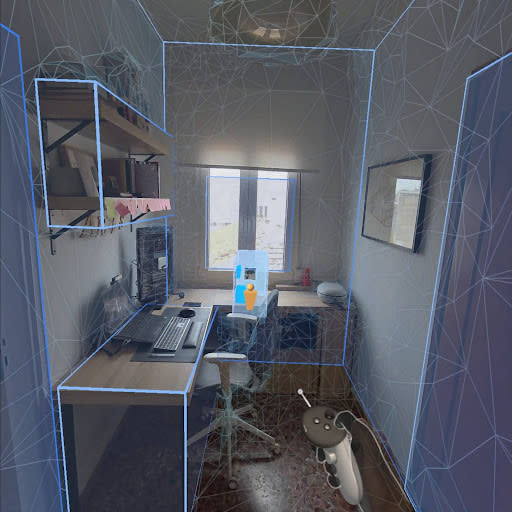
After you scan a space and click Confirm , SketchUp Viewer will convert the scanned data into a simplified SketchUp model. All faces in this model appear with semi-transparent materials applied.
Spatial Anchors and Alignment
SketchUp Viewer places you in immersive mode and aligns the model to your real-world environment using a technology called Spatial Anchors. Spatial Anchors help your device find key elements in the real world during the scanning process that can be identified again. Those Spatial Anchors are then used to align the scanned model.
Spatial Anchors are stored within the SketchUp file for your model. That means that when you open your scanned SketchUp model in any other version of SketchUp (Desktop, Web, or iPad) you can make edits, or even add things from 3D Warehouse. You can then save those edits and head back to SketchUp Viewer and see how those changes would look in your real-world space. Note: If you edit a model created with Scan Space, do not move any original scanned entities. This may alter or remove Spatial Anchors and prevent your model from successful realignment. If needed, you can hide entities without affecting Spatial Anchors.
After completing a scan, and anytime you activate Return to Alignment, SketchUp Viewer activates Passthrough mode. SketchUp Viewer locks navigation to prevent any accidental alignment changes. If you need to navigate away from the current position you can always select Return to Alignment on your toolbar to realign your model.

Return to Alignment is only available if you open a model with Spatial Anchors stored and you are in the original scan location that matches those anchors. If the original space has changed, like if furniture was moved, the Spatial Anchors will not match and Return to Alignment will not be available. The Return to Alignment icon changes based on the status of your model:
Tags in Scanned Spaces
During data conversion, Scan Space automatically groups, names, and organizes scanned elements using Tags.
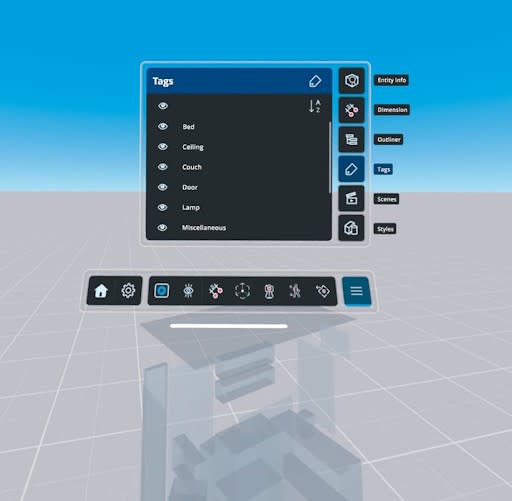
SketchUp Viewer uses the following tags:
Bed
Ceiling
Couch
Door
Lamp
Miscellaneous
Plant
Screen
Storage
Table
Wall
Wall Art
Window
For more information on how Tags work in SketchUp, see Controlling Visibility with Tags .