將形狀推拉成 3D
您可以使用「推/拉」工具(  )從一個面建立 3D 形狀,或從模型中切割出 3D 形狀。您可以推/拉任何類型的面,包括圓形、矩形和抽象面。
這支影片示範可以用「推/拉」工具完成的所有技巧;
從面拉出 3D 形狀
如果要拉出一個面,為您的模型增加體積,請按照以下步驟操作:
選取 「推/拉」 工具 (
) 或按下 P 鍵。使用「推/拉」游標,按一下您想要延伸的面。您選取的面上會出現陰影。
Tip: If you need to push/pull a face that’s difficult to select, try preselecting the face with the Select tool and then push/pulling the face. If you need to start over, press Esc .
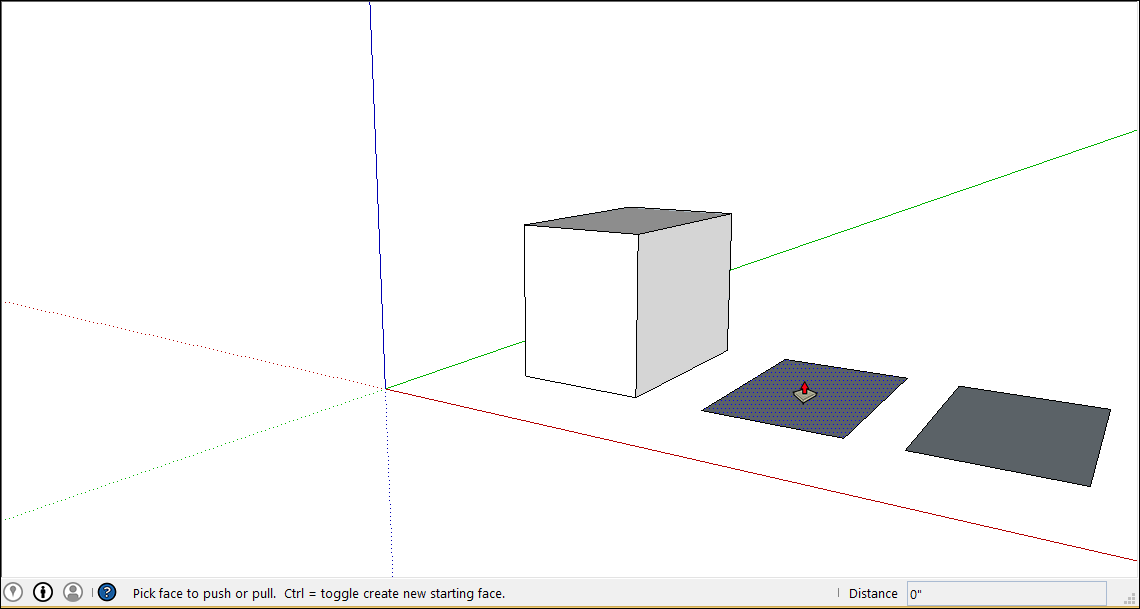
移動游標以延伸選取範圍。「測量」方塊會顯示延伸面的深度(也稱為拉伸)。
Tip: If you need to pull a face so that it’s parallel with another face, let the SketchUp inference engine help. Before you pull the face, hover the Push/Pull cursor over the other face, and the inference engine tells you when the two faces are parallel.
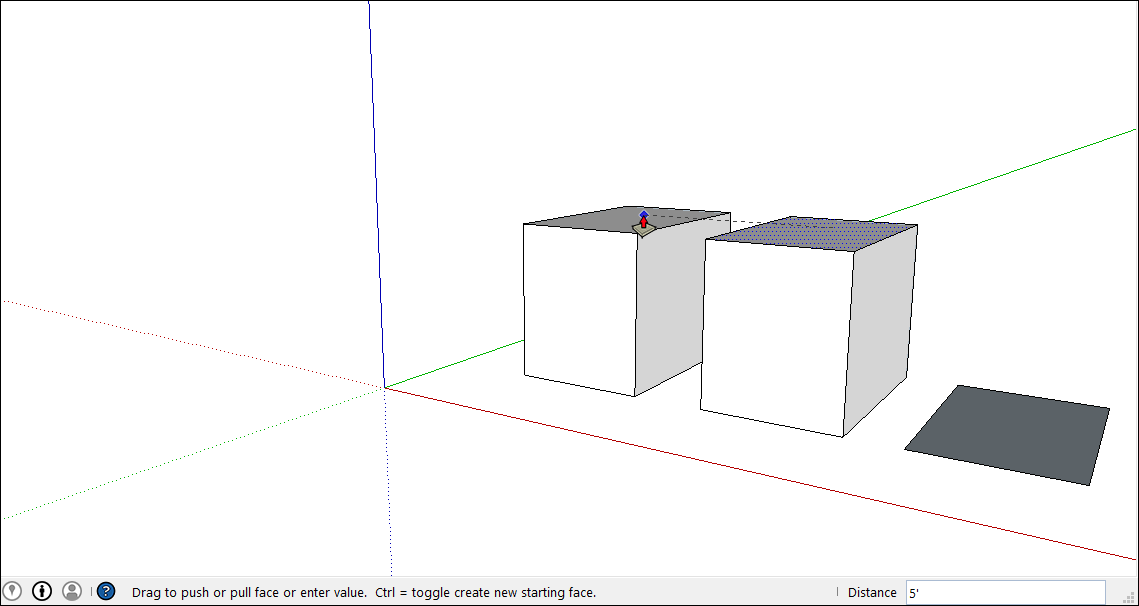
再按一次以設定拉伸高度。在選取另一項物件前,您可以在「測量」方塊中輸入精確距離。輸入一個數字和值,再按下 Enter 。
受到繪製限制影響,如果您拉出的實體很小(小於 1 英吋或 2.54 公分),則您就能透過該實體看到邊緣。而您實體的厚度必須為 1 英吋或以上,才會讓此透視效果消失。如果透視效果顯示出的邊緣會對您造成問題,請選取該邊緣,在上面按一下右鍵,然後選擇「Hide(隱藏)」。
在使用「推/拉」工具為模型增加體積後,可以立即將拉伸的大小加倍,或建立另一個相同的拉伸:
如果要將拉伸複製到另一個面上, 請在另一個面上按兩下。
若要將相同的拉伸疊在現有拉伸的上方, 請在該面上按 Ctrl + 按兩下滑鼠 (Microsoft Windows) 或 Option + 按兩下滑鼠 (macOS)。
注意: 以「推/拉」工具建立曲面時,您會建立出一個面實體,也就是一個看似平滑但其實由許多較小的面組成的面。如果想知道關於面實體的詳細資訊,請參閱 「軟化、撫平與隱藏幾何體」。
從模型中切割出 3D 形狀
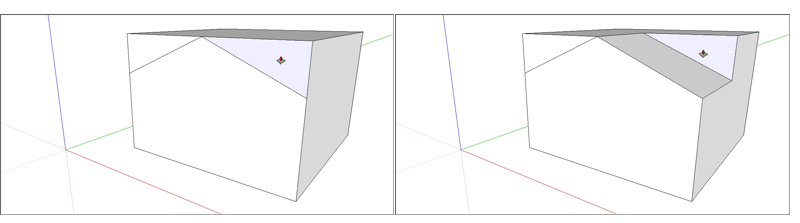
您也可以使用「推/拉」工具從模型中將元件切割出來。這項操作應用在各種實例上都很方便,例如製作門口、創造斜角屋頂或為緊固件切出凹口。
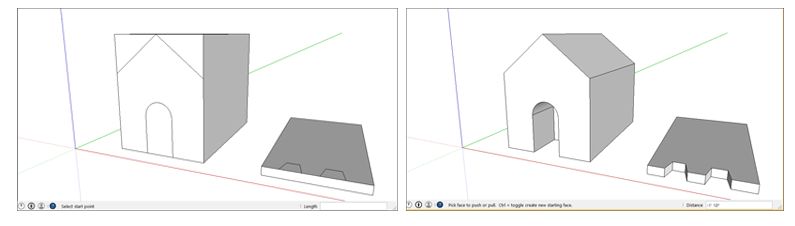
請依照以下步驟使用「推/拉」工具減去體積:
選取 「推/拉」 工具 (
) 或按下 P 鍵。按一下您想要推的表面。
將游標往想要推的方向移動。您可以只部分推進模型以移除其中一部分。若要完全移除內容,請持續拖曳,直到提示位移受限制的訊息出現。
Tip: To completely remove the content, the pushed face must be parallel with the face on the opposite side of your model. If any lines divide the opposite face, you need to erase those lines before you can cut a hole through your model.
再按一下滑鼠來完成操作。使用「測量」方塊來設定精準距離,請輸入一個數字和值,再按下 Enter 。