
尋找及使用「新增位置」
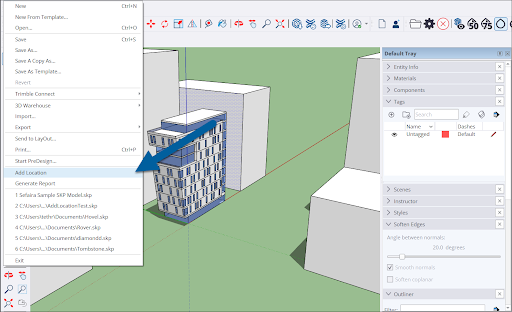
To get started with Add Location, select File > Add Location from the Menu bar.
Another way to open Add Location is in Model Info. From the menu bar click Window > Model Info . Select Geo-location from the options on the left of the window and click Add Location .
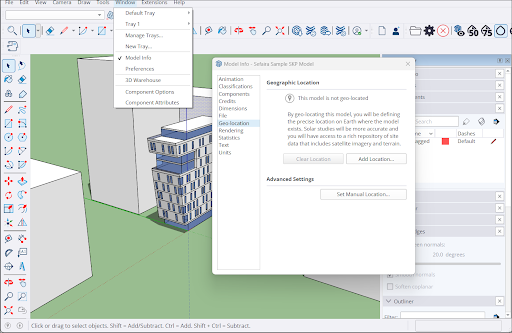
The Add Location window will appear.
Tip : Add Location is available on both SketchUp for iPad and SketchUp for Web. On iPad, you can find Add Location in the Shadows panel . For SketchUp for Web, see How to Use Add Location for where to find it and some basic instructions.
For next steps see:
Geolocating with Add Location - A guide to adding geolocation data.
Site Context with Add Location – Adding site context such as map imagery to your models.
Geolocation in Model Info – The Geo-Location section of Model Info is where you can find your location data and also contains a few other options.
Clearing Geolocation Data – How to clear location data using Add Location or Model Info.
Deleting Imagery – How to delete imported map imagery.
Using Your Own Image for Site Context – A guide to using your own image with Add Location data.