Editing All Instances of a Component
Last updated: 4月 10, 2026•1 分鐘 read.
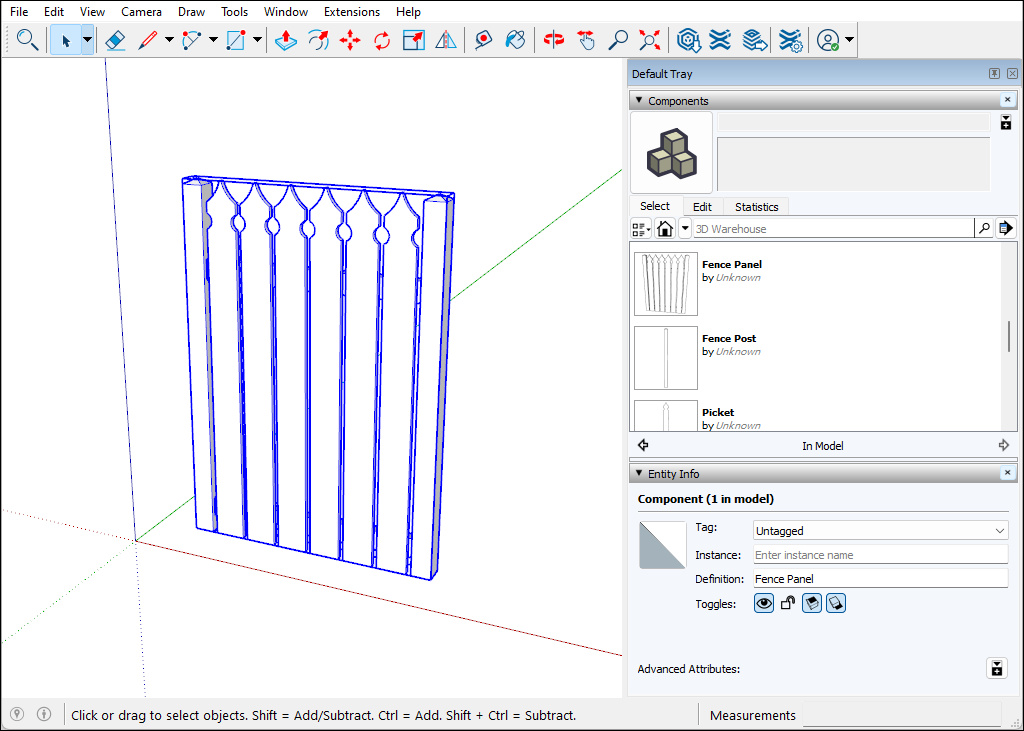
To edit all instances of a component, follow these steps:
Open the context for the component you want to edit. In this example, that's the Picket component. To open the context, you can double-click the component. Or select it, context-click the selection, and choose Edit Component , or simply hit Enter.
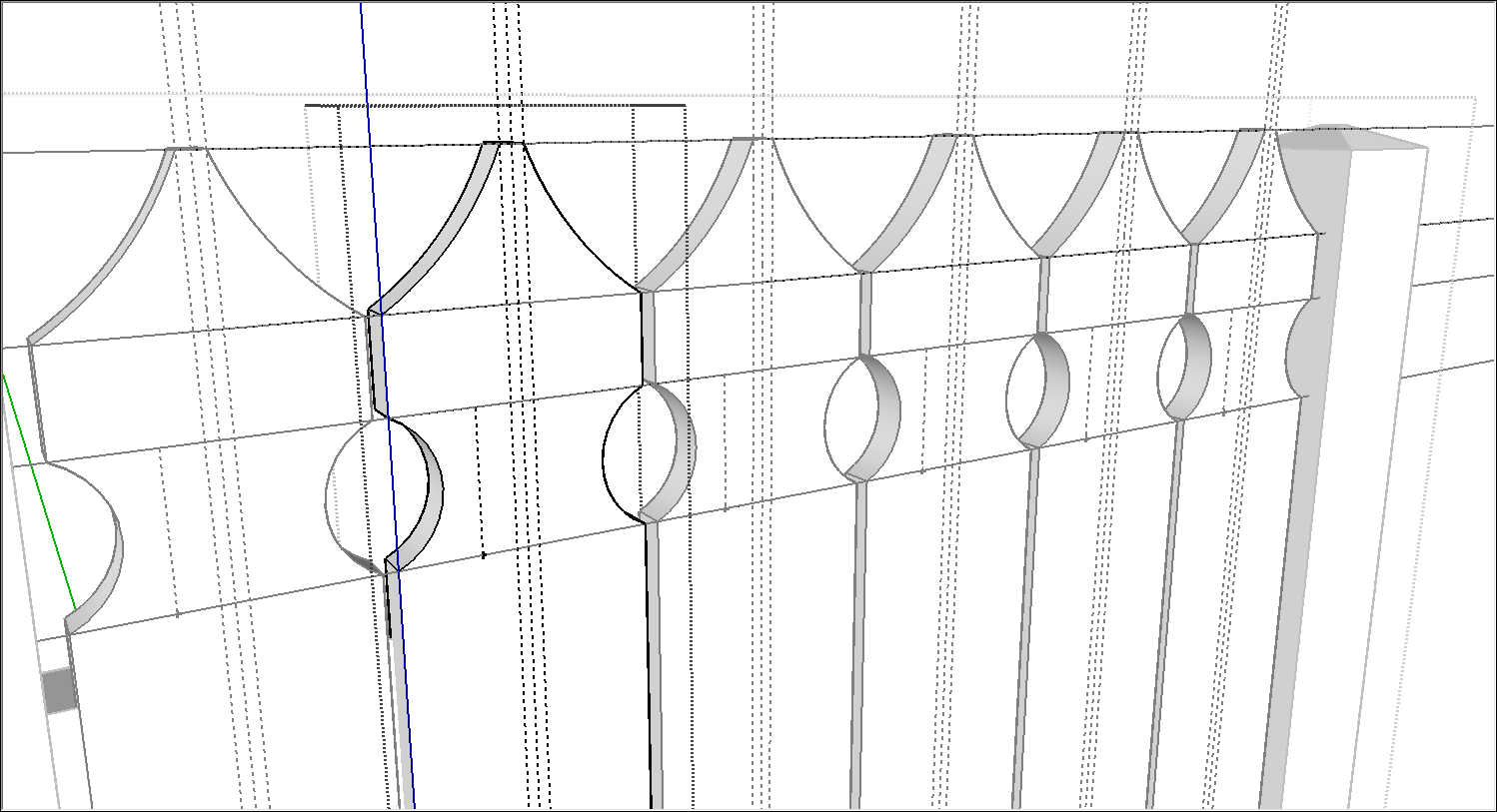
Use the SketchUp drawing tools to edit your component. In this example, we used the Line, Tape Measure, 2 Point Arc, and Push/Pull tool to change the top of the Picket component. All component instances change as you draw.
Click outside the component's context and save your work. SketchUp automatically updates the component definition to reflect your edits.