
Trackpad Controls
SketchUp for Web is optimized to be used with a 3-button mouse by default. If you're using a device with a multitouch trackpad, you can switch the input device to Trackpad in App Settings. With trackpad navigation you can use multitouch gestures like pinch-to-zoom or orbit/pan with a two-finger swipe.
You can switch the input device and modify navigation settings in the SketchUp for Web home page or after you have opened a model. The way you access the settings depends on what you’re doing.
To adjust navigation settings, follow these steps:
Use one of the below methods to start:
In the upper right of the SketchUp for Web home page, click your Profile image and select App Settings.
After you have opened a model, open the Menu (
 ) and click App Settings (
  ).
).
Click Navigation.
Under Choose Device, select Trackpad from the Device dropdown menu.
After selecting Trackpad, the option to map the two-finger swipe gesture unlocks. Assign Orbit, Pan, or Zoom as your two-finger swipe gesture.
Tip: After assigning an option as your two-finger swipe action, you can activate the other two options by pressing either Shift or Control.
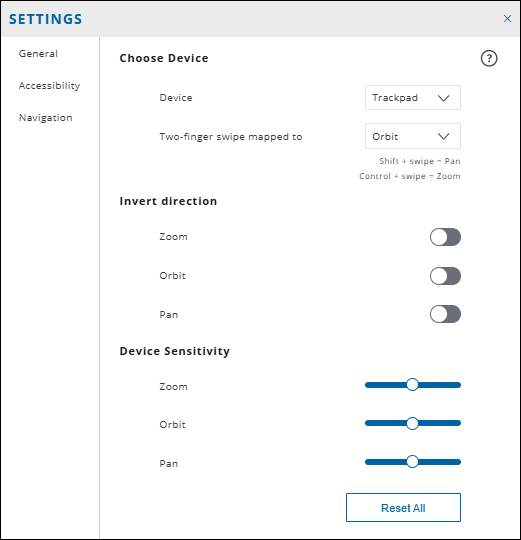
You can also fine-tune the performance of the Zoom, Orbit, and Pan actions using the Invert Direction and Device Sensitivity settings. These settings only adjust navigation operations and do not impact the Zoom, Orbit, or Pan tools.
Note: You can also control the settings and sensitivity of your input device in your device’s operating system’s device settings. If a gesture isn't working as it should, check those settings first.