
Searching for Models and Materials
3D Warehouse's Search tool helps you search for models based on keywords, phrases, or images.
Text Search
To search for models using keywords or phrases, type what you are looking for in the search bar and press Enter or click ( ).
).
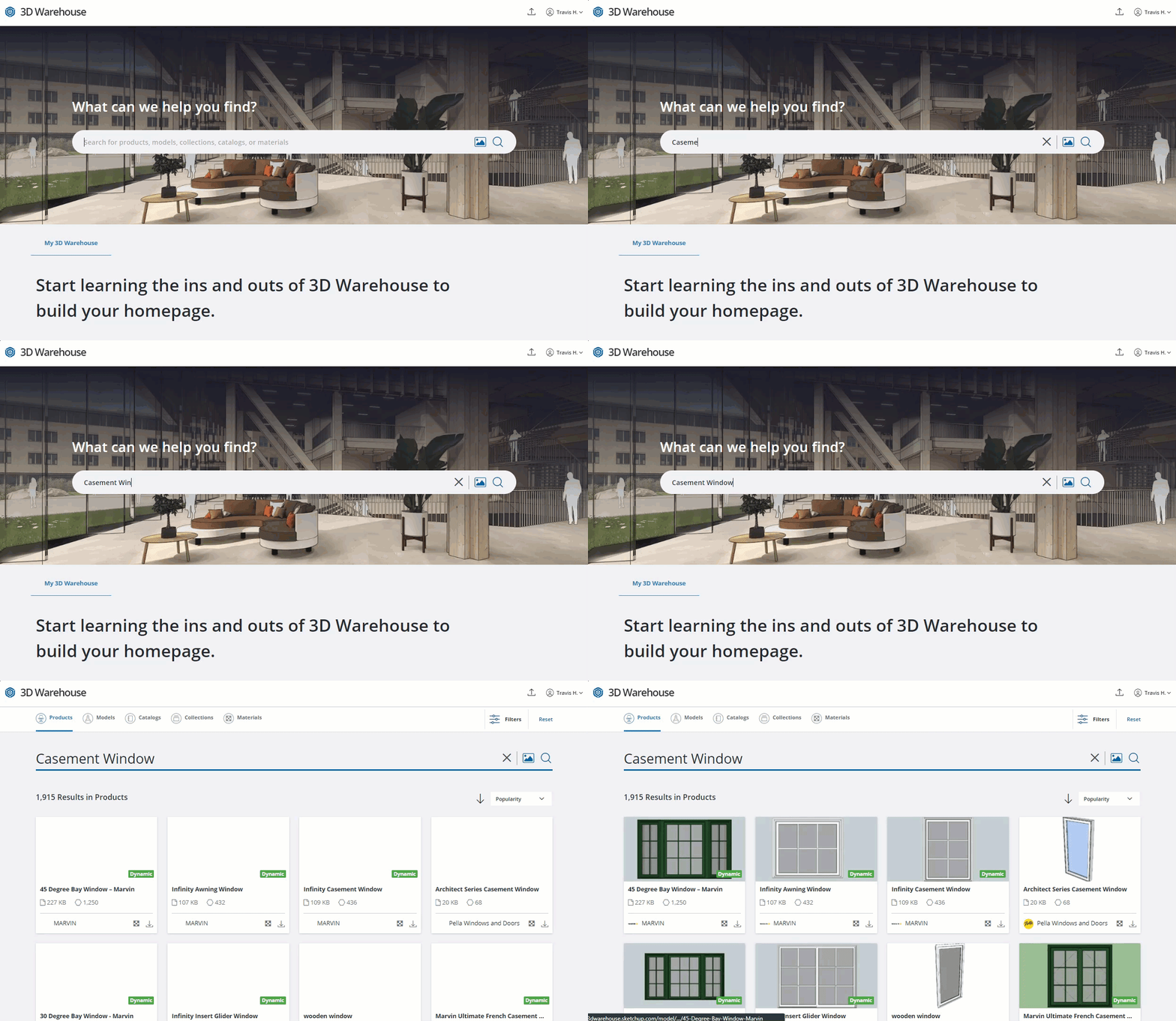
Image Search
With 3D Warehouse's image search, you can use a reference image to find similar models.
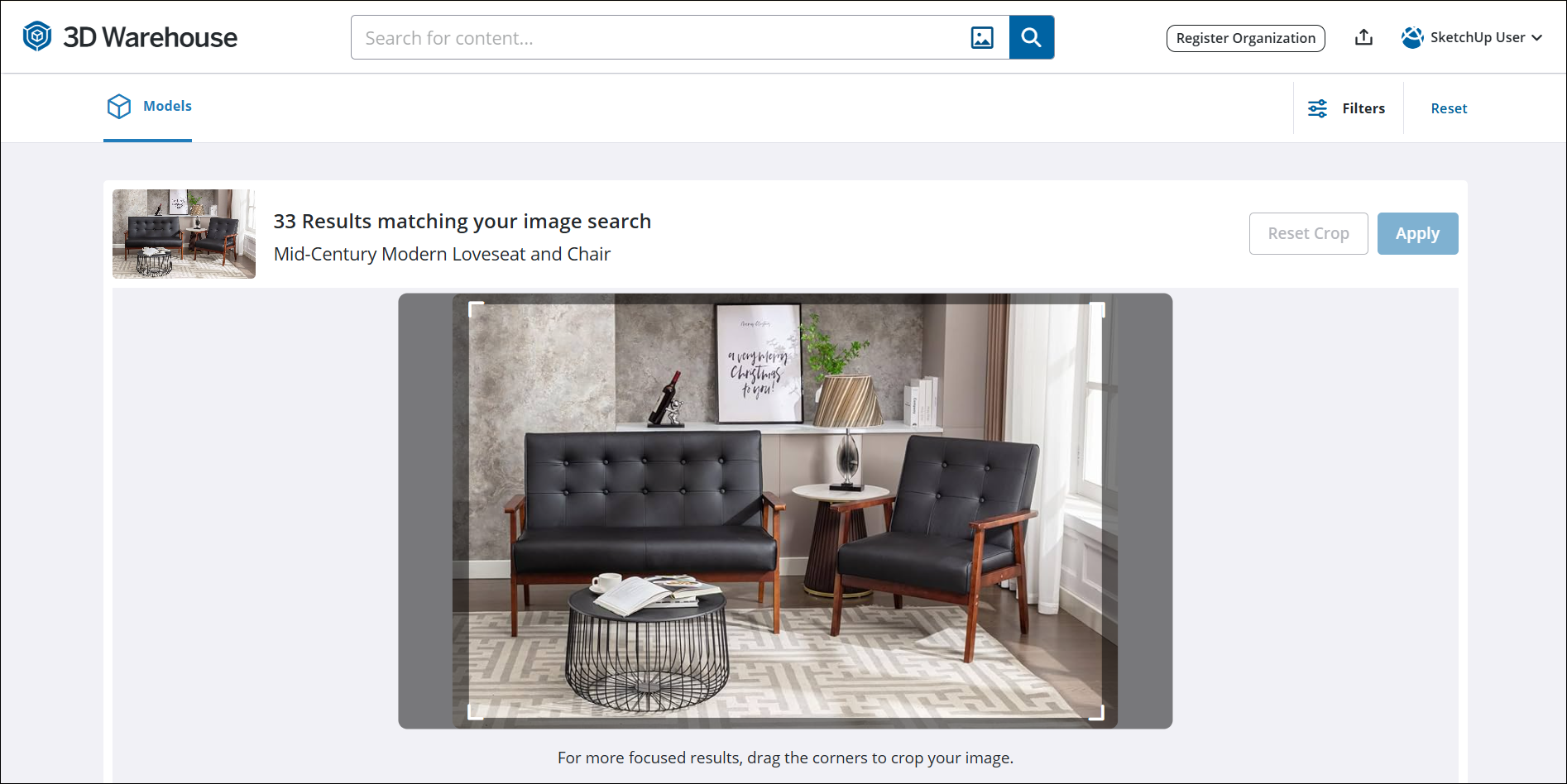
To search using an image:
Click (
 ) in the search box.
In the 3D Warehouse Image Search dialog, use one of the following methods to upload a reference image.
Drag-and-drop an image.
Browse your device for the image file.
Paste an image from your clipboard.
Enter a URL for an image.
3D Warehouse will find the best matches based on your reference image.
Scroll to view the current results.
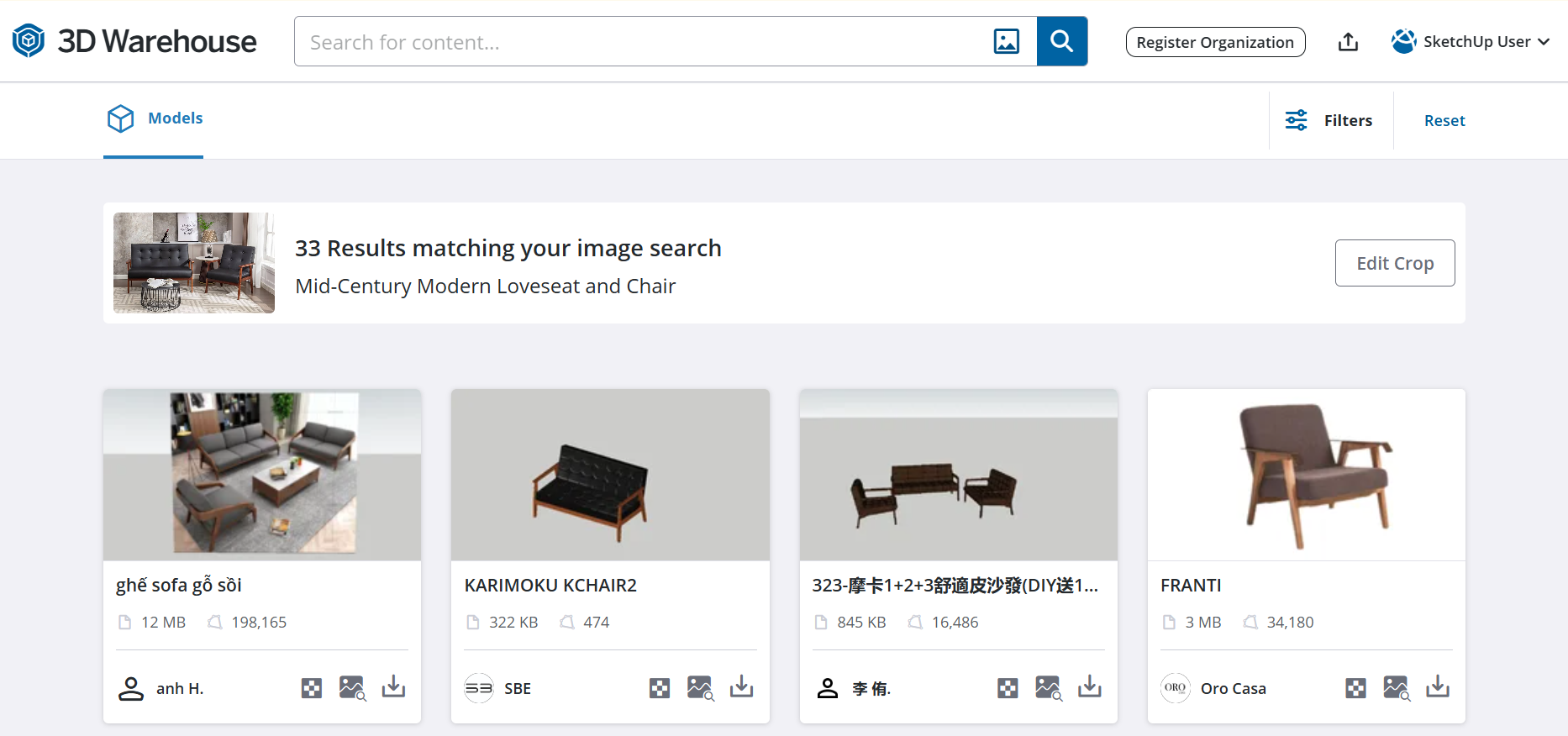
After uploading an image file, you can further modify the search results by cropping the image. For instance, you might upload an image of a living room set of furniture. To find matches just for the couch, crop the image so only the couch is visible.
To redefine a search by cropping a reference image:
After you have uploaded an image, drag the corners of the image in the results page to define a new search target.
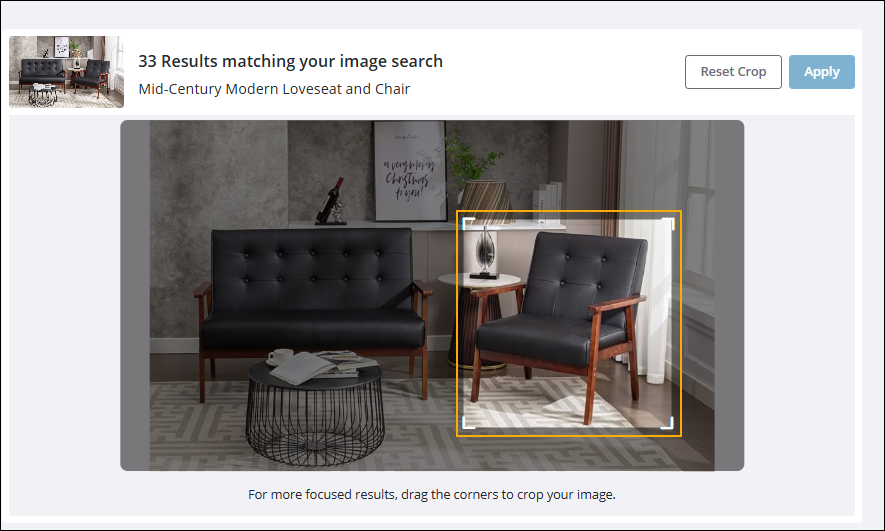
Click Apply. New results appear for the cropped image.
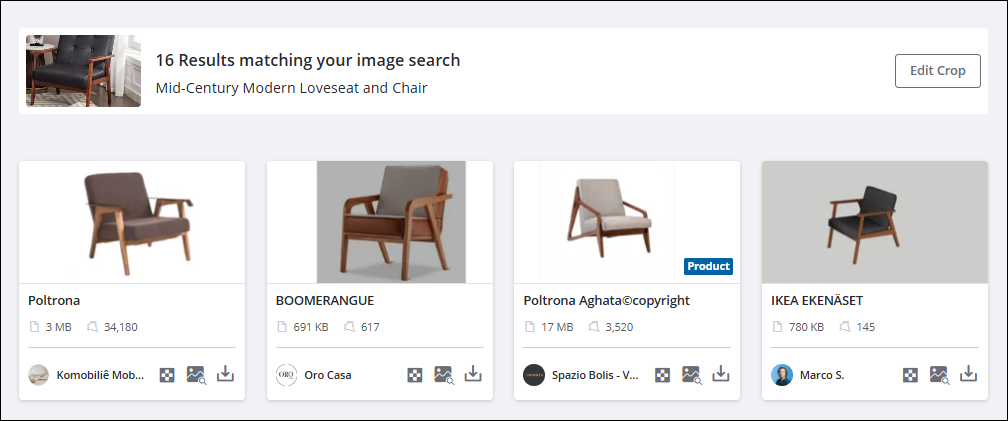
To return to the reference image, click Edit Crop.
You can then change how the image was cropped, or click Reset Crop and Apply to view the search results for the entire image.
Filtering Search Results
After you perform a search, you can narrow down your search results in a few different ways.
Search by Category
For text searches, you can filter by Models, Catalogs, Collections, and Materials.
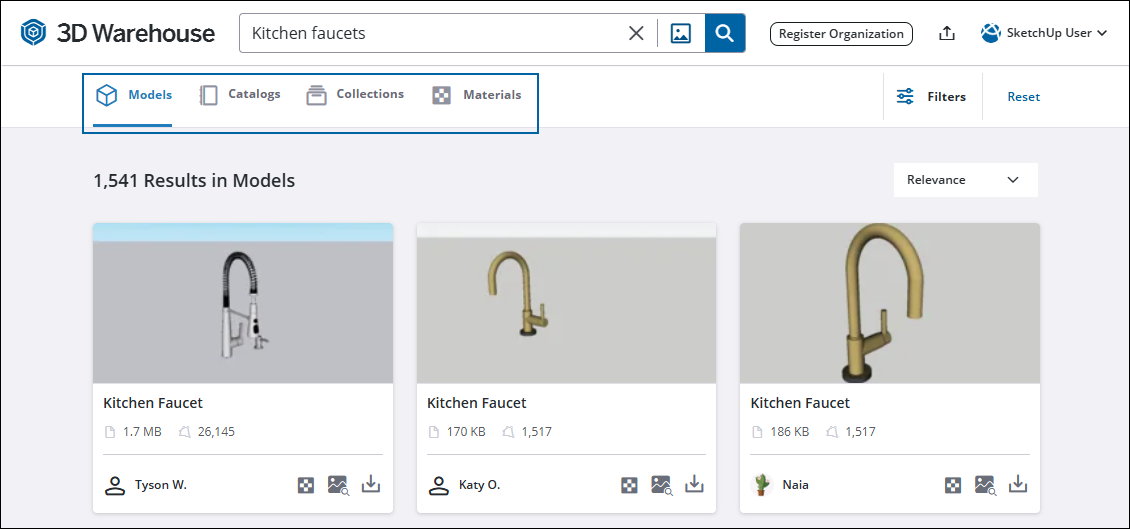
3D Warehouse lets you search by the following categories.
Models: Models incorporating your search criteria
Catalogs: Catalogs (a curated group of manufacturer models) related to your search criteria
Collections: Collections (a curated group of models) related to your search criteria
Materials: Materials matching your search criteria
Search through Filters
There are filters for each category with additional search criteria.
To view available search filters:
Click Filters in the upper right of the page. All available filters for that search category appear in the left pane.
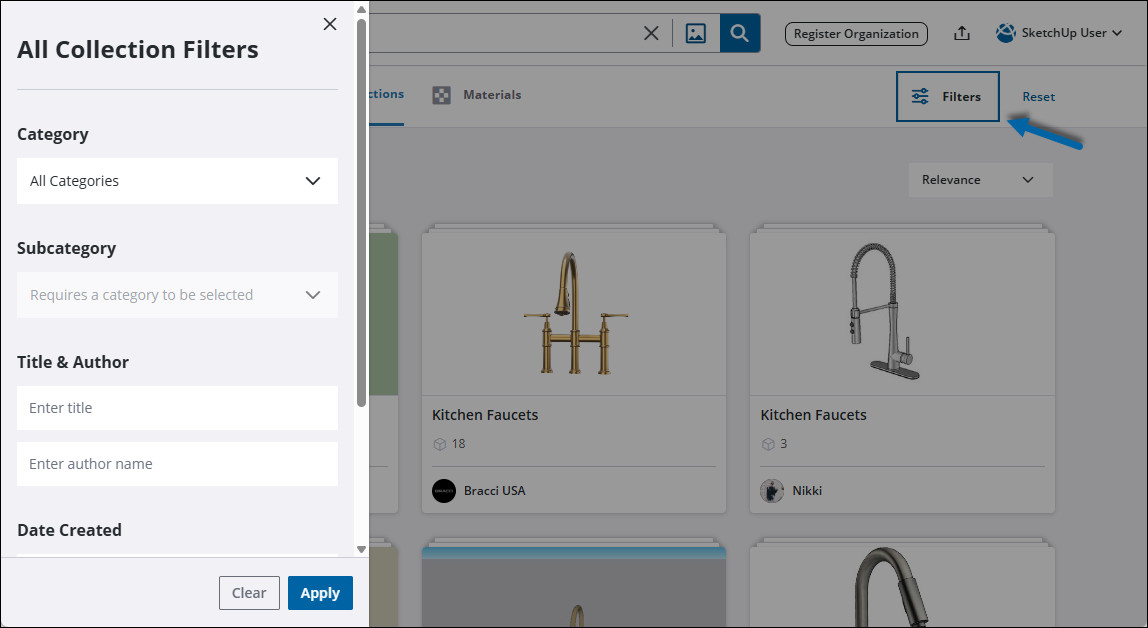
Click Reset to remove and reset all selected filters.
The search criteria for Models, Catalogs, and Collections include:
Category
Subcategory
File Size
Polygon Count
Specialty Filters
Dynamic Component
Live Component
Geolocated
Show Models with Photoreal Textures
Title & Author
Date Created
Date Modified
The search criteria for Materials include:
Result Types
All Results
Products
Materials
Category
Texture Map
Metalness Map
Roughness Map
Normal Map
Ambient Occlusion Map
Title & Author
Dated Created
Date Modified
Sorting Search Results
The dropdown menu above text search results contains sort options. After selecting a sort option, you can further sort your results into descending or ascending order by clicking the icon that appears ( ).
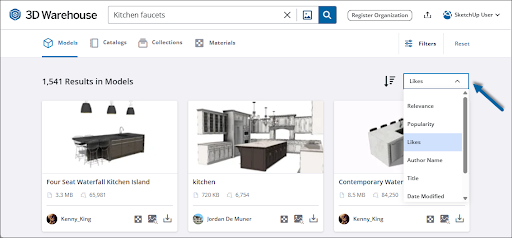
3D Warehouse offers the following sort options.
Relevance
Popularity
Likes
Author Name
Title
Date Modified
Date Created