
Offsetting a Line or Shape
The Offset tool enables you to offset a line or shape quickly and easily.
For example, perhaps you're a graphic designer who needs to outline a complex shape or an architect who needs to offset a footer in a foundation plan. Either way, the Offset tool can create the shape you need in only two clicks.
To create an offset, follow these steps:
Select the Offset tool (
 ) on the toolbar or from the Tools menu.
Click the entity that you want to offset. A preview of your offset appears, as shown in the following figure.
Click where you want to place the offset line or shape.
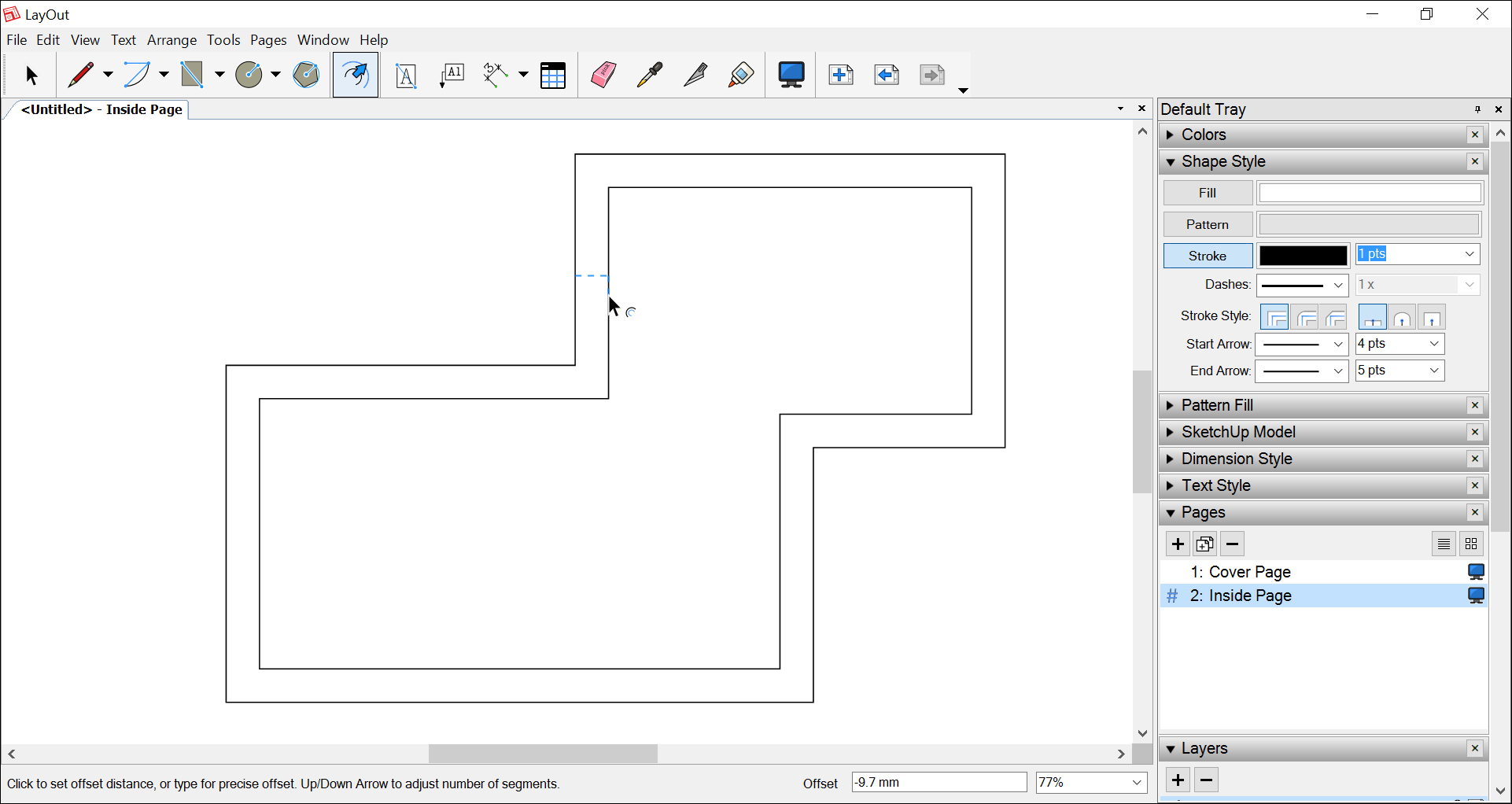
Here are a few tips for creating an offset:
To set a precise offset, type a measurement, such as 0.5", immediately before or after you complete Step 3. Remember that you don't need to click inside the Measurements box before you begin typing. If you don't specify a unit of measurement, LayOut uses the default unit of measurement in your template.
In the Measurements box, a negative number places the offset inside a shape or in the opposite direction of the mouse. A positive number places the offset outside a shape or in the direction of the mouse.
You can't offset an entity that's inside a group.
To offset both sides of a selected open path at once, hold down the Alt key (Microsoft Windows) or the Command key (Mac OS X).
To change the offset's line width or style, select it and choose your desired options in the Shape Style panel.
When offsetting a Bezier curve (which isn't a true Bezier), you can change the number of segments in the curve. After Step 2, simply press the up arrow or down arrow key.
Type a number and the letter X to create multiple offsets as once. For example, typing 2x creates two instances of the same offset.