
Adding or Disabling Multi-Factor Authentication
If you need to change your Multi-Factor Authentication (MFA) for any reason, you can do so from myprofile.trimble.com .
Adding MFA
To add another MFA option to your account, follow these steps:
Under Multi-Factor Authentication click Set Up next to the option you want to add.
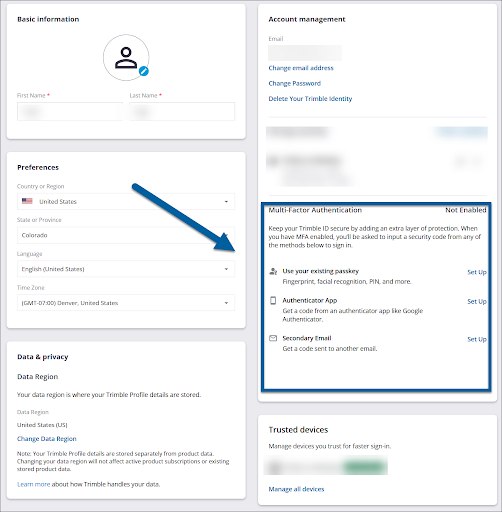
Follow the prompts based on that authentication method.
(Optional) When you sign in, click the context menu (
 ) and choose Make Default to make the new MFA method your default method.
Disabling MFA
Note : Before disabling MFA, you must have access to at least one MFA method to access your account. If you don’t have access to your MFA methods, contact our support team for assistance.
All Trimble accounts require at least one MFA method. If you choose not to use a passkey, an authenticator app, or use a secondary email, you will still need to login using a one-time passcode sent to your email address. To disable any of the active MFA methods on your account, open your profile and follow these steps:
Under Multi-Factor Authentication, click the toggle to the off position.
When prompted, enter your password and select Submit .
Enter the verification code sent to your preferred MFA method.
Confirm you would like to disable MFA.