
Secondary Email
One of the available Multi-Factor Authentication (MFA) methods you can choose from is to use a secondary email. This email must be different from the email associated with your Trimble ID. When you choose to use a secondary email as your MFA method, a code will be sent to that email address each time you login.
Setting Up a Secondary Email
To set up a secondary email:
Go to myprofile.trimble.com and sign in using your Trimble ID.
Select Secondary Email from the available MFA options.
Enter the email you want to use and click Next .
Check that email for a message with a verification code.
Enter the code and click Submit .
Logging In with a Secondary Email
After setting up an authenticator app as your MFA method, login using the following steps:
Enter your email address and password and select Next .
Trimble will send a passcode to your secondary email.
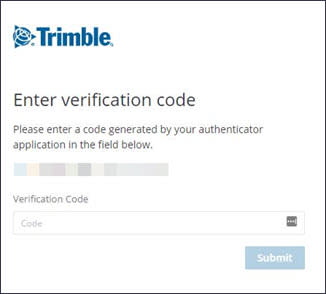
Enter the passcode and select Submit .
To change your MFA method, open My Profile and navigate to the Multi-Factor Authentication section. For more information, see Adding or Disabling Multi-Factor Authentication .