
Logging Into SketchUp
Your Trimble ID is how you access the benefits of your SketchUp subscription. When opening SketchUp on a new device, please follow these guidelines:
A single-user license or subscription seat can only be used by the user who is registered or assigned to that seat.
Users can activate a license or sign-in on up to 2 devices at the same time.
You need to be online.
Tip : For more information about setting up a Trimble ID and the different sign in options available, see our Trimble ID articles .
Desktop and Web
When you first launch SketchUp for Desktop , a window prompting you to sign in will appear.
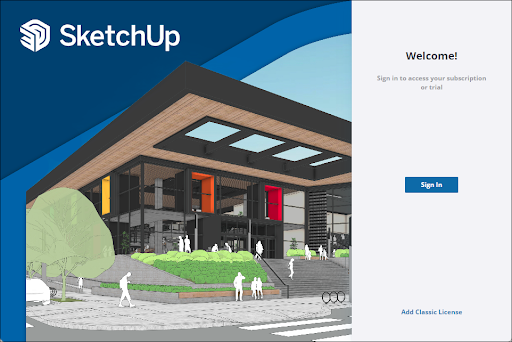
Clicking Sign In launches the Sign In page in a new tab of your preferred web browser. The same sign-in screen appears when you first access SketchUp for Web.
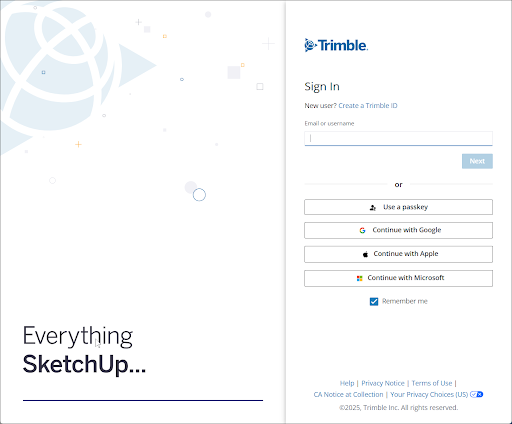
This same sign-in screen also appears when you first access SketchUp for Web .
iPad
SketchUp for iPad looks a bit different. When you first launch SketchUp for iPad, tap Get Started. A Trimble ID sign-in modal will appear.
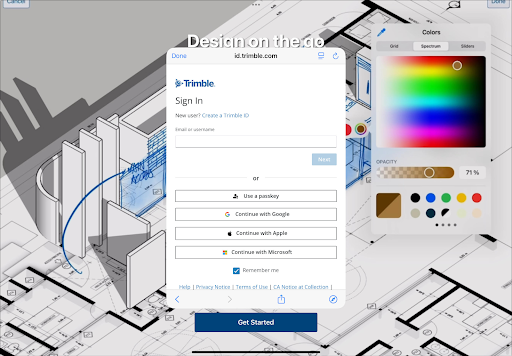
Signing In
On any platform, sign in by entering your Trimble ID email or username. or selecting your preferred sign-in method.
Tip : For more information on the different ways to sign in, see Using 3rd Party Sign-In Options with Trimble Accounts . Multi-factor authentication (MFA) options can help keep your account secure. For more information on how to set them up see Multi-Factor Authentication . If you have already set up MFA, see Logging In with MFA .
After you log in, a confirmation message will appear letting you know you are signed in to all things SketchUp.

If you are on SketchUp for Desktop or SketchUp for Web, you can close your browser window and return to the application. On SketchUp for iPad, you’ll see the Welcome window and can start modeling from there.
You are now ready to start modeling! If you are still having trouble logging in, see Troubleshooting Trimble Identity , or contact our support team .