
Casting Real-World Shadows
With SketchUp's Shadows feature, you can make your model cast a basic shadow or see how the sun casts shadows on or around a geolocated model. With Shadows you can get a general idea of how the sun or shadows will look in a specific location at a specific time of day.
Note : You must geolocate your model before using the Shadows feature. To learn how to geolocate your model, see Geolocation and Terrain .
When you're casting real-world shadows, SketchUp's calculations are based on the following:
The model's latitude and longitude.
The model's cardinal orientation. See Adjusting the Drawing Axes for details about how the drawing axes are aligned to the cardinal directions.
The selected time zone.
To change the way shadows appear in your model, open the Shadows panel and adjust the following settings:
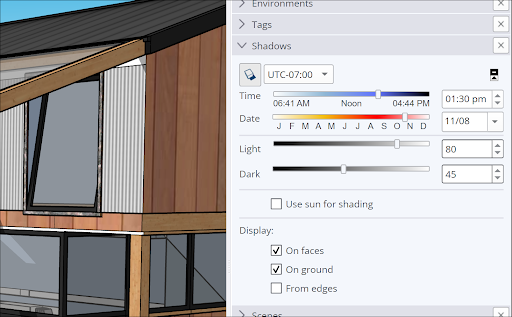
Show/Hide Shadows – Toggle shadows on or off.
Time and Date – Use the sliders and dropdown menus to select the time and date SketchUp will use to cast your shadows.
Light and Dark – Use the sliders and dropdown menus to adjust the intensity of light and dark when casting shadows.
Use Sun for Shading – When selected, SketchUp's simulated sun shades parts of your model even with shadows toggled off.
On Faces – Faces in your model will cast shadows on other faces. Unchecking this option can improve performance.
On Ground – Geometry casts shadows on the ground plane.