
Creating a Trimble ID
Trimble ID is your gateway to all of SketchUp's online resources including 3D Warehouse, Extension Warehouse, and SketchUp for Web.
Note: Even if you've used an email address for SketchUp products in the past, it does not mean you have a Trimble ID. To create an account using your Google, Apple, or Microsoft account, see 3rd Party Sign-In Options .
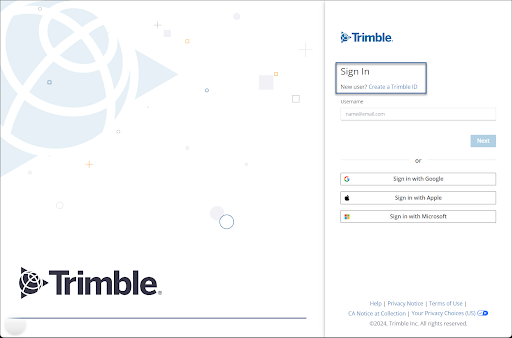
To create a Trimble ID, you can open a supported version of SketchUp or visit SketchUp's website and click Sign In . On the Sign In page, follow these steps to create a Trimble ID:
Click Create a Trimble ID.
Select your region from the options provided and click Next .
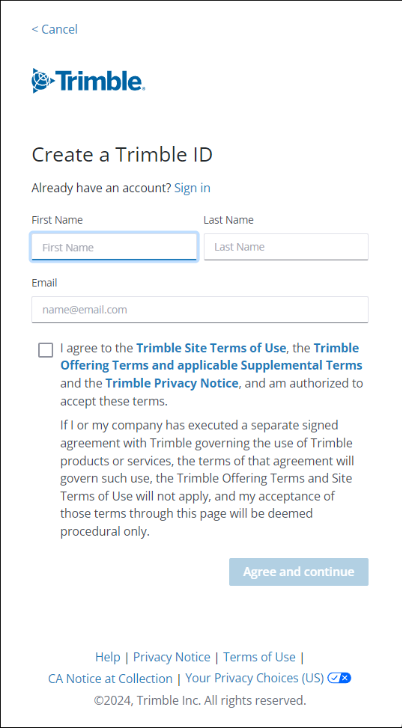
Enter your First Name, Last Name, Email address.
Review and agree to the Trimble Site Terms of Use. Click Agree and Continue .
Trimble will send an email to the address you entered containing a verification code. If you don't see the email, check your spam messages.
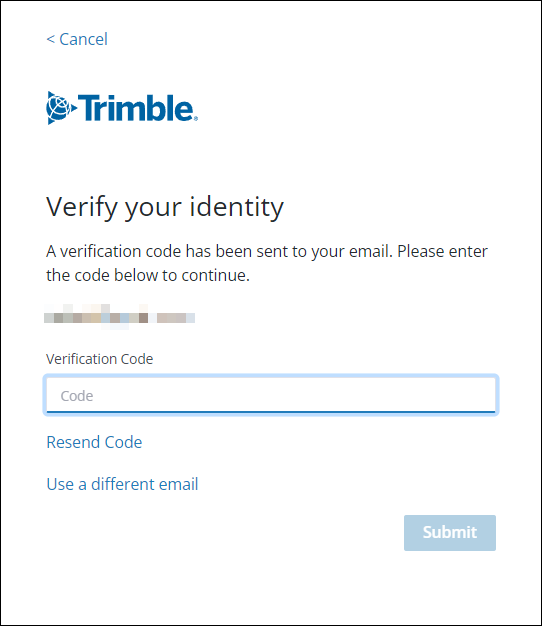
Enter your verification code and click Submit .
Create a password for your account. Your password must contain:
At least 8 characters
A number (0-9)
At least one uppercase and one lowercase letter
A special character (!@#$%^&*-+)
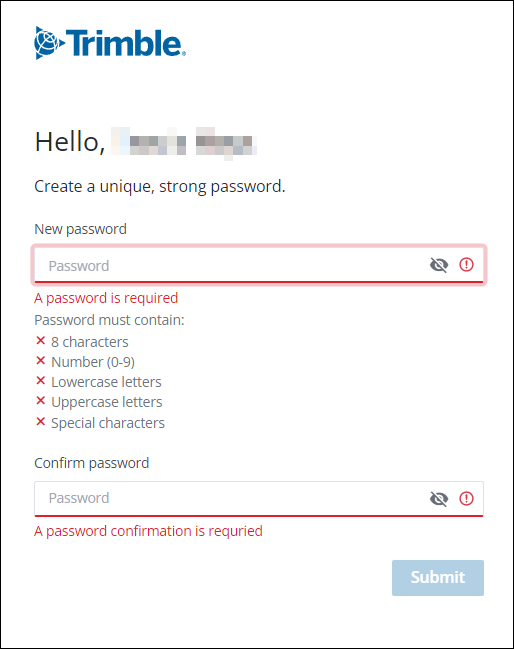
Click Submit . The secure passkey page opens.
If you want to sign in using a passkey, click Create a Passkey . To skip this step or use another multi-factor authentication (MFA) method, click Skip For Now .
For more information on all authentication methods available for your account, see Multi-Factor Authentication .
In Account Preferences, confirm your information and click Next .
If you created a passkey, you can now set up one or more additional MFA methods. If you did not set up a passkey, set up at least two MFA methods instead. Click Count Me In to continue.
Note : You can click I’ll Enable MFA Later if you don’t want to set up any other MFA methods at this time. To protect your account, Trimble requires at least one MFA method. If no other MFA methods are selected, you will be prompted to enter a one-time passcode when you login. For more information, see Mandatory One Time Passcode .