Drawing Basic Lines
To draw the most basic lines in your LayOut document, you can use the orderly Line tool to draw straight lines or its freewheeling cousin, the Freehand tool, to draw loopy swerving lines any which way you like. You see an example of both in the following figure.
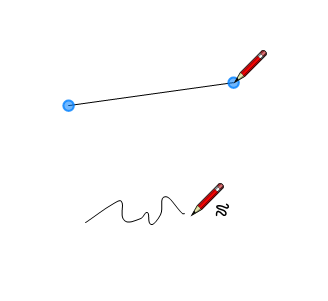
Each tool has a few tricks and secrets, as explained in the following sections.
Tip: The Line tool also creates curves that are smoother than those you can draw with the Freehand tool. For details about creating curves with the Line tool, see Bending Lines and Shapes with Paths and Points . Also, although you can create closed shapes with the Line or Freehand tool, creating a shape and filling it with a color or pattern often creates a better result.
Drawing straight lines
Predictably, you draw lines with the Line tool (  ), which you find on the default toolbar or the Tools menu.
To draw a line or lines, follow these steps:
Select the Line tool.
To place the line’s starting point, click in the drawing area or set a precise location using the Measurements box. For details about using the Measurements box to draw lines, see the following table. To lock the line to the red or green axis, hold down the Shift key. (See Drawing Lines and Shapes for an introduction to LayOut’s inference engine.)
To place the line’s end point, double-click in the drawing area. (Alternately, you can select a new tool.)
Tip: If you single-click, LayOut treats the line’s end point as the starting point for another line, which is a handy way to draw polylines and unique closed shapes with the Line tool. To end a polyline, double-click or click the endpoint of another line.
When you select the Line tool, the Measurement’s box is ready for you to type precise points, or coordinates, to define your line. Here’s how to use the Measurements box:
Click in the drawing area or type an absolute coordinate value to set the starting point. Absolute coordinates are measured from the upper-left corner of the drawing area. For example, to set the starting point shown in the following figure, type an absolute coordinate of [2“,3”] and press Enter (Microsoft Windows) or Return (Mac OS X).
After you define the first coordinate, you can define the second coordinate, or end point, with one of three coordinate types: absolute, relative, or polar. In the following figure, the end point was created with the absolute coordinates [5“,8”].
After you type the end point coordinates, press Enter or Return, and your line appears precisely as you indicated.
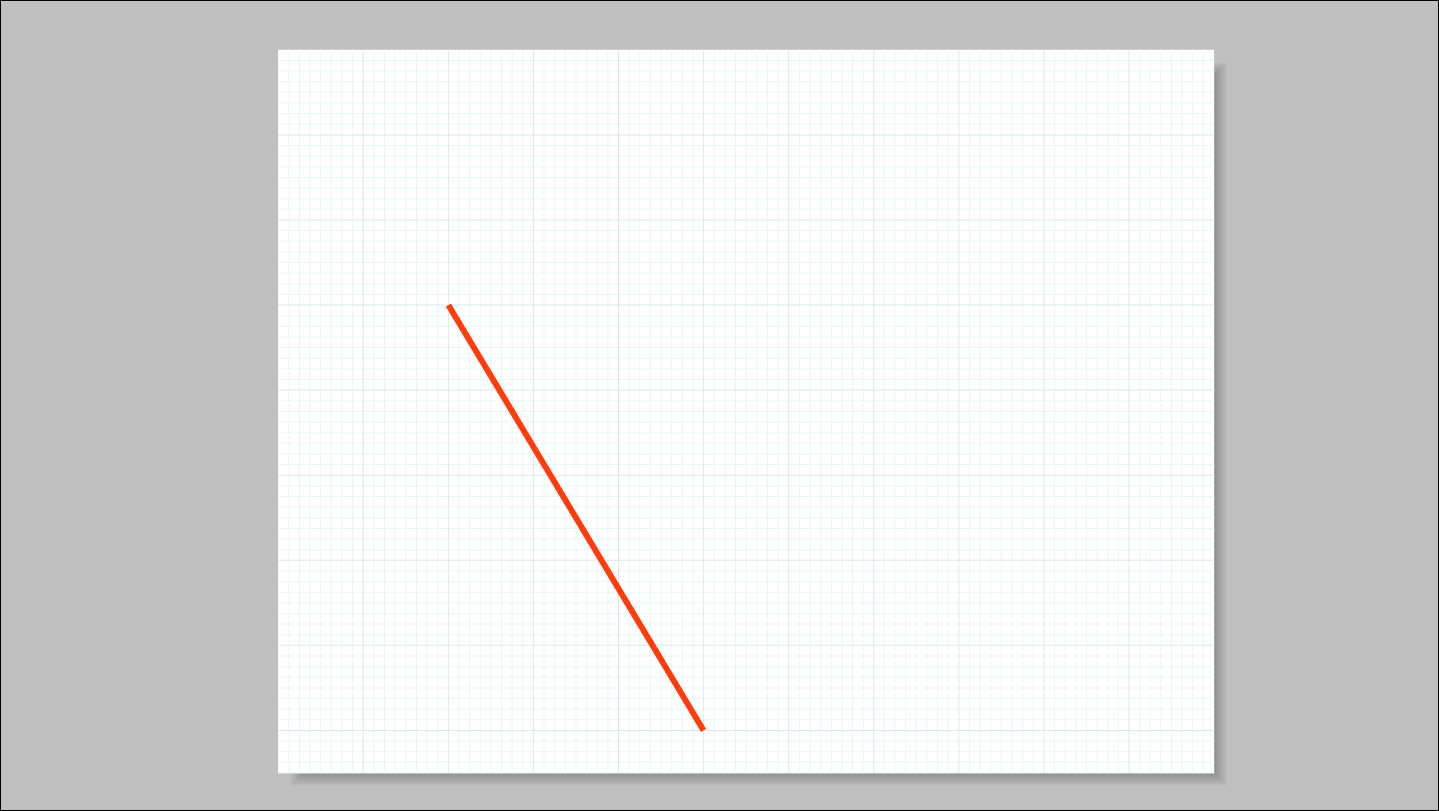
Tip: Until you select another tool, you can keep entering new coordinates to add to your line, creating a polyline.
Drawing freehand lines
With the Freehand tool (  ), you can draw loopy lines or irregular shapes. (If you want to create arcs or curves, check out Creating Arcs or Bending Lines and Shapes with Paths and Points instead.)
To select the Freehand tool, click the down arrow next to the Line tool on the default toolbar or choose Tools > Lines > Freehand from the menu bar.
To draw with the Freehand tool, follow these steps:
Select the Freehand tool.
Click and drag the cursor to draw a curvy line or irregular shape. Drawing freehand can take patience and practice. Moving the mouse slowly helps you draw a smooth line.
Release the mouse cursor to stop drawing. If you end the freehand line back at the starting point, you create a closed shape.
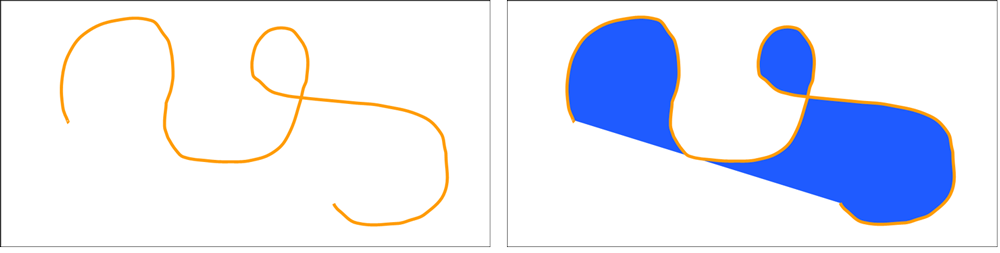
Tip: If you add a Fill color to a freehand line or shape, it fills with color as you draw (as shown in the righthand image). For details about adding or changing the Fill color, see Filling Shapes with Colors and Patterns .