
Importing and Exporting
Importing Files
Importing images and drawings into a SketchUp model is a great way to enhance it and give it that spark of life. SketchUp for iPad supports importing files created in the following formats:
Image (.png, .jpg)
SketchUp (.skp)
Stereolithography (.stl)
3D AutoCAD Model (.dwg.dxf)
Follow these steps to import a file:
Select Import (
 ) from the Main Toolbar at the top left of your screen.
In the file browser that appears, locate and choose the file you wish to import.
Select the file. The imported file becomes an entity within your model.
Tip: The PDF importer can import multiple pages of a PDF document at once. You can also define the scale of any drawings on a page and SketchUp will automatically make sure the drawings end up at a 1:1 scale after the import.
Exporting Files
SketchUp for iPad supports the ability to export your model using the following formats:
Image (.png)
Animation (.mp4)
Pixar USDZ File (.usdz)
Stereolithography (.stl)
Object File (.obj)
3D AutoCAD Model or 2D AutoCAD Drawing (.dwg, .dxf)
PDF (.pdf)
Note : Some formats may not be available when exporting a file from the Home page or Trimble Connect. For example, 2D AutoCAD Model is not available when exporting a model from the Home page due to camera requirements.
Use the following steps to export a file from either the Main Toolbar or the Scenes panel:
Click or tap the Export (
 ) icon. The Export window will appear.
Use the File Type dropdown menu to select the import format.
Format specific options will appear. Make any additional changes as needed.
Tap or click Export.
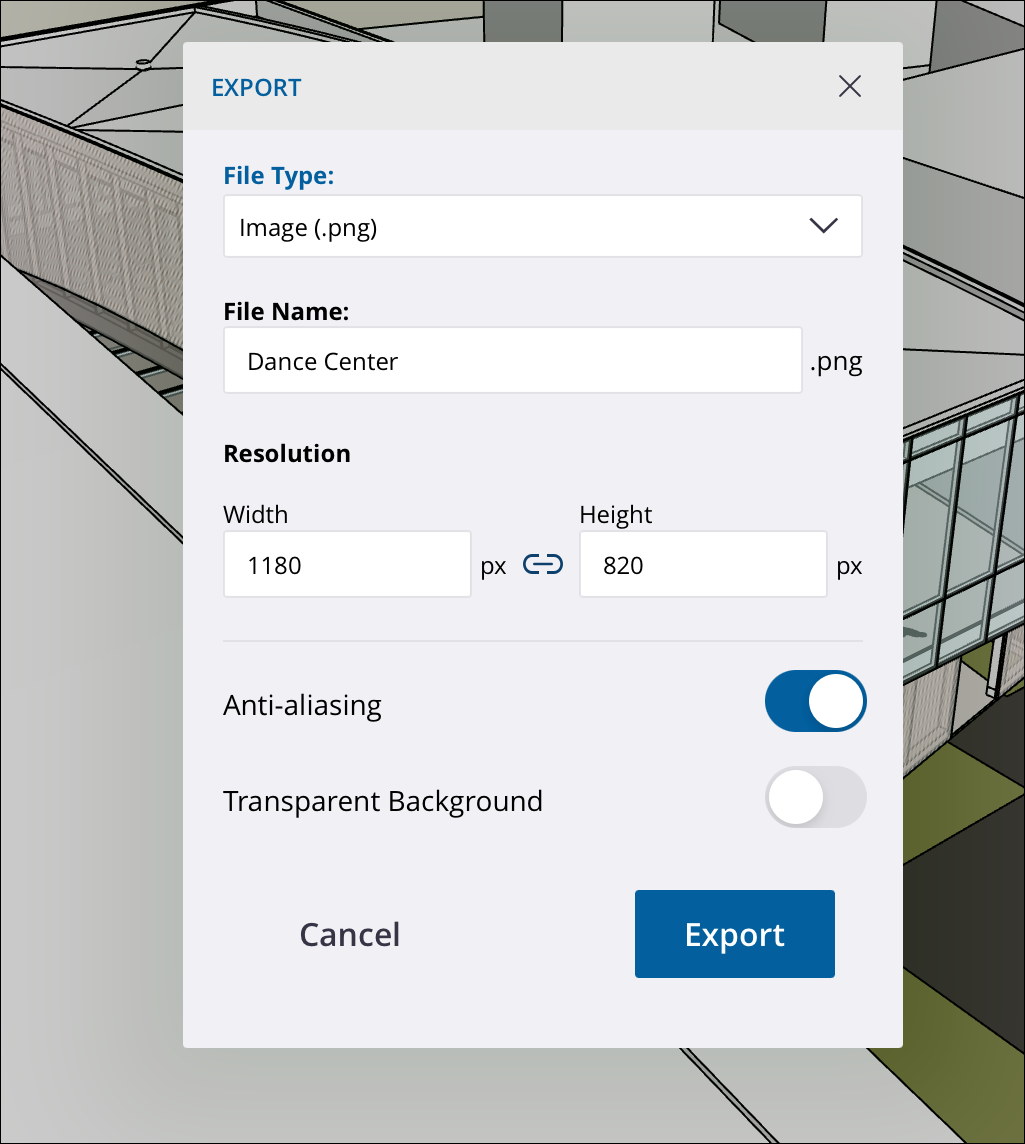
To export a file from the Home screen:
Tap or click the Overflow (
 ) icon next to the model you want to export.
Select Export...
Select the desired export format from the list.
Choose any format specific options and tap or click Export .
Tip: The PDF exporter supports creating multi-page PDFs. You can choose the paper size, orientation, resolution, and the number of pages you want to export. You then can decide what scene goes on each page, adjust line weight multipliers, and choose what graphics type to use.