
Text Prompt Object Generation
Generating an Object with a Text Prompt
If you don’t have an image you want to use, you can always enter in a text prompt that will create an image for you. If you need help with crafting a text prompt, see Best Practices for Custom Prompts .
To use a text prompt to generate an object:
Open AI Assistant and select the Generate Object tab (
 ).
).Click Generate From Prompt .
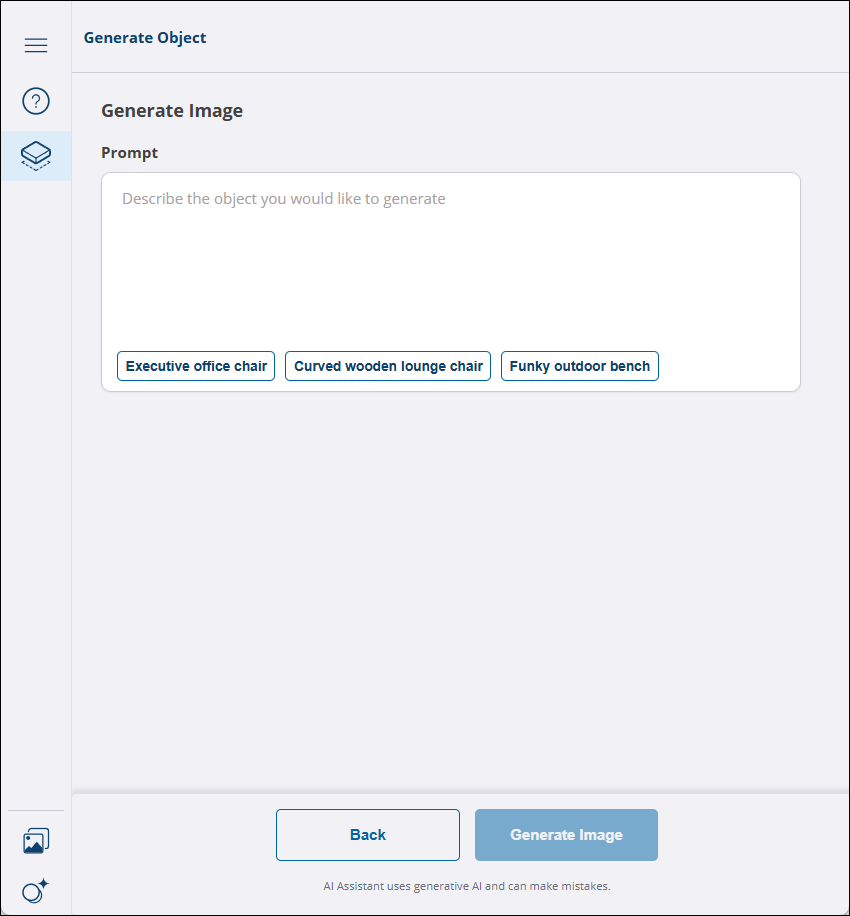
Enter your prompt and click Generate Image . After a few moments, SketchUp AI will generate an image for you.
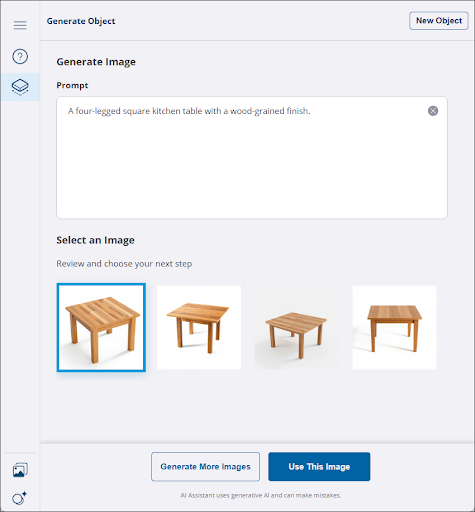
If you aren’t satisfied with the image, you can adjust the prompt and click Generate More Images . AI Assistant will create multiple new images for you. You can do this as many times as needed. If you are satisfied with the image, click Use This Image .
After selecting your image, you can add an additional prompt. Once you are ready, click Generate Model . SketchUp Assistant may take some time to generate your object.
When your model is ready, SketchUp Assistant shows you a preview of the generated model, along with the details it used to generate it.
Clicking Download returns you to the modeling window where you can now place the generated object.