
Stretching Geometry
When you move geometry that's connected to other geometry, SketchUp stretches your model.
To stretch your geometry, select the Move tool (  ). Clicking and dragging different parts of an entity will give the following results:
A face – Stretches the entity while keeping the selected face intact.
An edge – Stretches all faces adjacent to the selected edge.
An endpoint – Stretches all edges and faces adjacent to the selected endpoint.
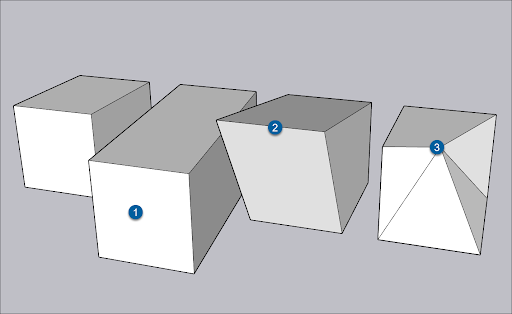
Tip : If you want to stretch part of your model to a specific scale (for example, make a box twice as wide), see Scaling Your Model or Parts of Your Model .
Resizing surface entities
In a surface entity, if you click and drag a control edge, you resize the surface entity without distorting the geometry. You create a surface entity by extruding an arc, circle, or polygon. See Softening, Smoothing, and Hiding Geometry or the articles about arcs , circles, and polygons for details.
When you position the Move tool over a surface entity's control edge, the edge lights up in a way that nearby edges do not.
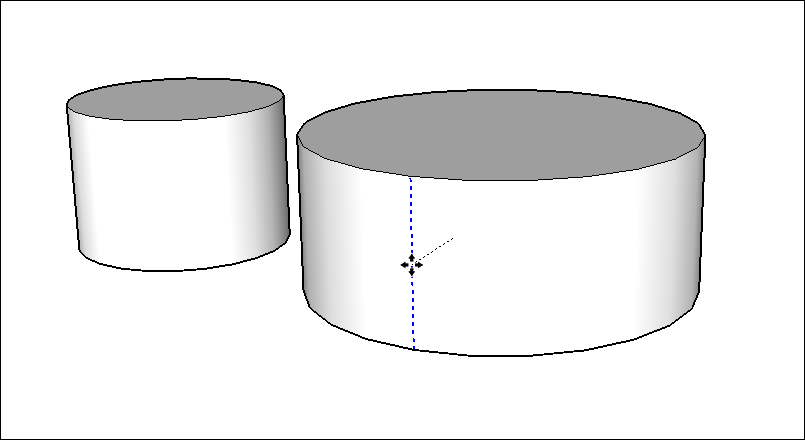
Tip : Viewing hidden edges can help you find the control edge easily. To see hidden geometry, select View > Hidden Geometry.
A surface entity extruded from a curve entity does not have a control edge. Similarly, if you stretch a circular cylinder into an ellipse, the surface entity lacks a control edge.
Bending faces with Autofold
In SketchUp, faces must remain planar. To help with that, SketchUp uses a feature called Autofold. If you stretch geometry in a way that bends a face, Autofold makes a crease so that all the faces in your geometry remain flat.
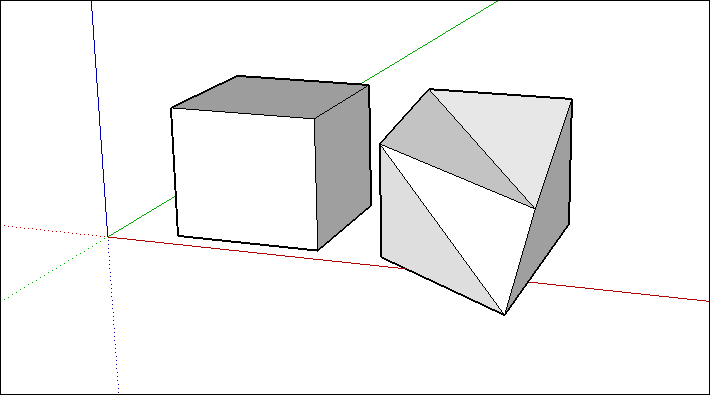
Tip : Sometimes, SketchUp limits an operation to keep all faces planar instead of creating additional fold lines. If SketchUp isn't Autofolding when you want it to, tap the Alt key (Microsoft Windows) or Command key (macOS) key to toggle Autofold as you drag the geometry, allowing geometry to move freely in any direction.