
Accessing Your Models
Beginning August 29, 2025, SketchUp Viewer for Android will no longer be available to download. For more information see End of Support - Viewer for Android .
Because your SketchUp models may reside in different places, SketchUp Viewer allows you to access your models from 3D Warehouse , Trimble Connect , and the Files option on your device (third-party cloud storage services). The app enables you to open SketchUp models that are attached to email messages directly from your mail app.
To review these features and the options that each one offers, open SketchUp Viewer on your mobile device and Sign In. From the app Home screen, tap the Cloud icon (  ) in the top right and select the cloud service you’d like to access.
Note: When you close a model you've accessed from one of the supported cloud services, you're prompted to save the model. If you save the model, it remains saved to your device even if you go offline or sign out from whatever service you downloaded it from.
Table of Contents
3D Warehouse
The SketchUp Viewer app gives you access to many of the same search and browse features you’re accustomed to on 3D Warehouse. When searching 3D Warehouse, you’ll be able to:
Sort (
 ) models using the following options
Relevance
Popularity
Most Liked
Title (A-Z)
Title (Z-A)
Date (New to Old)
Date (Old to New)
Filter (
 ) results to show models, collections, or both.
Navigate collection trees using breadcrumb links. As you browse into Collections, you can tap the collection(s) name(s) in the list of “breadcrumbs” in the gray bar above the list of SketchUp models as an easy way to go back up the collection tree.
Use Prev/Next arrows to navigate back and forth between searches (tablets only).
View a list of recent search phrases (phones only)
Note: Here are some notes about 3D Warehouse and its relationship to the Home screen:
When you sign in to 3D Warehouse, the Home screen will automatically populate with your public and private models and collections.
You’ll still need to tap the download button (
 ) to load a model from 3D Warehouse onto your device.
When you sign out of 3D Warehouse, any models that haven’t been downloaded to the device will disappear from the Home screen.
Also note the difference between performing a search from the Home screen, which will return results for only those models that appear on the Home screen, and performing a search from the 3D Warehouse section of the app, which will search all of 3D Warehouse.
Trimble Connect
When browsing Trimble Connect, SketchUp Viewer will automatically filter the contents of your Trimble Connect account to display only folders and *.skp SketchUp files. To open a folder, simply tap the folder name.
*.skp
As you browse into folders, you can tap the folder(s) name(s) in the list of breadcrumbs in the gray bar above the list of SketchUp models. This option is an easy way to go back up the folder tree.
As you’re browsing, you’ll have the option to sort or filter using the options listed below:
Sort (
)Title (A-Z)
Title (Z-A)
Recent (Old to New)
Recent (New to Old)
Filter (
)Files
Folders
Once you find the 3D model you’re looking for, you can tap the Download icon ( ) to simply download the file to the Home screen, or tap the placeholder thumbnail (which looks like the SketchUp logo) to open the file viewer.
Files on Device
iOS: SketchUp Viewer directly integrates with the Files app introduced in iOS 11. With this integration, you can browse and open .skp files stored on supported third-party cloud storage services such as iCloud, Dropbox, etc, from within the SketchUp Viewer app. On the Home screen, tap on the Cloud icon ( ) and select Files on Device . From there, you can select which cloud storage service to browse. Alternatively, you can also browse and open .skp files straight from the Files app and choose to open them with SketchUp Viewer.
.skp
.skp
Android: SketchUp Viewer integrates with Android’s Storage Access Framework. With this integration, you can browse and open .skp files stored on your device’s local storage and supported cloud storage services from within the SketchUp Viewer app. On the Home Screen, tap the Cloud icon ( ) and select Files on Device to browse the device's Storage Access Framework. Opening a .skp file directly from the My Files app is not currently supported.
.skp
.skp
Note: By default, the Internal Storage is hidden. To show internally stored files, tap the More icon (it looks like three dots), select Show Internal Storage , and select your device from the Open From list in the hamburger menu.
Opening a SketchUp file attached to an email or on Google Drive
When installed, the SketchUp Viewer app will register itself with your device’s operating system as an app that is intended to be used to open files with the *.skp file extension. So anytime you’re browsing apps on your device and come across a SketchUp model, whether it’s attached to an email or in a folder of files in your Google Drive app, you can open and view the file.
*.skp
For files on Google Drive, first tap the *.skp SketchUp file. Then select the More icon (  ). Next, select Open In and then SketchUp Viewer .
*.skp
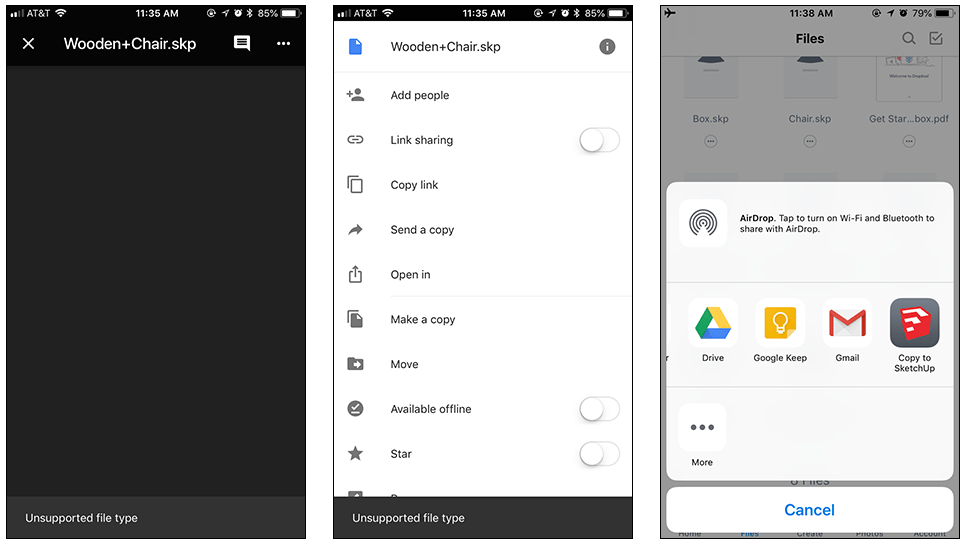
You can also open *.skp SketchUp files via your device’s SD card. But this option is only supported on the Android version of SketchUp Viewer.
*.skp