
Preset Prompts
Crafting a text prompt for your generated images can seem a bit complicated. To help you generate the stunning visuals you want without getting a degree in prompt engineering, AI Render offers several preset prompts using both regular and negative prompts. Each preset prompt was designed to generate a certain look and feel in your AI-generated output.
To access prompts, click Parameters (  ) in the text field. The default preset prompt is Auto. Auto contains the following basic prompt to get you started:
While carefully preserving the original layout, proportions, colors, and geometry of the scene, render it with detailed shading, lifelike textures, and natural lighting, transforming it into a hyper-realistic, professional-quality photograph of the architectural design.
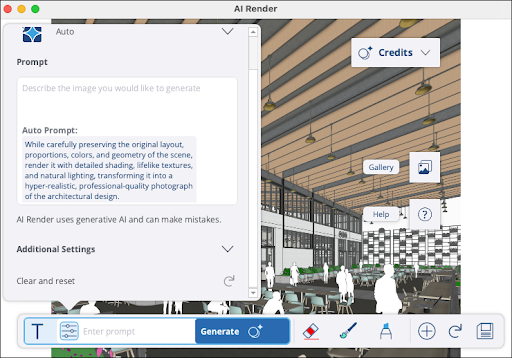
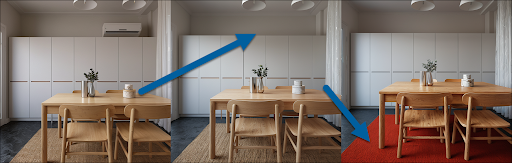
You can then use the text box provided to add in the specific instructions you want AI Render to follow. Once you’ve generated output you can then use the Auto preset to further refine and edit your generated images.
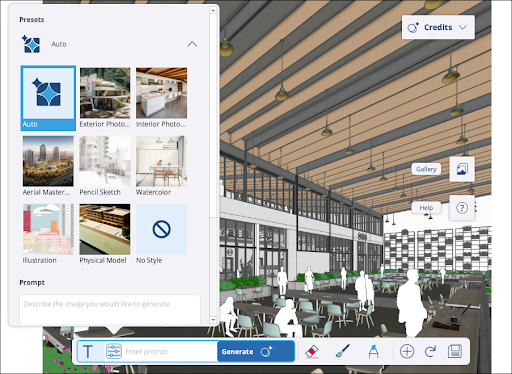
To select another preset prompt, click where your current prompt appears to view a list of available presets.
For any preset prompt, you can adjust the additional settings or add a negative prompt. For more information on those settings, see Generating Custom Output .
To help you understand the preset prompts available in diffusion, here’s a bit more information about each option: