
Navigating SketchUp for Web
SketchUp for Web looks and works a lot like SketchUp for Desktop with just a few differences. When you first open SketchUp for Web you'll see the Home screen.
From the Home screen you can:
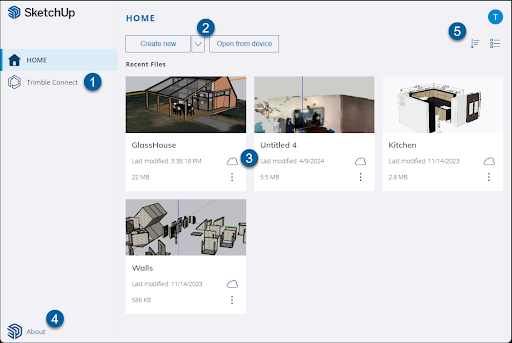
Access Trimble Connect.
Create a new model or import a locally saved model.
Choose from a list of recently opened models.
See SketchUp's About information.
Access your Trimble account information.
Once you open a model, SketchUp for Web's modeling interface contains all the tools and options you need to create stunning 3D models. Let's take a tour:
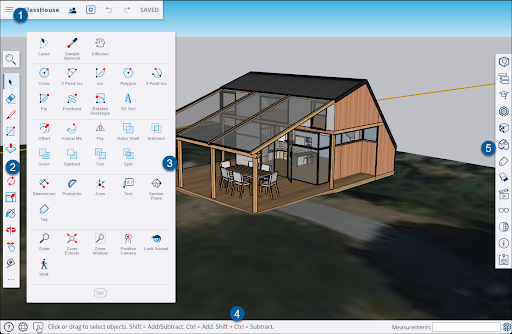
Main Menu Bar - Includes the Main Menu (
 ), the name of your model, Undo (
  ), Redo (
  ), and the save status of your model.
Main Toolbar - The Main Toolbar contains the basic tools you need to get started.
Expanded Toolset - The Expanded Toolset is home to all of your other SketchUp tools.
Status Bar - From left to right you'll see:
 - Links to the Help Center, our forums, Technical Support, and a Search option
 - The language menu
 - The input device selector
Tips and options for the selected tool
The Measurements box
Panels - Each panel represents a different group of options to help you take your model to the next level. We'll cover the panels available in SketchUp for Web in Creating and Editing Models .
Tip: If you're not certain what a tool is, tooltips appear when you hover over a tool. Details about active tools appear in the status bar and in the instructor panel.
The Main Menu ( ) contains several options to help you manage your model:
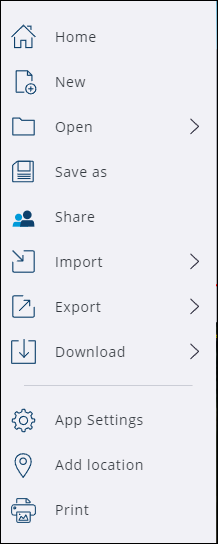
Home - Returns you to the Home screen.
New - Creates a new model file.
Open - Opens an existing model file. See Opening Files for more information.
Save As - Saves your model. See Saving Models for more information.
Share - Creates a sharable link to your model. See Link Sharing for more information.
Import - Imports other files or images into your model.
Export - Exports your model to other formats.
Download - Downloads your model to your computer using the format you designate.
App Settings - Opens the Settings window.
Add Location - Use the Add Location service to add geo-location imagery and date to your model. For more information see How to Use Add Location .
Print - Print your model.