
Managing Members
Starting in April 2025, SketchUp will migrate all named-user subscription products from the Account Management Portal (AMP) to Trimble’s new Admin Console. The Admin Console is where you will manage all of your Trimble products and related accounts, including SketchUp. Each SketchUp subscription will migrate over time, and if you have an account with multiple subscriptions you may need to use both the AMP and the Admin Console. You will be notified by email when your account is scheduled for migration.If your account has already been migrated, or you want to make sure you are prepared for when it eventually does migrate, take a look at our new Trimble Admin Console articles .
The SketchUp Account Management Portal (AMP) helps manage who can use the products in your subscription. For subscriptions with multiple seats, the account owner manages the account and assigns each member a role using the Members section.
Note : Each member, including the account owner, must be a named user designated by their real first name, last name, and email address.
Adding Members
To add members, click Add New Users in the upper right of the Members section. From the drop-down menu select Add New User to add a single user, or Bulk Add(.csv) to add multiple users at the same time.
Add a Single User
Select Add New User.
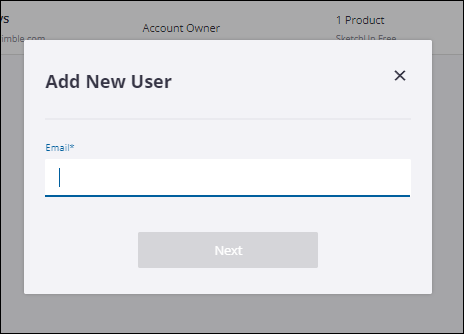
In the modal that appears enter the member's email address and click Next .
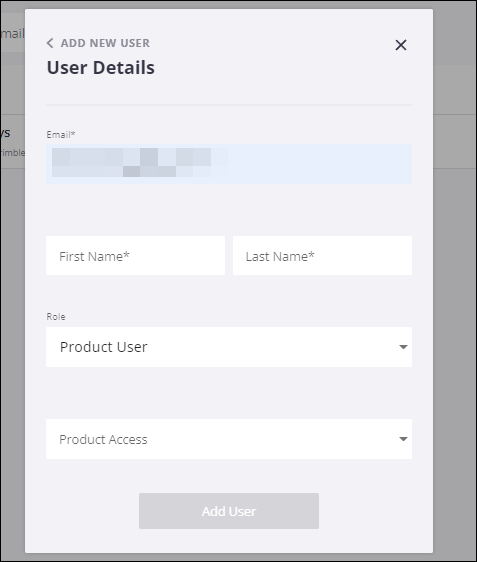
In the next modal, add the user's real first and last name, assign them a role, choose what products they have access to, and click Add User when finished.
If the new member has not yet created a Trimble ID they will receive an email asking them to create one. Once sent, the user has 72 hours to use the link in the email to create an account. If they miss that 72 hour window, they may request a new activation link or ask their Account Owner, Secondary Account Owner, or Administrator to resend it from that user's listing on the Members page.
Bulk Adding Users
After selecting Add New User , choose Bulk Add(.csv).
In the Bulk Add Users modal you'll see a few basic instructions and a download link for our .csv template.
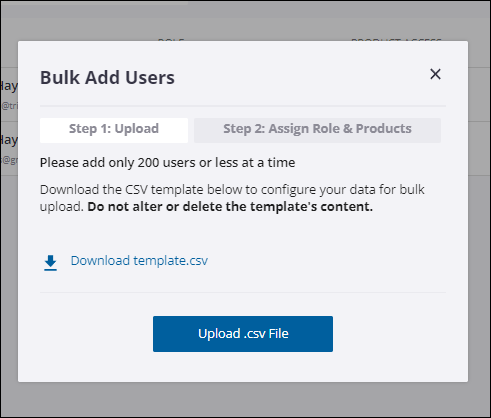
Download and open the .csv template in any .csv editor and enter your user details.
Note: Limit bulk uploads to 200 users or less. Do not alter or delete the template's content.
Click Upload .csv File and select your edited file. The upload can take several minutes depending on the amount of users in your file.
If you receive an error message you can choose to fix them and try again or skip and continue your upload.
Once the upload completes, a modal appears confirming the number of new users added and prompting you to assign these users a role and product access. You may also leave this section blank and assign roles and products manually.
Click Save.
Tips:
Products without enough available seats for your users will not be available as a choice when assigning Product Access.
The Account Owner role will not be available.
The Secondary Account owner role will be disabled if any added users are an Account Owner or Secondary Account Owner in other accounts.
The Secondary Account Owner role will not be available if the user performing the bulk upload has the Company Admin role.