Analysis Mode
Analysis Mode
Which Analysis Mode you choose can affect the speed of a simulation. The dropdown menu at the top of the plugin provides four Analysis Mode options:
Analysis Mode – A link to Sefaira’s support center with more information on the plugins analysis modes.
Energy & Daylight – Combines information from both Energy and Daylight Analysis modes.
Daylight Analysis
Energy Analysis
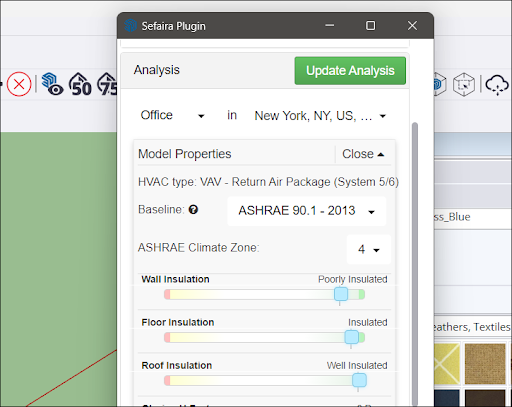
A warning will appear if any changes have been made to the model or analysis mode since the last analysis. To update the analysis click Update Analysis . Updating analysis may take some time depending on what mode was chosen.
Tip : Analysis can time out when a model is too complex. Sefaira’s modeling guidelines provide information that can help keep model analysis from taking too long or timing out.
Location
To choose a location for analysis, first select from one of the following options:
Office
Residential
School
Healthcare
Laboratory
Retail
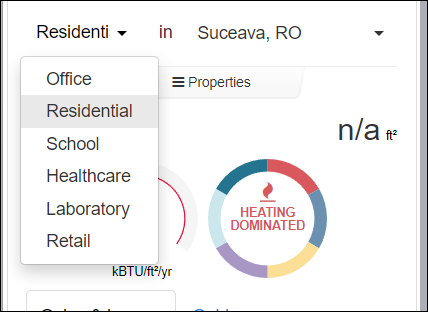
Next, choose a location. Click the location box, type the project's location in the text box provided, and click Set Location.
Properties
The Properties tab provides options to adjust the following properties for analysis:
Wall Insulation
Floor Insulation
Roof Insulation
Glazing U-Factor
Visible Light Transmittance
Solar Heat Gain Coefficient
Infiltration Rate
Ventilation Rate
Equipment
Lighting