
Importing and Exporting Shortcuts
SketchUp saves your shortcut preferences when you make any changes. If you use SketchUp on different computers, or are upgrading to a new one, you may want to export those preferences and import them into SketchUp on the new device.
Note: Importing and exporting shortcut preferences is only available on Windows. MacOS users cannot import or export any settings at this time.
If you are using the latest version of SketchUp, the easiest way to get your shortcut preferences from another version of SketchUp is by using File > Migrate Preferences.
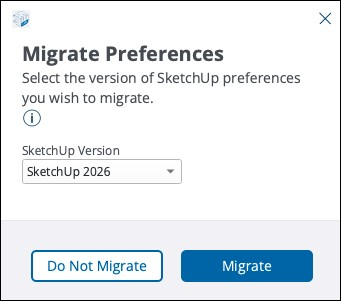
In Migrate Preferences, select the previous version of SketchUp you want to copy your preferences from using the SketchUp Version dropdown and click Migrate.
The Shortcuts panel also provides options to manually import and export your shortcut preferences.
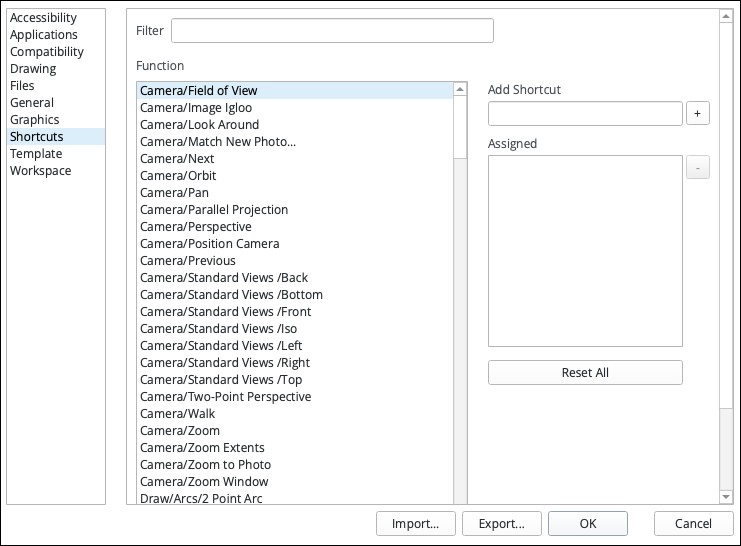
To export your shortcut preferences:
Click Export.
Choose a location where you want to save your exported preferences.
Name the file. We recommend naming it something that would help you easily find the file and what version of SketchUp you were using. Otherwise, the file will be named Preferences.dat by default.
Click Export to save the file.
To import your file preferences:
Click Import.
In the File Explorer, locate your exported preferences file. If you can’t find it, try searching for “.dat” files.
Select the file and click Import to import your preferences.