
Applying Materials
Applying materials to your model is simple:
(Optional) You can pre-select the faces and edges you want to apply the material to.
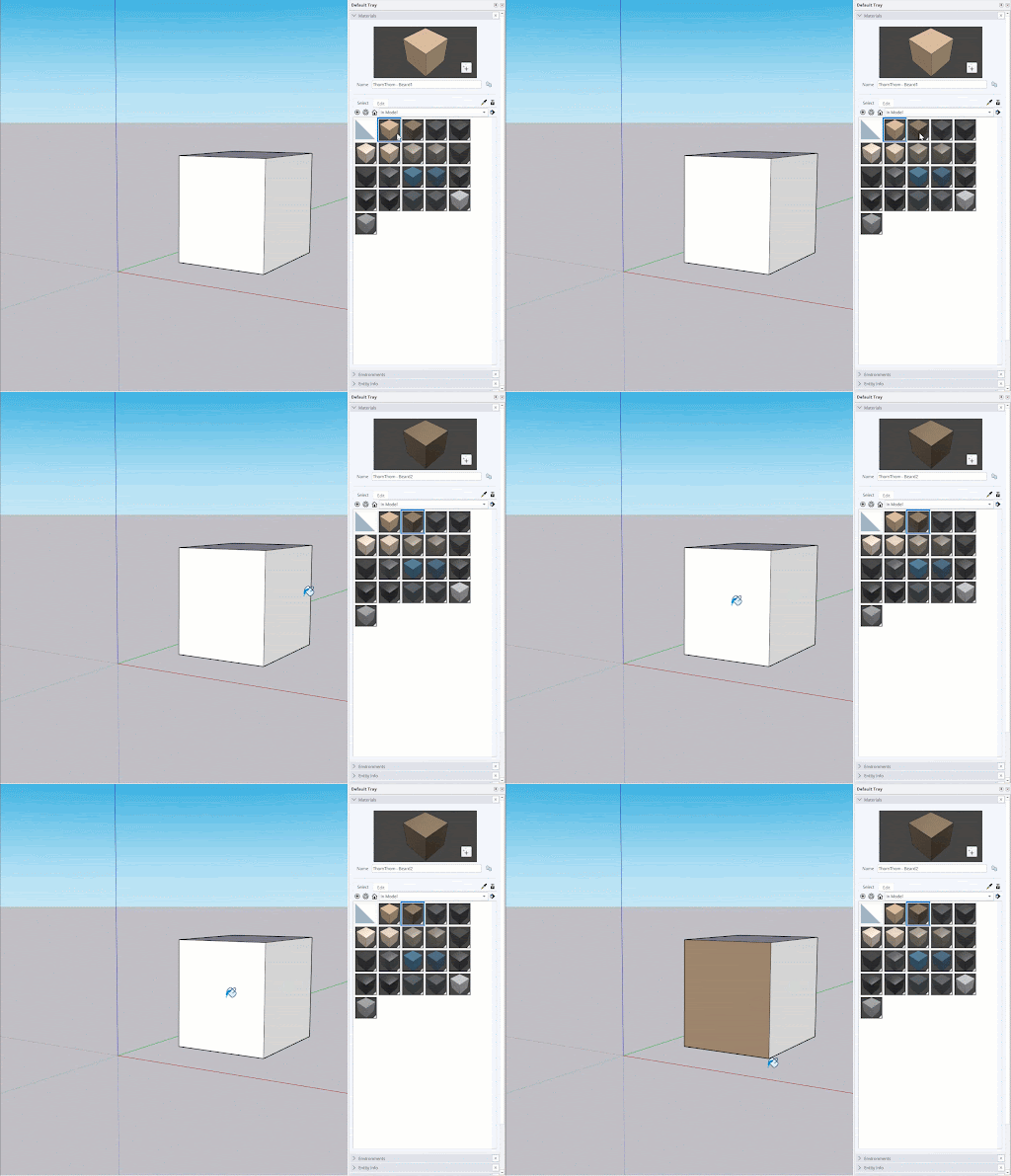
Open the Materials panel or activate the Paint Bucket (
 ) tool. The default shortcut is B for Bucket!
On the Select tab, browse and select a material.
If you pre-selected faces or edges, SketchUp will apply the material to your selection.
If you didn’t pre-select anything, click the face or edge you want to apply that material to.
SketchUp applies the material to your selection.
To restore a face to the default colors, use the Default option listed at the top of the in-model library.
Note : Styles can prevent faces, the back of faces, or edges in your model from showing applied materials. Check your style settings if your material isn’t appearing as expected.
You can also apply materials to a group or component. Pre-select multiple objects, or click one object at a time to paint it or to any geometry within a group.
Tip : Pressing Alt while using the Paint Bucket tool activates Sample (  ). While activated, you can click to sample any material already in your model and click on another face to apply it to another face.