
Viewport Camera Tools
The Camera tools help you adjust how a model appears within a LayOut document. To start using the Camera tools, you need to enable editing the view by selecting your SketchUp model and performing one of the following actions:
Context-click the selection and choose Edit 3D View.
Double-click the selection.
Press Enter.
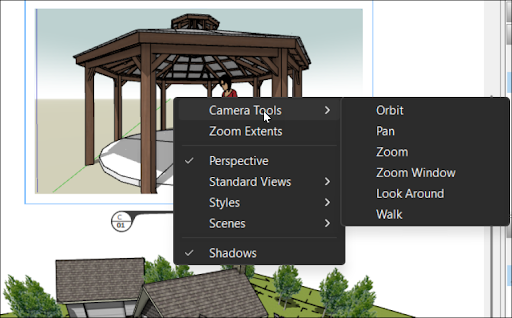
While editing the view of a SketchUp model you can use the following tools:
Pan (
 )
)Orbit (
 )
)Zoom (
 )
)Zoom Window (
 )
)Look Around (
 )
)Walk (
 )
)
The Pan tool will be activated by default. You can context click anywhere inside the viewport and select Camera Tools to change to a different tool.
Tip : These tools work a lot like they do in SketchUp. For example, you can click and hold down the center mouse button of a 3-button mouse to activate Orbit. See Viewing a Model for information on the Orbit, Pan, and Zoom tools and Walking Through a Model for details on using Look Around and Walk.