
Settings Panel
The Settings panel (  ) in SketchUp for iPad offers a few ways to customize the interface and how SketchUp works. The Settings panel contains four categories:
Pencil & Multitouch
General
Scan-to-Design
Graphics
Pencil & Multitouch
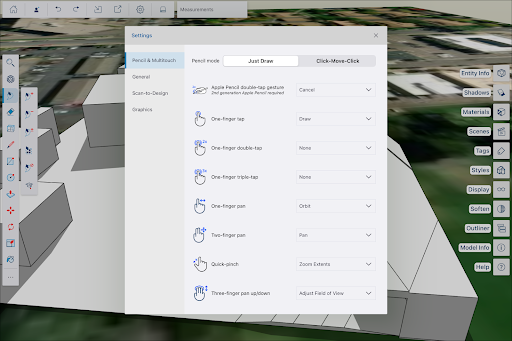
The Pencil & Multitouch category contains options to customize the way you draw and what specific actions and gestures do in Sketchup. The following options are available:
Pencil Mode - Choose between Just Draw or Click-Move-Click . -
Apple Pencil Double-Tap Gesture
Off
Cancel
Previous Tool
Select
Eraser
One-Finger Tap
Draw
Select
None
One-Finger Double-Tap
None
Selection
Select
One-Finger Triple-Tap
None
Selection
Select
Quick Pinch
Zoom Extents
None
General
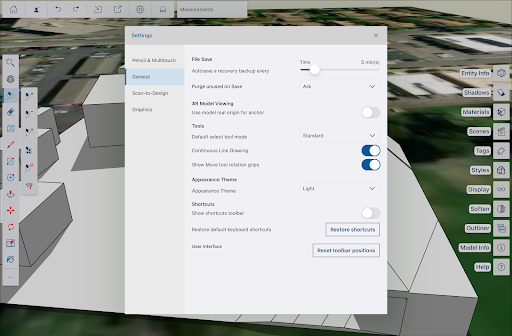
The General category contains the following sections:
File Save - Here you'll see a slider allowing you to set the frequency SketchUp for iPad will autosave a recovery backup file of your current model. You can also set if you always want SketchUp to ask, or never want SketchUp to purge unused objects when saving,
AR Model Viewing - Toggle on to use a model's real origin for the anchor when using AR.
Tools - Allows you to choose between Standard or Lasso for the default Select tool mode.
Appearance Theme – Choose between Light, Dark, or System.
Shortcuts – Toggle visibility of the Shortcuts toolbar The toolbar appears in the upper right by default, but can be moved anywhere by dragging it.
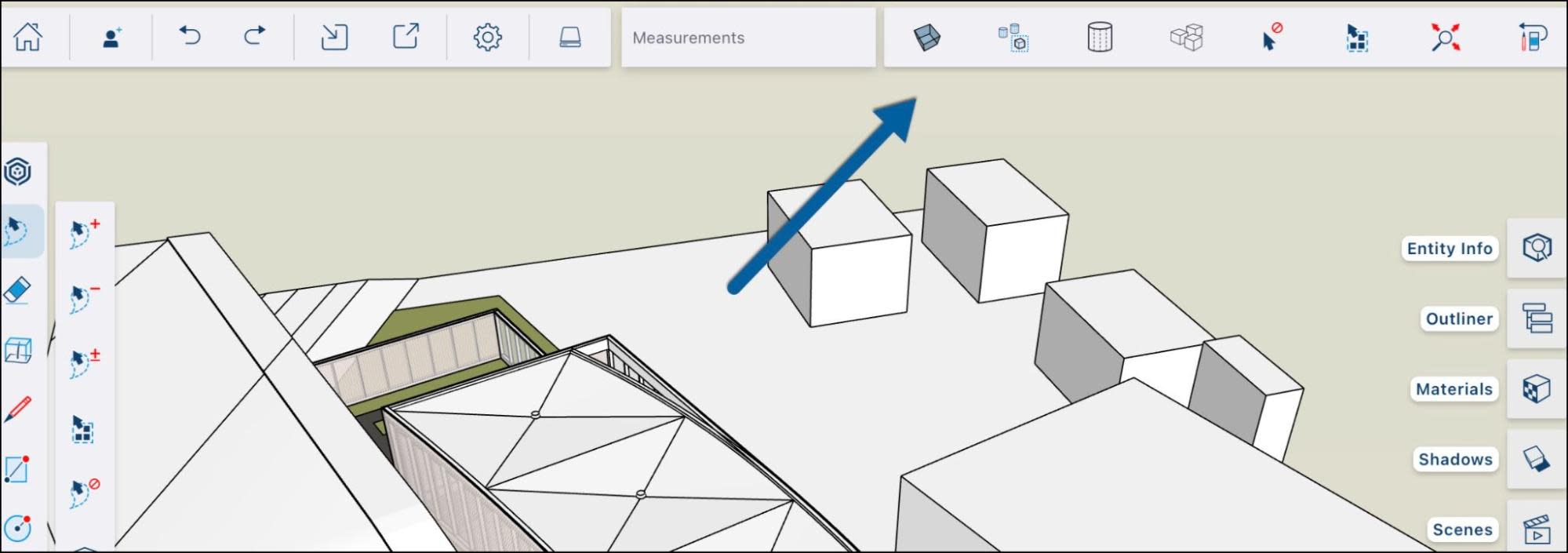
The Shortcuts toolbar is customizable and contains the following options by default:
X-Ray
Hide Rest of Model
Hidden Geometry
Unhide All
Select None
Select All
Zoom Extents
Previous Tool
Restore Shortcuts – Restore default keyboard shortcuts.
Reset Toolbar Positions – Reset the user interface to their default settings.
Scan-to-Design
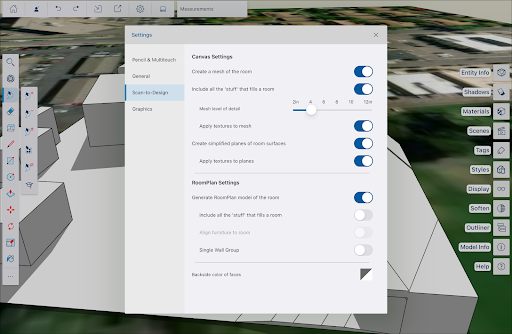
SketchUp’s Scan-to-Design uses LiDAR scanning in SketchUp for iPad to generate 3D models of existing spaces. For more information on this Sketchup Labs feature see Scan-to-Design (SketchUp Labs).
Graphics
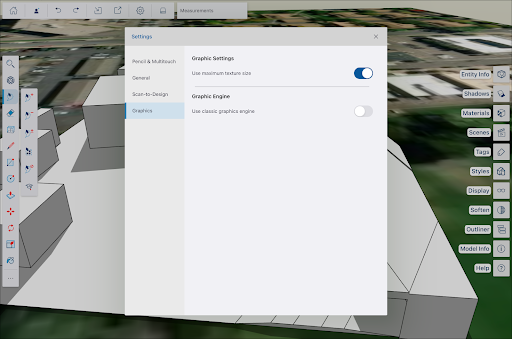
The Graphics section contains two options:
A toggle to adjust texture size.
A toggle to use the classic SketchUp graphics engine.