
Deauthorizing Devices in the AMP
For instructions on how to deauthorize devices in the Admin Console, see Deauthorizing Devices in the Admin Console .
SketchUp’s Account Management Portal can help you manage the devices you have authorized for your SketchUp account.
Note: You can only deauthorize your own activations, even if you have owner or admin access.
To manage your activations:
Navigate to the My Products section.
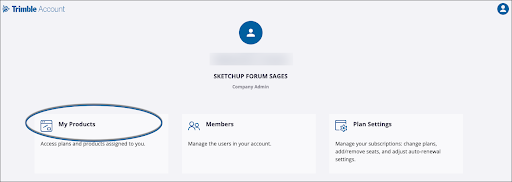
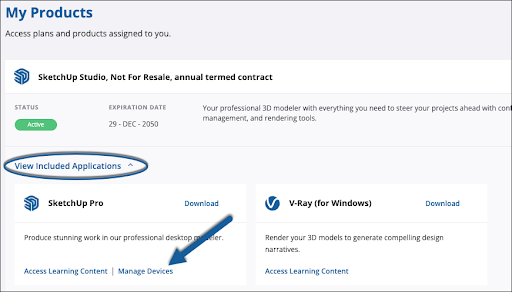
Click View Included Applications . A list of all products included in your subscription will appear.
Note: If you have multiple Trimble accounts and don't see View Included Applications, you may need to switch accounts. Use the dropdown menu under your email address on the left hand side of the page to see all of your Trimble accounts.
Locate the SketchUp tile and click Manage Devices .
The Confirm Deauthorization window will appear.
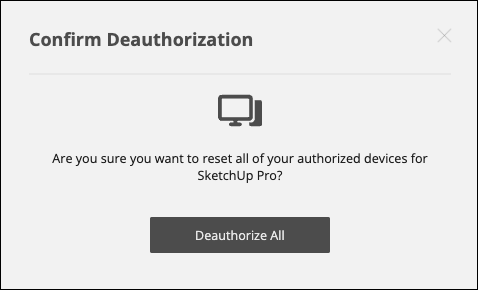
Click Deauthorize All . A message will appear letting you know your changes have been completed
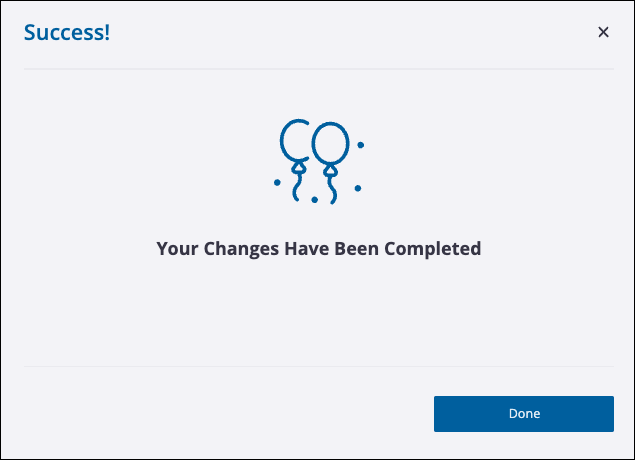
Click Done .
Click your profile icon in the top right corner and select Sign Out .
If you had SketchUp open on a device before you deauthorized all devices, you’ll need to close it, relaunch it, then sign in again using your Trimble ID.
Tip : If you are still receiving an error, make sure you are logged out of all applications that use your Trimble ID and try again. We've also made this video to help guide you through these steps: