
SketchUp 2026.0 有哪些新功能?
SketchUp Desktop 版
在 SketchUp 中协作 ——您现在可以通过发送私人邀请或创建并分享公共链接来共享 SketchUp 模型。对方可以浏览模型、进行测量、添加评论,甚至可以实时查看更新。
可视化 ——SketchUp 2026.0 为环境光遮蔽引入了距离倍增器和颜色控制、反转材质粗糙度贴图的功能,以及备受期待的可在查看材质时选择首选缩略图的功能。
性能 ——SketchUp 2026.0 提升了内存利用率与工作效率,使 SketchUp 更高效、更快速、更可靠。这些性能更新所带来的优势在处理大型模型时尤其显著。
实时组件 ——SketchUp 2026.0 为缩放工具 (
 ) 新增了功能,增加了控制柄,允许您通过推断来放置和调整实时组件的大小。由于您现在可以使用颜料桶工具 (
  ) 在组件预定义选项之外应用材质,我们特意针对实时组件的上色操作新增了几项旨在提升易用性的改进。
建模工作流与界面更新 ——SketchUp 2026.0 在缩放、旋转、场景和推断方面进行了多项显著改进。
管理激活 ——现在,您无需离开 SketchUp Desktop 版应用,即可重置所有激活状态并授权当前设备。
互操作性 ——更新后的 SketchUp 2026.0 为导入和导出 DWG 文件提供了多项保真度和效率改进。其中包括对填充图案的支持以及保留剖面。此外,还增强了 IFC 导出工作流,将 IFC 2x3 和 IFC 4 合并为单一文件类型,并扩展了导出选项。
Scan Essentials ——Scan Essentials 包含两个新的点云建模工作流:纹理投影和网格生成工具。新的场景管理器能更好地控制点云在 SketchUp 和 LayOut 中的可见性。经过此次更新,您还可以在导出时轻松恢复到原始的地理参考坐标系。
LayOut
LayOut 界面与性能更新 ——Windows 系统上的 LayOut 界面在外观和操作上更接近 SketchUp,更新了图标、托盘和面板配置以及工具栏自定义功能。
LayOut 绘图工具 ——新增了四个绘图工具:修剪、延伸、圆角和倒角。这些工具可使 2D 矢量图形的创建和操作更加直观、高效。
剪贴簿改进 ——更新后,LayOut 的默认剪贴簿的“建筑”类别下包含了 2D 窗户、门、家具、厨房、浴室以及额外的人物平面图库。
导入导出改进 ——LayOut 2026.0 为 DWG 功能带来了多项更新,改进了 LayOut 使用该格式导入和导出文档的效率,包括保留 SketchUp 标签并将其转换为 DWG 图层。
错误修复和其他改进
SketchUp
在 SketchUp 中协作
具体更新
现在可以通过发送私人邀请或创建并分享公开链接来共享 SketchUp 模型。对方可以浏览模型、进行测量、添加评论,甚至可以实时查看更新。
详情
SketchUp 2026.0 引入了多项新功能,旨在帮助您共享模型并与同事及利益相关者高效协作。这些功能位于新的协作栏中,可以帮助您共享模型、控制被共享者的访问权限,并收集他人的反馈。
使用协作栏进行共享
协作栏 (  ) 已内置于 SketchUp 的默认工具栏及大型工具集中。您也可以单击 Window(窗口)> Collaboration Bar(协作栏) 来启用它。
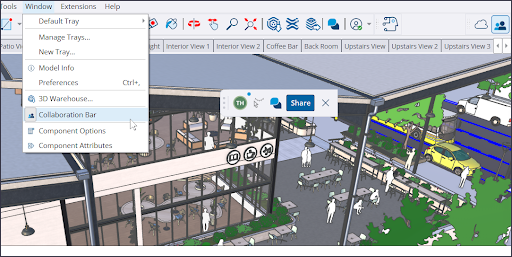
在协作栏中,单击 Share(共享) 即可邀请他人查看您的模型。如果您的模型尚未保存至 Trimble Connect,系统会提示您将其保存到该平台。
要发送私人邀请,请输入对方的电子邮件地址并设定其访问权限。系统将向受邀者发送一封包含私人链接的电子邮件,他们可通过该链接访问您的模型。如果您将模型设置为 General Access(通用访问),单击 Copy Link(复制链接) 将生成一个公开链接,任何拥有此链接的人均可查看您的模型。
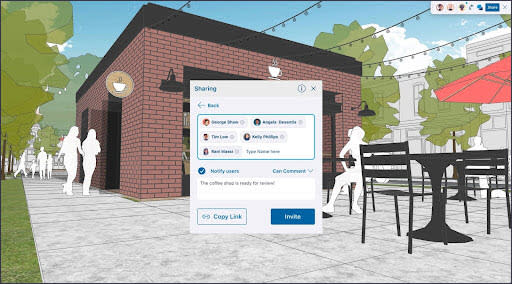
收到您共享的链接后,对方可在 Web 浏览器中打开链接并查看您的模型。他们将能访问模型的基本信息,以及其他一些选项,具体取决于您所设定的访问权限级别。您可以随时设置或更改查看者的访问权限。收到私人邀请的查看者具有以下权限:
所有者 ——模型所有者始终拥有所有查看功能的完全访问权限。
查看场景 ——可以查看模型中的场景,但不能浏览模型或发表评论。
评论 ——可以发表评论、使用所有可用的相机工具,并使用所有查看者实用程序。
通用访问权限是指,当有人使用您的公开链接或未经私人邀请而尝试查看您的模型时,他们所能进行的操作。通用访问权限不包括对模型发表评论。模型的通用访问权限可设置为:
禁止访问 ——当他人尝试访问模型时,系统会提示他们向您申请访问权限。您随后可以批准或拒绝该请求,甚至不予理会!
查看场景 ——通过公开链接访问的查看者只能查看场景。
查看模型 ——通过公开链接访问的查看者可以浏览模型并进行测量。
所有查看者都能看到其他查看者的光标。每位查看者都可以使用协作栏中的 隐藏光标 (  ) 按钮来隐藏这些光标。
评论
全新的评论工具可以在您的模型中创建 3D 评论标记。若要在您自己的模型中留下评论,请从工具栏或协作栏激活 评论 工具 (  )。激活评论工具将同时打开 Comments(评论)面板。在 Comments(评论)面板中,您可以查看评论线程、添加回复以及隐藏评论标记。
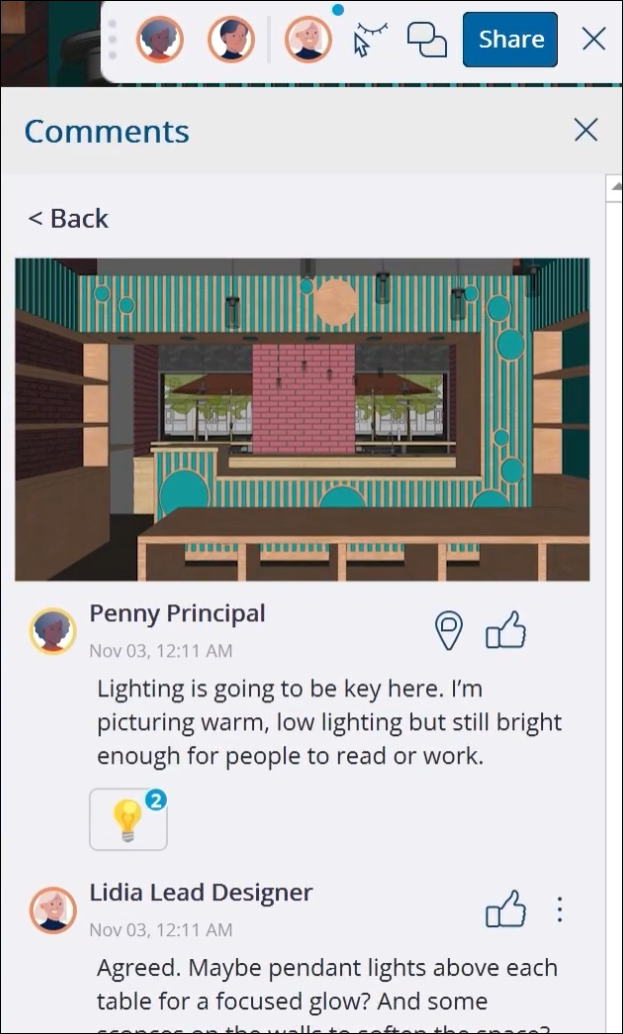
查看者可以使用评论工具发表评论。激活工具后,将鼠标悬停于对象上方,并选择一个精确位置,即可留下您的评论。除了通过基于文本的评论进行交流外,您还可以在评论线程中添加图片、链接,甚至不同的相机位置。
每条评论都可以与特定的场景关联。这意味着,当查看者在建模窗口中点击评论标记时,SketchUp 将显示该评论线程、激活最后选中的场景,并切换到评论保存时的相机位置。您也可以选择将您的评论与其他场景关联,或者不与任何场景关联。
实时查看与相机控制
默认情况下,查看者能够实时看到您的建模进度。您所做的任何更改都会对所有查看者可见,并且如果光标可见,则查看者甚至能看到您正在使用哪个工具进行修改。查看者正在使用的导航工具,例如卷尺、平移工具或旋转工具,也对所有人可见。
如果您希望查看者从特定视角查看您的模型,您可以点击协作栏中您自己的头像。每位查看者的视角都将同步切换到您的视角。如果您想查看另一位查看者正在浏览的内容,可以点击他们的头像。
深入了解
有关 SketchUp 所有全新协作功能的更多详细信息,请参阅 连接和协作 帮助文档。
可视化改进
具体更新
SketchUp 2026.0 为环境光遮蔽引入了 Distance Multiplier(距离倍增器)和颜色控制、反转材质粗糙度贴图的功能,以及备受期待的可在查看材质时选择首选缩略图的功能。
详情
环境光遮蔽
环境光遮蔽面样式有两项重大改进—— 距离倍增器 滑块和颜色样本控件。
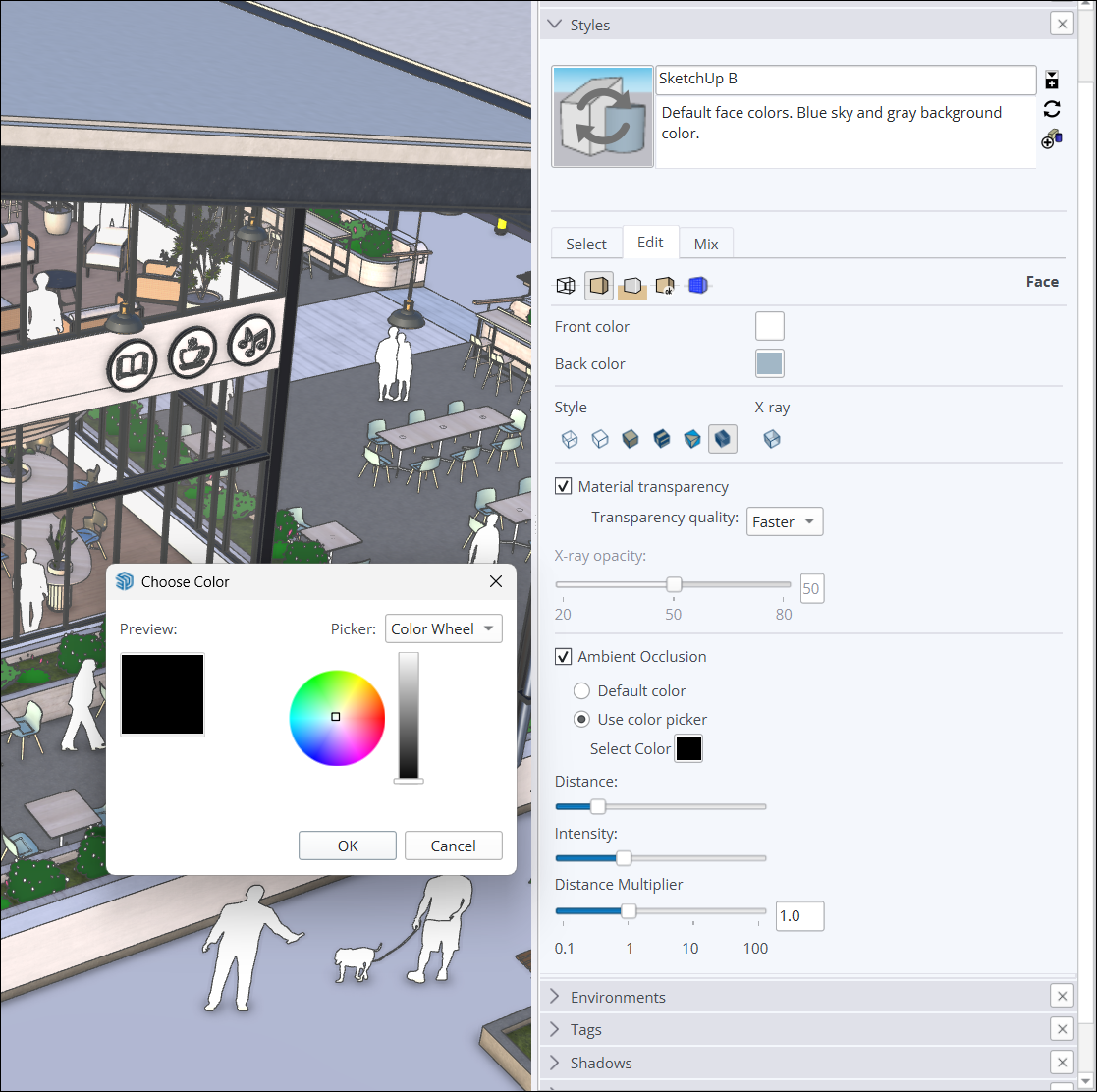
距离倍增器 滑块可协助控制遮蔽效果在模型中出现的距离。数值较高时,即使拉远视角,遮蔽效果也仍然可见。
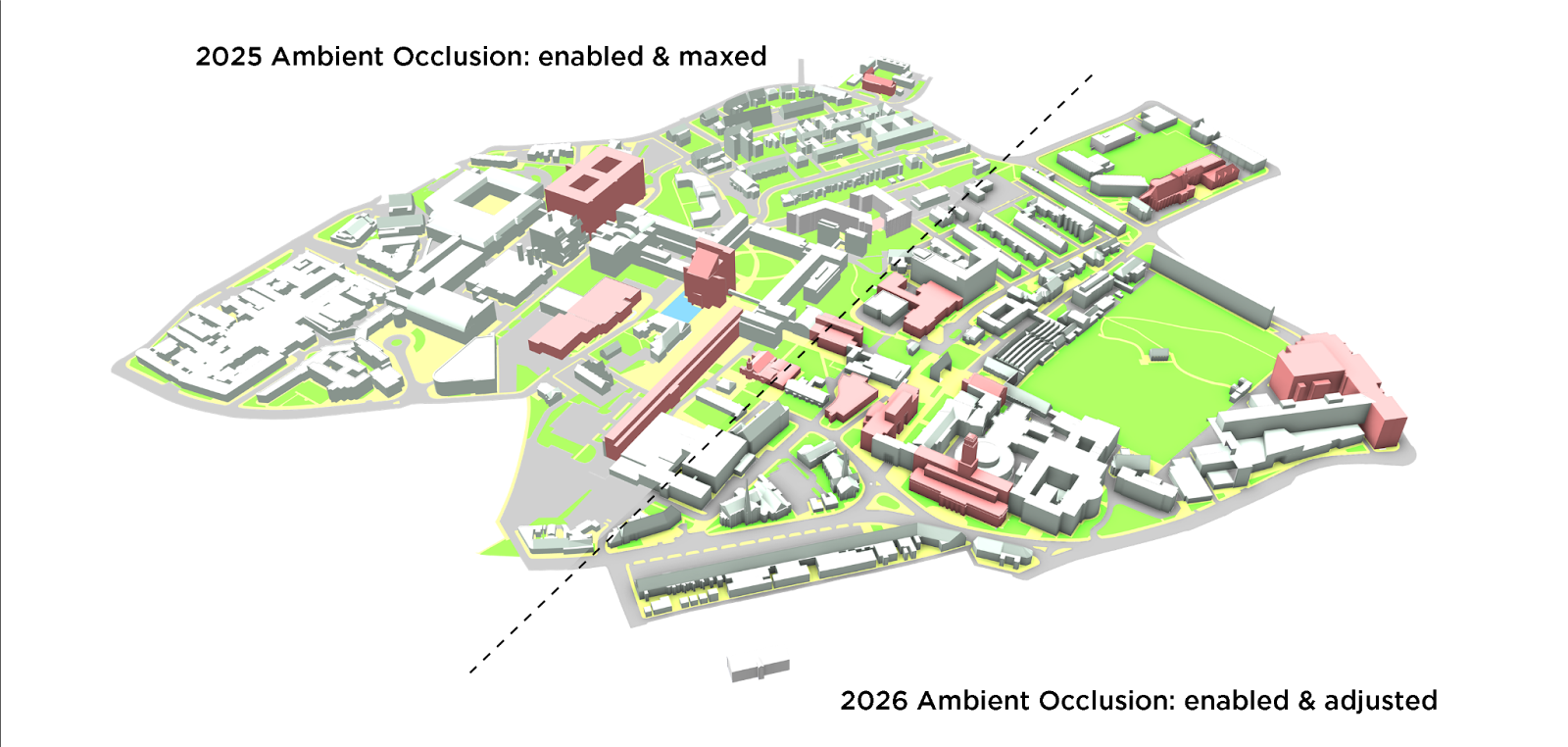
颜色样本控件允许根据选择的颜色生成动态阴影效果。当使用色轮、HLS、HSB 或 RGB 控件调整颜色时,颜色效果会实时显示在模型中。
粗糙度反转
SketchUp 的逼真材质提供了多种方式来定制模型中面的外观与质感。借助新的粗糙度反转选项,可以翻转材质粗糙度贴图中的黑白值。粗糙度反转提供了新的选择,让您能更好地控制面的平滑或粗糙程度。
材质缩略图(仅限 Windows)
根据用户的普遍需求,材质缩略图现在支持自定义,提供三维和平面 2D 图像两种显示方式。
右键点击材质的预览图时,可以从 自动缩略图 、 立方体缩略图 或 平面缩略图 中进行选择。选择自动缩略图时,逼真纹理会显示为立方体。立方体缩略图会强制材质显示为立方体。平面缩略图会将缩略图显示为经典的 2D 图像。
深入了解
有关 SketchUp 可视化功能的更多信息,请参阅 材质、纹理和环境 。
性能
具体更新
SketchUp 2026.0 提升了内存利用率和工作效率。这些改进使 SketchUp 更高效、更快速、更可靠,尤其是在处理大型模型时。
详情
内存优化
SketchUp 现在能更好地管理内存,优化了软件对各类元素及流程的内存分配与使用方式,包括:
模型加载 ——SketchUp 现可更高效地加载模型数据,并有效降低初始内存峰值。
更低的内存开销—— SketchUp 优化了为组件保留的内存量,从而减少了内存浪费。
Windows 图形效率—— Windows 用户会注意到图形资源处理方面的改进,即内存使用效率的提高。
经过以上内存优化,SketchUp 的整体内存占用量有所降低。这意味着:
崩溃和冻结情况减少,特别是对于使用内存较小的设备处理大型模型的用户而言。
环境更稳定、响应更迅速,可实现长时间不间断的工作。
更好的流畅性和响应能力。
工作效率提升
SketchUp 2026.0 提升了常用操作的速度,通过在以下方面做出改进实现了更好的流畅性:
选择和推导—— 核心选择和操作代码的优化,使得选择、打开和关闭组件、推导较小目标等任务的执行速度更快。
场景过渡—— 增强的场景过渡逻辑使得较大模型中的场景切换更流畅,每秒帧数提升了约 86%。
缩放范围—— 使用缩放范围功能时,速度提高了约 90%。
清除未使用的标签—— 清除未使用标签所需的时间大幅缩短。
注意 :性能估算结果均基于在不同硬件配置上使用各种复杂程度的模型进行的内部基准测试。实际体验可能会因硬件和模型数据而异。
Learn More
For more information on running SketchUp see our Hardware and Software Requirements .
Live Components
What We Did
SketchUp 2026.0 adds additional Live Component gripping functionality to the Scale tool. These grips allow you to place and size Live Components by inference. We’ve also added several quality-of-life improvements to painting Live Components.
The Details
Scaling Live Components
The Scale tool ( ) can now be used with Live Components, allowing more flexibility when placing components in your models.
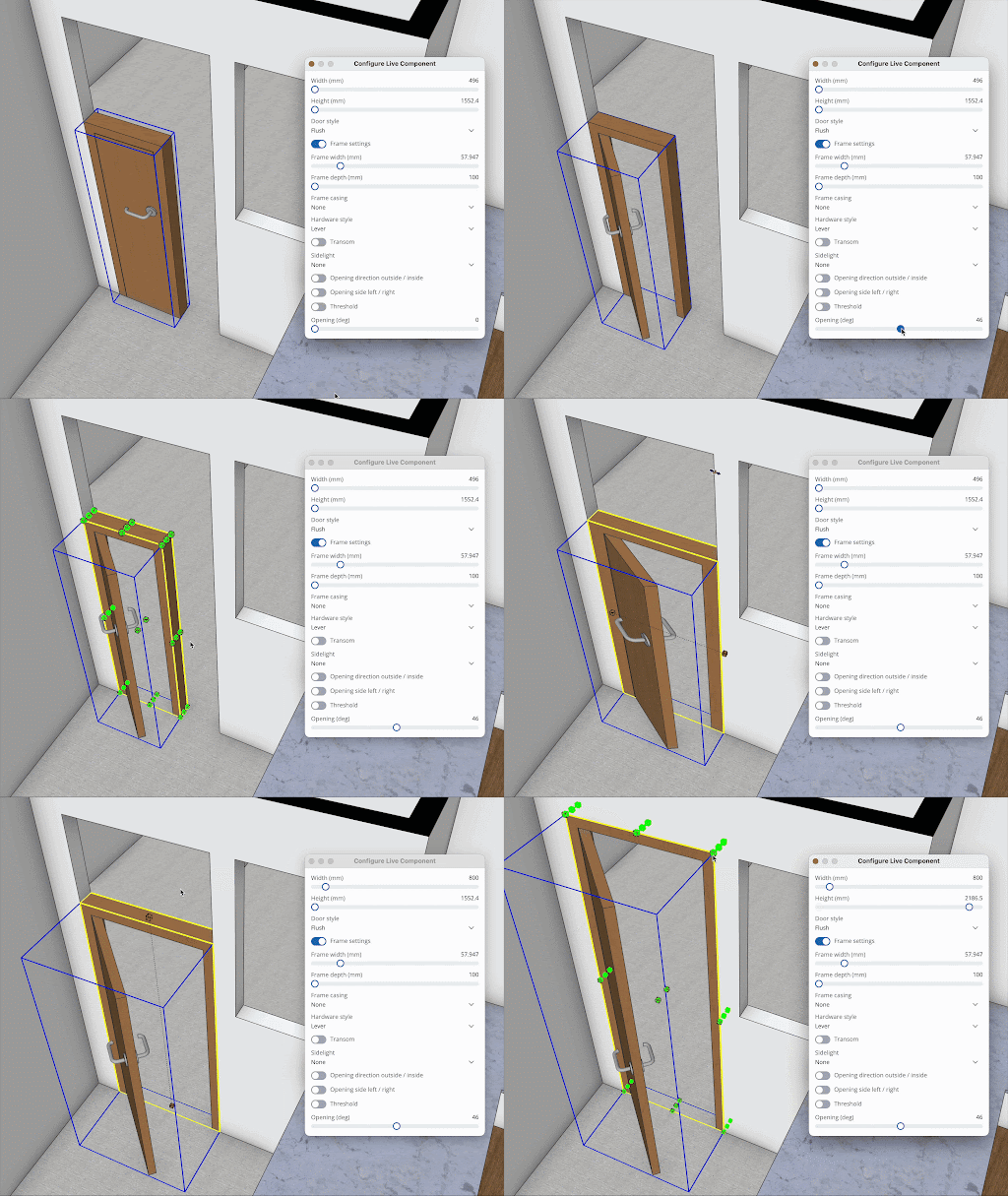
These grips are not always locked to the bounds of the component. That means you can better identify what you are sizing and how to best fit a component in your model. Check out 3D Warehouse’s SketchUp Content Library to browse sizable Live Components, available to SketchUp subscribers. Not all existing Live Components have scale grips, but more that do are coming soon!
Improved Material Workflows
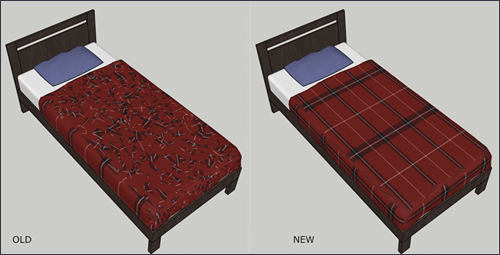
The Paint Bucket tool can apply custom materials to a Live Component, even materials not already available in that component. This updated workflow now includes better texture mapping, painting while a Live Component is selected, a better way of handling materials, and a few other behind-the-scenes changes to help with SketchUp Material Library compatibility.
Learn More
For more information see SketchUp Live Components .
General Modeling Improvements
What We Did
SketchUp 2026.0 includes several notable improvements across scaling, rotating, scenes, and inferencing.
The Details
Scaling Improvements
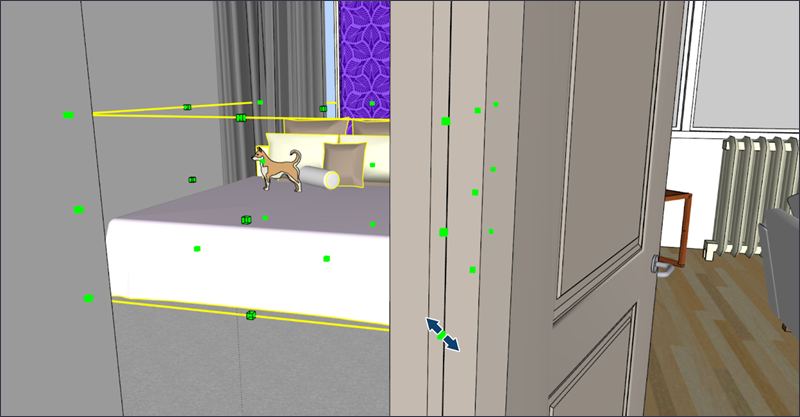
When scaling objects it can be hard to access grips hidden by other geometry without a lot of orbiting, panning, and adjusting visibility. In small spaces, scaling may require extra clicks. Now, scale grips display through other geometry, so that you can always see and click them.
Rotate Improvements
SketchUp 2025 introduced rotation handles to the Rotate tool. These handles allow for quick- two-click rotations, but cause unexpected results after locking the rotation plane. To avoid problems, rotation grips will not appear when you’ve locked a rotation plane.
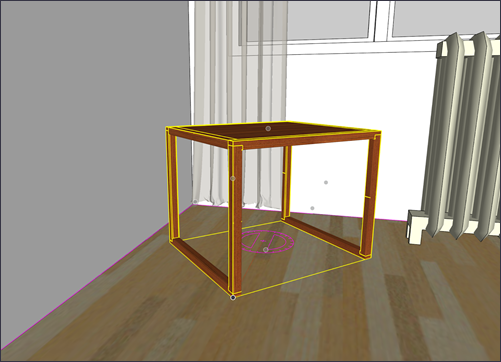
Moving from a profile edge
When placing objects, the object you are placing could obscure the background elements, making it hard to align things. Some workarounds include showing back edges, turning on X-ray, or cycling through bounding box grips.
To address these issues, groups and components can now be done using one of its profile edges. The object will become transparent, making it much easier to see and choose your placement target. Profiles don’t need to be visible for this to work, but still depends on camera position and the complexity of geometry.
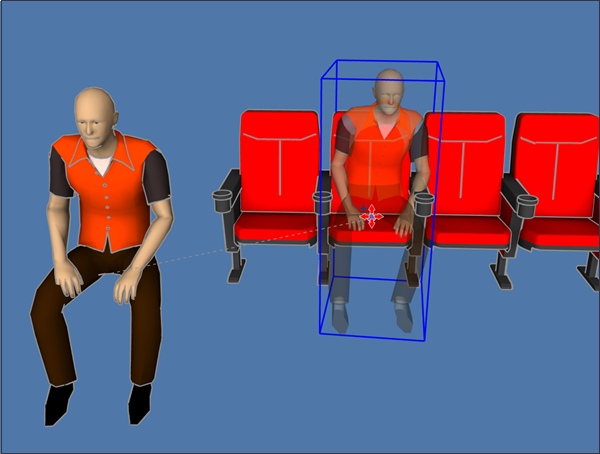
Scene Undo and Redo
Making the wrong update to a scene can be frustrating. Before 2026.0, it could require hours or discovering new extensions to get a scene back to where you want it. To address this issue, the ability to undo or redo scene updates is now available. Undo and Redo works just like it does when editing other parts of your model and will also respect creating, renaming, and deleting actions.
Purge Unused
The Purge Unused reminder seen when you save a model will now be off by default. You can still control this reminder in Preferences. When switched on, you can now control exactly what you want to purge, helping to make sure you aren’t purging useful assets. Purge Unused also appears in the Edit menu and can be assigned a shortcut, so that you can purge what you want, when you want.
Trays and Panels (Windows)
As part of ongoing work to update the SketchUp interface, you can control tray and panel visibility by right-clicking tray and panel headers. Selecting an unchecked panel makes it visible within the tray you clicked on. This new functionality is an alternative to using the Window menu whenever you want to activate trays or show panels within a tray.
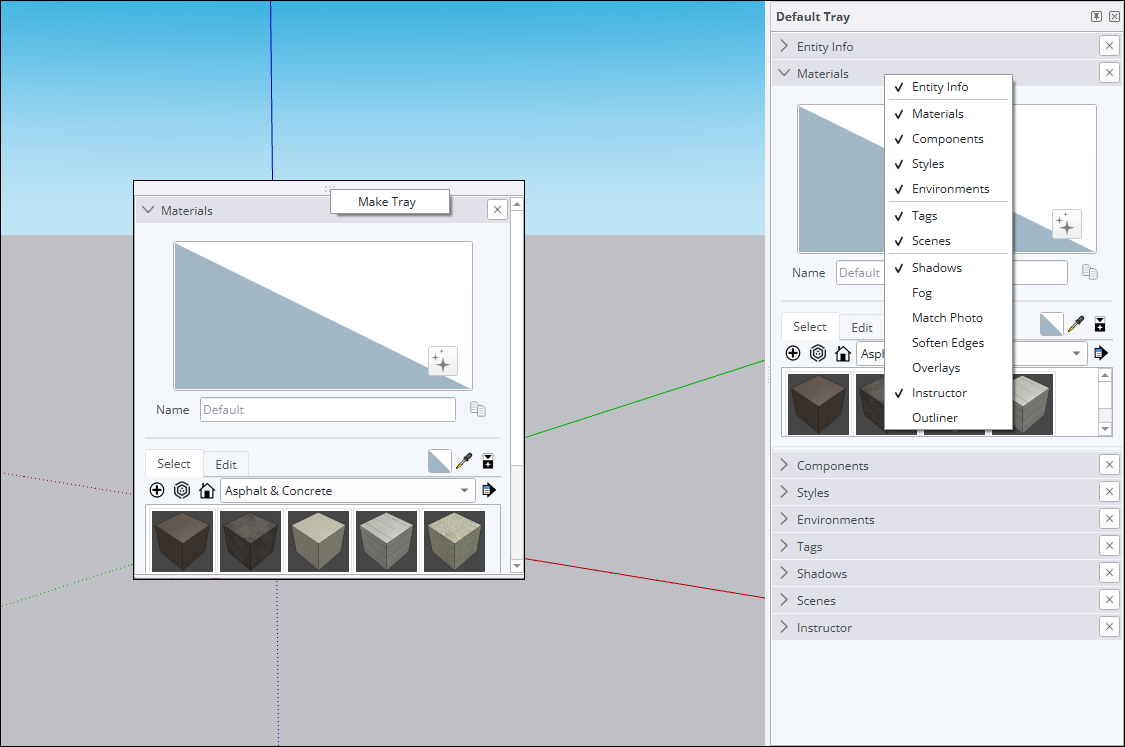
Additionally, panels can now be dragged between trays or out into open space to become an independent tray. If you want to turn that new window into a tray, you can context click the temporary tray click Make Tray .
Learn More
For more information on how to use these new features, see Drawing Lines, Shapes, and 3D Objects .
Manage Activations
What We Did
You can now reset all activations and authorize your current device without leaving SketchUp for Desktop.
The Details
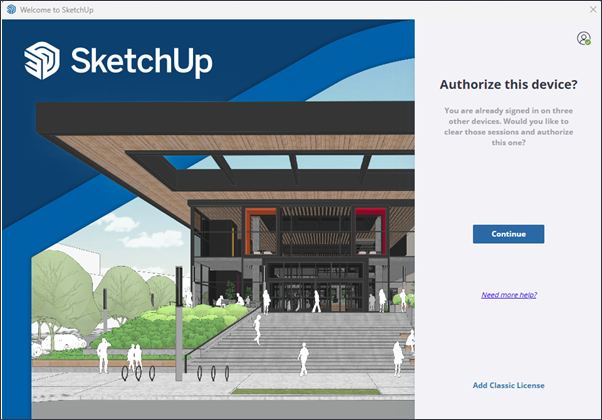
Sketchup’s End User License Agreement (EULA) limits the amount of installations and authorizations for each application included in your subscription to two instances or devices. If you try to install and authorize an application on a third device or open a third instance of an application, you'll see the message "You have exceeded your allowed activations."
If you reach that message when opening SketchUp for Desktop, an option now appears allowing you to reset all activations and authorize your current device without having to access your account management page.
Learn More
For more details on how you can manage your activations, see Managing Activations .
SketchUp Interoperability
What We Did
SketchUp 2026.0 now offers several fidelity and efficiency improvements for importing and exporting DWG files. This includes hatch support and preserving section planes. The IFC export workflow has also been enhanced, consolidating IFC 2x3 and IFC 4 into a single file type with expanded Export Options.
The Details
DWG Import Options
When importing a DWG file, two new options are now available – Import Layers as Groups and Import Linework Flattened .
Selecting Import Layers as Groups tells SketchUp to create groups corresponding to the imported DWG’s layer structure. These imported layers still have their own Tag, but now also have corresponding, grouped geometry allowing for improved visibility control in your imported model.
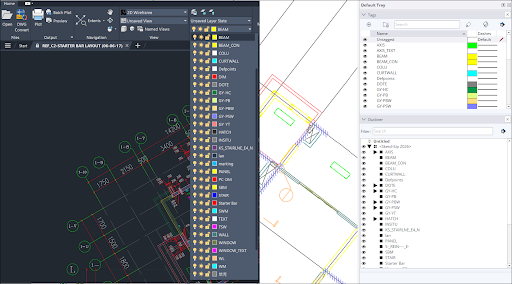
Selecting Import Linework Flattened sets the Z-value of imported geometry to 0, decreasing the common post-import cleanup needed when converting 2D CAD data into 3D models. By eliminating Z-axis discrepancies, the tool prevents disruptive issues like misalignments and helps you start with a clean, accurate foundation. If you are familiar with other CAD software, this works a lot like the Flatten feature found in those applications.
DWG Hatch Support
Sketchup now imports hatches from DWG files. Imported solid hatches become faces. Non-solid hatches become edges.
Exporting 3D Sections
SketchUp now preserves section planes when exporting 3D DWG files, resulting in DWG Sections. These sections can then be used with the Generate Section Block and 2D Section / Elevation features in AutoCAD.
Other DWG Improvements
SketchUp 2026.0 also includes the following DWG improvements:
Polylines from DWG files now import as welded SketchUp lines.
SketchUp now better handles component instance names, reducing duplicative data.
3D Polyline now appears as intended in the Import Results dialog.
Better results when exporting true curves.
Multiple issues with the 3D AutoCAD exporter were addressed.
3D polylines now export as intended to 2D DWG.
IFC Exporter Improvements
When exporting your model, the IFC 2x3 and IFC 4 options are now consolidated into a single IFC File option in the list of file types. You can then select a specific IFC version in the new Export Options dialog.
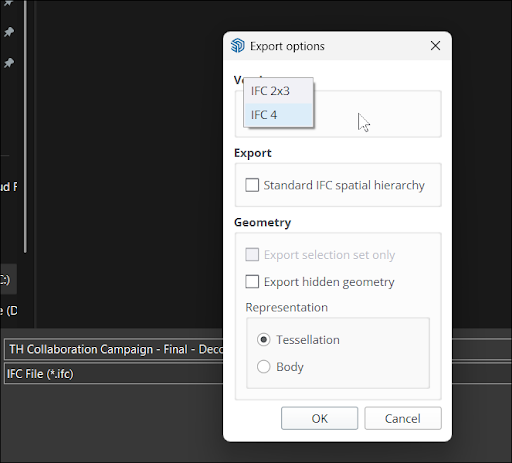
The new IFC Export Options dialog also includes a new Standard IFC Spatial Hierarchy option. Selecting this option creates essential entities like IfcProject, IfcSite, or IfcBuilding, even if they aren’t defined in your model’s Outliner structure.
Learn More
For more information on importing and exporting with SketchUp, see Using SketchUp Data with Other Modeling Programs or Tools .
Scan Essentials
What We Did
Scan Essentials includes two new point cloud modeling workflows, the Texture Projection and Mesh Generation tools, a new Scene Manager to better control the visibility of point clouds in both SketchUp and Layout, and the ability to reset transformations to the original georeferenced coordinate system when exporting.
The Details
SketchUp subscribers with access to Scan Essentials can now use two new tools – Texture Projection and Surface Mesh.
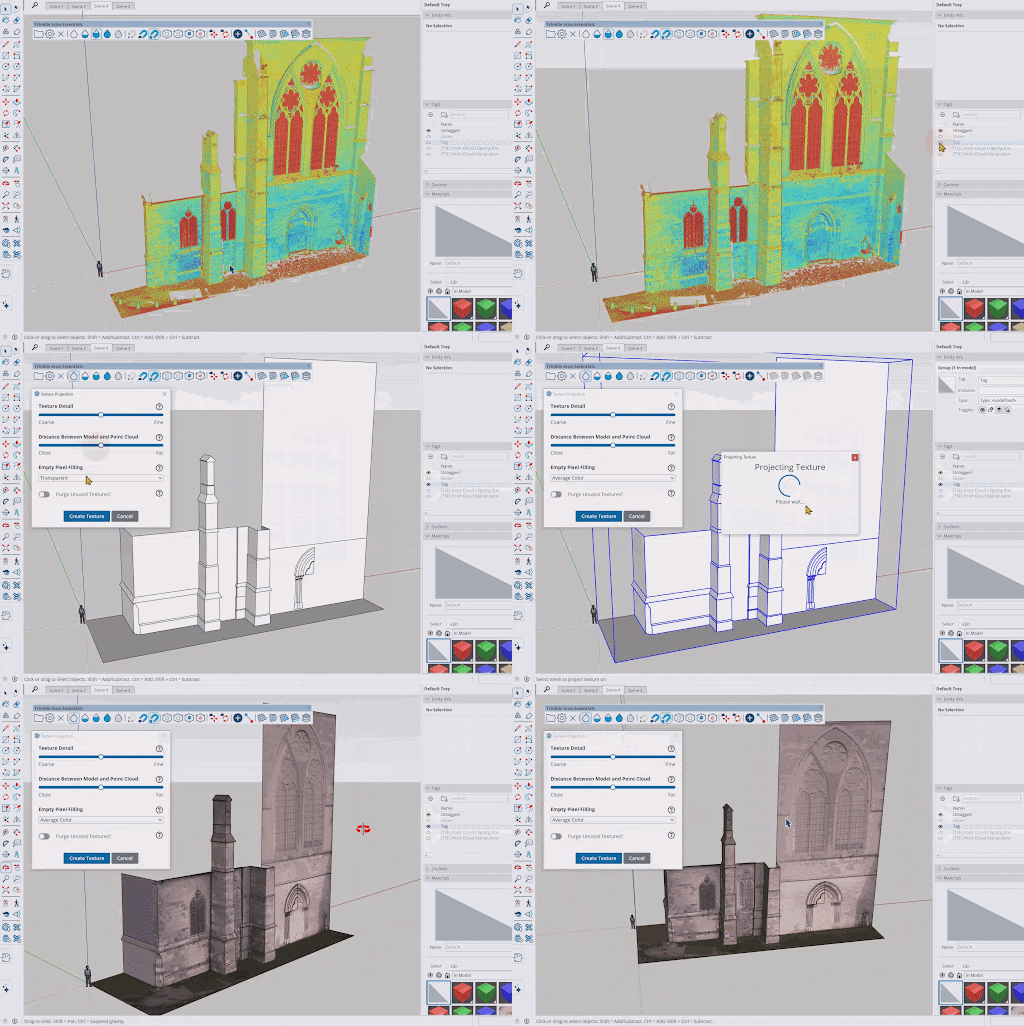
With Texture Projection, you can extract an image texture from scan data and project it onto SketchUp geometry. Projected textures turn into SketchUp materials you can reuse in other parts of your model, or even other models if you save them.
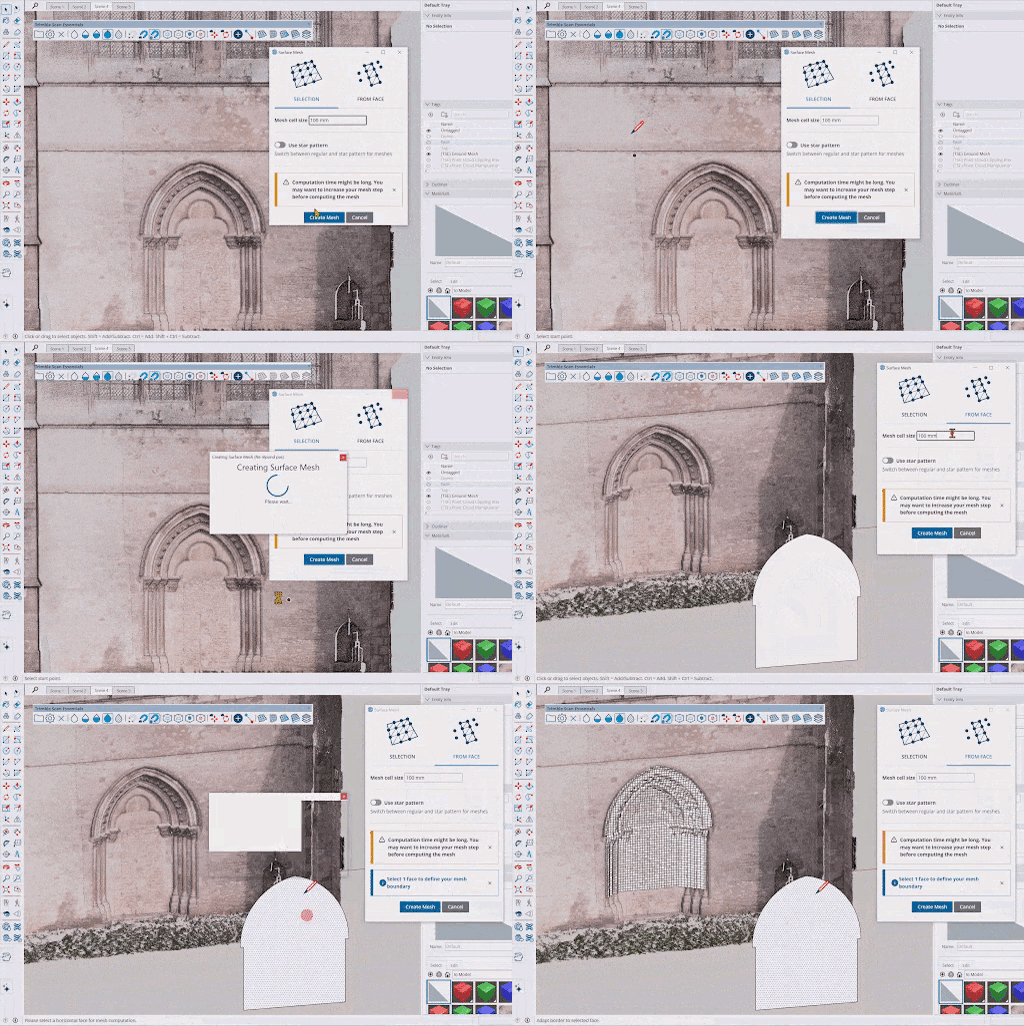
The new Surface Mesh tool makes extracting Sketchup geometry from point clouds easier. After selecting the Surface Mesh tool you can choose the area you want to extract from, define how you want to extract the geometry, and create a mesh in just a few steps.
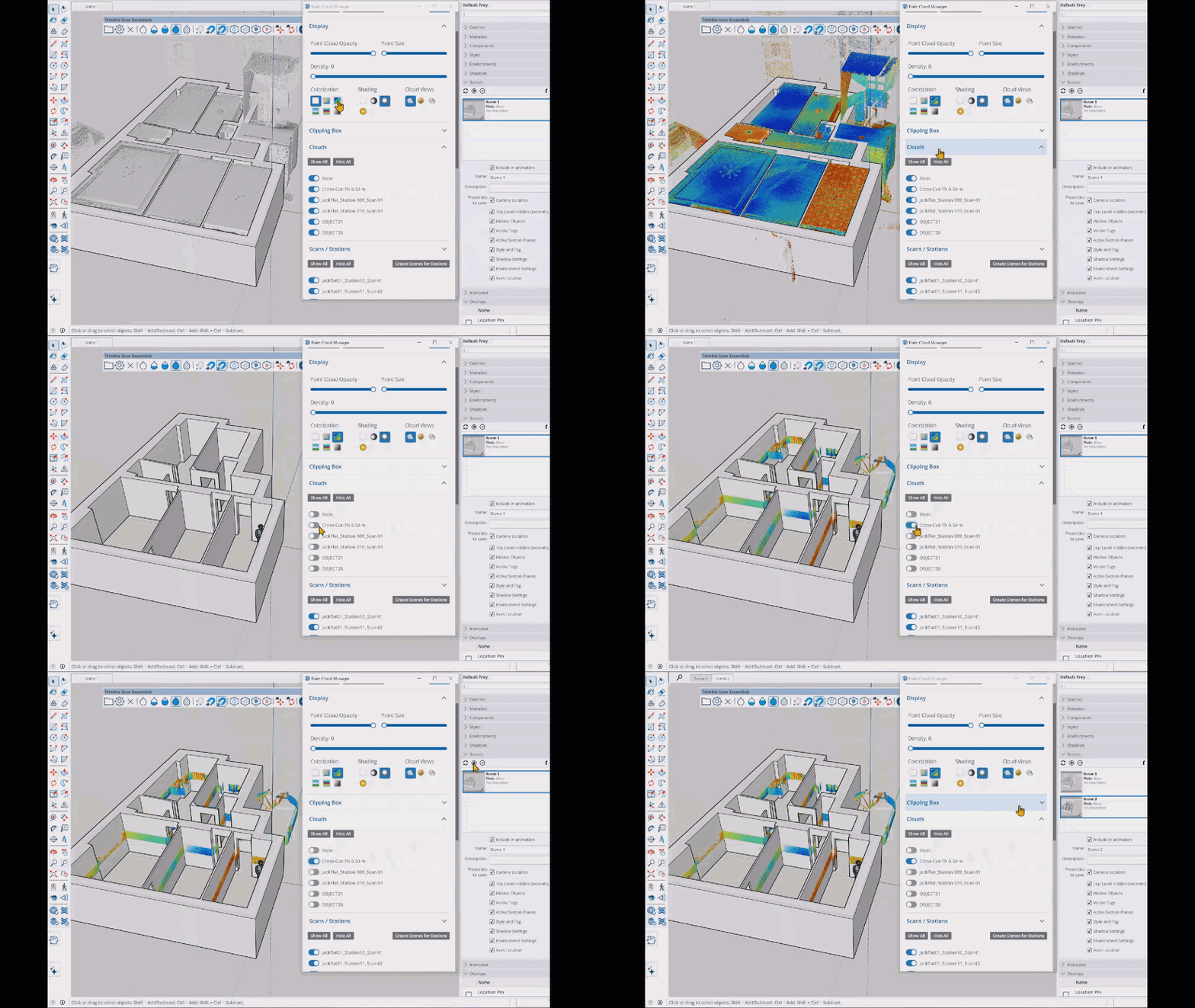
Along with these new tools, you can now save visibility settings from the Point Cloud Manager as a scene in both SketchUp and LayOut.
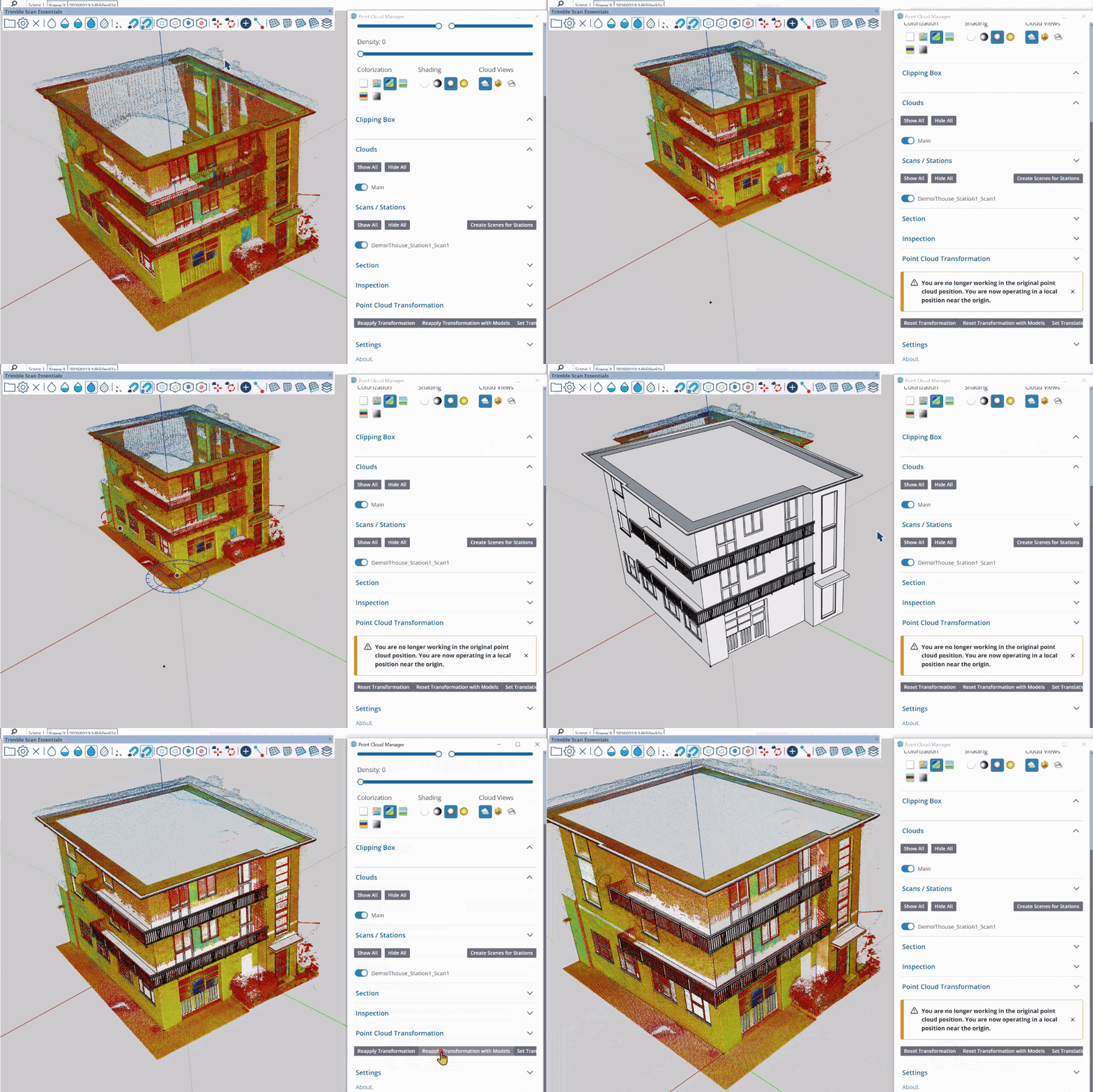
Finally, clicking Reset Transformations in the Point Cloud Manager now resets all transformations, including global transformations. This can be a great tool for those who want to export their original data for use with other apps.
Learn More
For more information, see Scan Essentials for SketchUp .
LayOut
LayOut Interface and Performance Updates
What We Did
The LayOut interface on Windows looks and operates more like SketchUp with updated iconography, tray and panel configurations, and toolbar customization.
The Details
LayOut’s new interface on Windows brings SketchUp style to your LayOut documents.
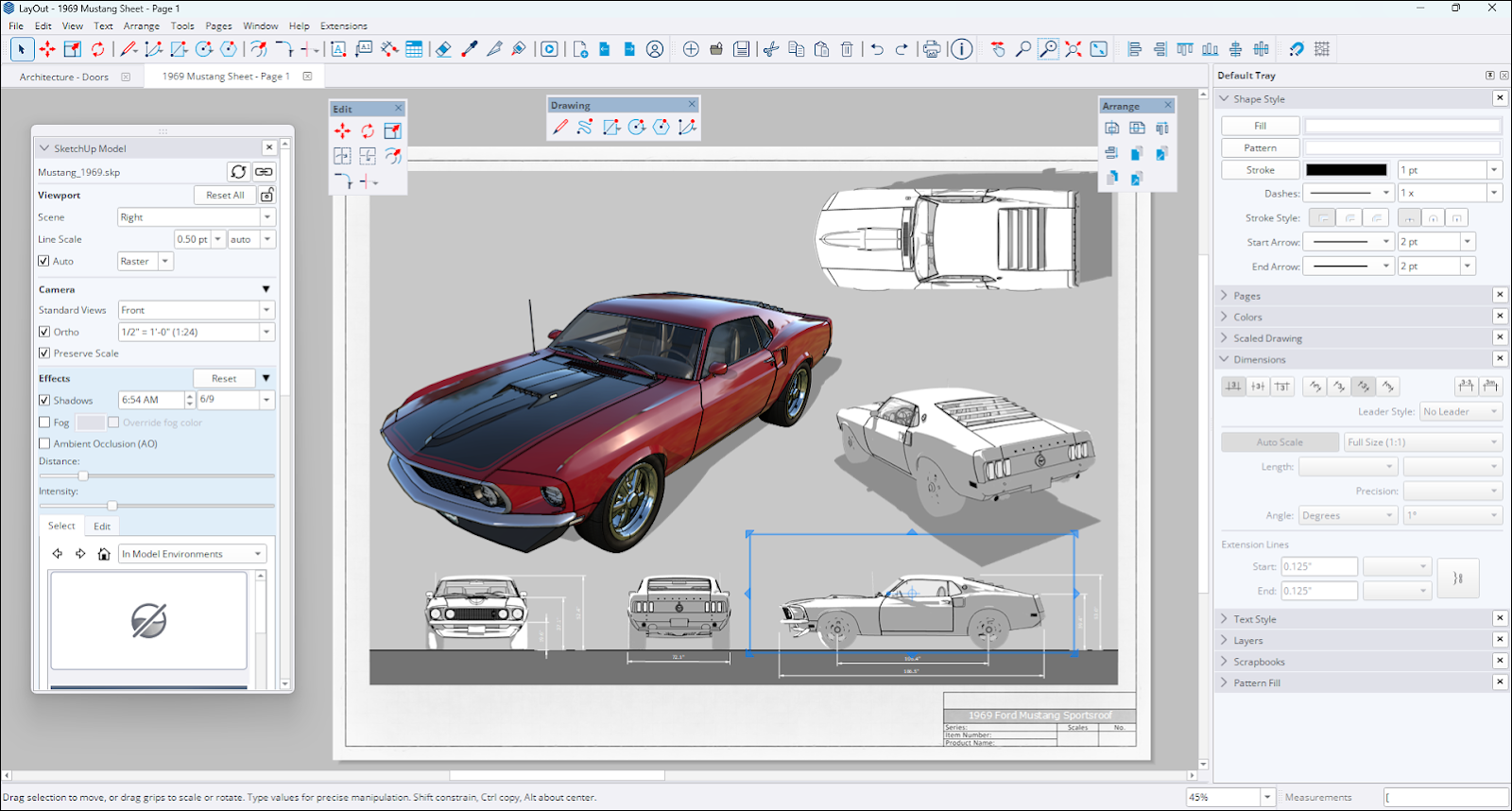
LayOut’s trays and panels now behave a lot more like their SketchUp counterparts. You can arrange them in your workspace, drag panels out, and create new trays to best fit your workflows. Toolbars received a similar uplift, allowing you to arrange them how you like in your workspace, similar to how it works in SketchUp.
Vector and Hybrid Rendering Performance
LayOut’s Hidden Line Rendering (HLR) code generates the vector linework used in vector and hybrid SketchUp model viewports. We’ve improved this process granting a significant speed increase.
Learn More
For more information see Creating Documents in LayOut .
LayOut Drafting Tools
What We Did
Four new drafting tools, Trim, Extend, Fillet, and Chamfer, are now available. These tools provide a more intuitive and effective way to create and manipulate 2D vectors.
The Details
LayOut’s new drafting tools can help bypass unnecessary selections and eliminate extra cleanup when performing simple 2D tasks like detailing and diagramming. Each of these tools performs a specific function:
Trim (
 ) – The Trim tool provides an efficient way to clear lines or shapes without the need to clean up additional vectors. Trim removes excess lines and creates clean intersections, improving both speed and accuracy. The default shortcut for Trim is Shift + T.
Extend (
 ) – The Extend tool simplifies 2D drafting by providing a quick and easy way to extend lines and other entities. The default shortcut for Extend is Shift + E.
Fillet (
 ) – The Fillet tool creates precise rounded corners between two entities based on a defined radius. The default shortcut for Fillet is Shift + F.
Chamfer (
 ) – The Chamfer tool adds a 45° angle between two lines at a defined distance. The default shortcut for Chamfer is Shift + C.
These tools can be found in the Main Toolbar. Trim and Extend share the same spot in the toolbar with a dropdown available to switch between the two. Fillet and Chamfer also share one toolbar icon.
Learn More
For more information see Using the Drafting Tools .
Scrapbook Improvements
What We Did
LayOut’s default Scrapbook libraries now include 2D Windows, Doors, Furniture, Kitchen, Bath, and People under the Architecture category.
The Details
The Scrapbook libraries shipped with LayOut provide common reusable elements that are simple to add and scale in your drawings. We’ve now added a new Scrapbook called Architecture. This new Scrapbook offers common architectural assemblies that work well with model viewports or plans drafted within LayOut.
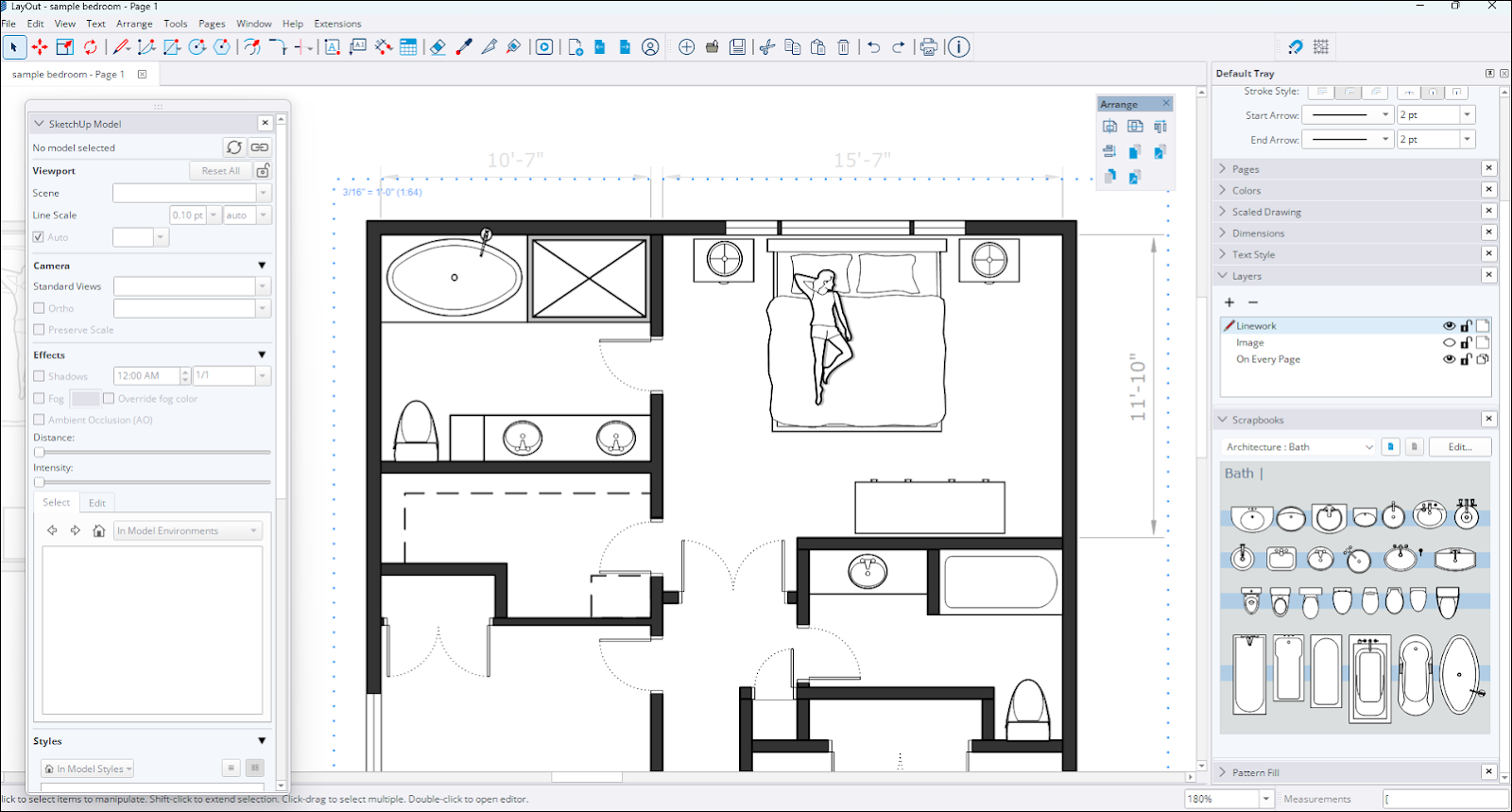
This new Architecture Scrapbook contains elements of the following types:
Doors with Wall Mask (Doors created with a rectangle ‘Masking’ out entities below)
Doors
Windows
Living
Bedroom
Kitchen
Bath
All the Architectural Scrapbook content is created as customizable Scaled Groups.
Learn More
For more information on the existing and new Scrapbook libraries, see Working with Scrapbooks .
LayOut Importing and Exporting Improvements
What We Did
LayOut 2026.0 brings multiple updates to DWG functionality, improving efficiency in how LayOut imports and exports your document using that file format.
The Details
If you use AutoCAD as part of your 2D workflows, LayOut can help you create and maintain drawings. LayOut received quite a few improvements to help when working with DWG files:
Page Export – When exporting a LayOut document you can now export each page in your document as a distinct DWG file.
Tag Preservation – Exporting to DWG now preserves tag naming structures of your SketchUp viewports.
Stacked Viewports – When multiple SketchUp viewports are located in the same position in your document, these models will now also be stacked on top of each other in the exported DWG model space.
Text, Hatches, and Tables – LayOut now accurately exports text, hatches and tables to DWG. This includes proper AutoCAD table elements with font and border settings. LayOut also better recognizes and imports these elements when importing a DWG into your document.
Broken Lines and Curves – LayOut now properly creates continued lines for elements exported from SketchUp viewports.
Learn More
For more information see Importing CAD Data into LayOut and Exporting CAD Data from LayOut .
Bug Fixes and Other Improvements
SketchUp
Stability and Performance
Fixed an issue where opening or expanding the Components tray while using tools like Paste, Component, Move (in Copy or Stamp mode), or Rotate (in Copy mode) would cause a crash.
Added the ability to change the material preview (flat, cube or automatic switching) style via a context menu
Added the ability to set a custom directory for templates in Preferences
Improved automatic association of .skp files. When multiple versions of SketchUp are installed, .skp files now correctly default to opening in the latest installed version.
Addressed an issue where notifications could be triggered three times through the Ruby API, but would fail on the fourth.
Fixed intermittent crashes when editing Live Components.
Improvements have been made to handle model corruption that previously showed a ‘file invalid’ error, with more cases now being automatically fixed.
A crashing issue that could occur when importing very large images while the new graphics engine was active has been fixed.
Improved V-Ray integration by allowing version specification on the download page.
Resolved a crash that occurred with certain example files when specific groups were selected and then exploded from the context menu.
Fixed a crashing issue that could happen if a model being opened had a corrupt Normal map.
Implemented better performance when selecting large areas of complex models.
Fixed a crash that could occur when copying text objects that used the auto-text feature.
Addressed a crash that could happen when using the Create Radius extension.
Dragging a corrupt component into the model scene from the Components panel will no longer cause a crash.
Certain components will no longer flicker while using the Orbit tool.
A crash that occurred during the import of a specific hatch has been fixed. Additionally, resolved an issue where the back and front faces of certain geometry were reversed during import.
Corrected a bug in the Component Options dialog where default attribute values from custom SKC files were not being imported by updating the import mechanism to correctly parse and assign these values from the XML schema.
Addressed an issue where notifications could be triggered three times through the Ruby API, but would fail on the fourth.
MacOS – Fixed an issue where CMD + Tab could cause tool interruptions when tabbing away from and back into SketchUp. SketchUp will no longer lose inferences or drawn lines when performing this action.
Windows – Added tool icons next to many items in the application menus
Windows – Fixed an issue where Ruby SketchUp would crash when an HtmlDialog was called from a WebDialog.
Windows – Fixed an issue on Windows where SketchUp would crash on launch after a period of inactivity.
Usability
Extension Migrator is now pre-installed and automatically launches on your first install, prompting you to migrate extensions from a previous installation.
Author is changed to "SketchUp" for Extension Migrator for consistency with other shipped Extensions.
Fixed an Extension Migrator issue where "\r" would appear in text strings in some translations, including French.
Reset Workspace in Preferences > Workspace now restores SketchUp’s out-of-the-box workspace as intended.
The initial import directory is now saved to File > Preferences for all 'import to model library' options (Materials, Environments, Styles).
Fixed an issue where Environments would not download directly into the model from 3D Warehouse
Fixed an issue where downloading an Environment from 3D Warehouse and importing a .ske file used the incorrect name.
Fixed an issue with a mismatch in the English resource folder path which resulted in an error in the Welcome Window.
A bug that could cause the Escape key to fail to exit from group or component editing mode has been fixed.
Fixed an issue where scene thumbnails would show a '?' instead of updating when changes were made in a Match Photo scene.
Improved the status bar text for painting Live Components. The Live Component can now be selected at the time of painting.
Fixed an issue where components with a corrupt transformation would disappear when scaled.
Improved the time it takes for the Live Component configuration panel to appear when switching between different Live Components.
Text or dimension elements now correctly show the assigned tag color when selecting Color by Tag .
Corrected an inaccurate bounding box report for groups that had been transformed with Ruby code.
Fixed an issue where materials used as tag colors were not appearing when using the Hidden Line face style with the new graphics engine enabled.
Addressed an issue where drawing a rectangle would show a help tip about squares, but the resulting rectangle was not a square.
The status bar text for the Lasso tool now displays as intended in languages other than English.
Objects set to glue to faces, when placed with the Move tool in Stamp mode, will no longer incorrectly rotate by 180 degrees.
Fixed an issue in tools where using the protractor could cause it to appear larger than normal.
Fixed an issue when navigation buttons were sometimes hidden when launching 3DWarehouse or Extension Warehouse.
Fixed an issue where dimensions inside a component being scaled would not update, and where the arrows would look stretched.
Fixed a crash that could occur when opening a model that had a corrupt style, or when choosing the Save Out > To 3D Warehouse option.
Fixed a flickering issue that could occur when animating between scenes with different section plane settings.
Fixed a crash that could occur while drawing by click-drag-release while using the Move tool’s Stamp mode.
Fixed an issue where resetting the scale of a group would make the contents disappear.
Fixed an issue where some animations weren’t always visible when transitioning Scenes with the New Graphics Engine.
Fixed an issue where some error messages were confusing or non-descript of what to do next.
Windows – A keyboard shortcut has been added in Preferences to show the Environment panel.
Windows – The tag color preview in the Tags panel now correctly displays textures instead of only a solid color.
Windows – An issue where having many scene tabs would cause the wrong scene to be selected when clicking on a tab has been fixed.
Windows – The materials panel no longer unexpectedly opens and scrolls when reactivating the Paint Bucket tool after using a camera tool.
Windows – The Create Material and Duplicate Material dialogs now show all controls when a scroll bar is present.
Windows – Pressing Enter/Return in text edit fields in the material panel now returns focus to the main window as expected.
Windows – Fixed an issue where copying text from the Ruby console would add another component in the viewport.
Windows – Fixed an issue where exported 2D images showed the background color through holes in the ground when the new graphics engine was enabled.
MacOS – An issue preventing the exploding of multiple Tag folders at once has been fixed.
MacOS – Fixed an issue where the materials dialog would jump to the top of the screen when editing an in-model material.
MacOS – Fixed a problem where if two materials had the same name, the first one would incorrectly appear where the second one was applied.
MacOS – Addressed issues in materials that could lead to a crash when an affected material was duplicated.
MacOS – Fixed an issue where thumbnail previews in file explorer are not generated when saving files.
MacOS – Fixed an issue where closing the SketchUp window, intentionally or unintentionally, during an upload to Trimble Connect blocked the ability to quit SketchUp, requiring a force quit.
LayOut
Interoperability and Organization
When exporting LayOut files to DWG, the tag name structure will now be maintained. - Existing files will require a re-render of SketchUp model viewports for the new export behavior to take effect.
Fixed an issue that could cause the camera to shift when scale-copying SketchUp model viewports from the top or left grips.
Addressed a bug where text justification could be changed for dimension text when a file was opened in a different version of LayOut.
A bug where a scaled drawing in a group could be resized, causing paper-space measurement errors, has been fixed.
Fixed an issue which would cause line paths being used as attached leaders to jump if the path was duplicated and then the entity was moved.
Fixed a sun location issue where the sun’s location would not update in a model that was a viewport in a LayOut page.
You can now export each LayOut page as a separate DWG file, named with the logic: "Layout file name_Page number_Page name."
Stacked SketchUp Model Viewports in LayOut will now be accurately exported in the same stacked position within the DWG model space.
Addressed a bug where importing large DWG files into LayOut with a scale less than 1:1 caused text and leader entities to appear with an incorrect size and position.
Windows – Fixed an issue that would show references in the Document Setup dialog for the wrong file when working with multiple documents in tab groups.
Windows – Fixed an issue where a model’s section plane symbols would not show when the model was in a LayOut document viewport.
MacOS – Fixed an issue where autotext in dimensions would be shortened or truncated after saving and reopening a file.
UI and Stability
Fixed an issue that could cause a 107 Error when saving a file after purging a pattern fill that was used in a clipping mask.
A crash that could occur when updating a model reference while on a blank page in the document has been fixed.
Fixed a bug which applied a double-click offset to the outside of an entity instead of inside.
Fixed an issue where snapping and inferencing could occur on parts of a model that were obscured by a clipping mask.
More issues related to font size and alignment discrepancies when using the Experimental Graphics Engine have been fixed.
An issue that prevented the creation of horizontal or vertical linear dimensions via the Ruby API has been fixed.
Fixed the behavior of dimensions on text entities to allow dimensioning text when there is a Stroke style applied to the text.
Windows – Fixed a crash that was caused by a third-party library when loading certain images in LayOut.
Windows – Fixed an issue where white text would become transparent while editing when using the Experimental Graphics Engine.
Notable Known Issues
Updating Table References may result in the wrong row or column data being updated. This can be fixed by setting the cell range through the Table Reference Options context menu dialog.
Localization
Addressed a number of localization issues including missing translations, incorrect product names, and broken links in our translated End User License Agreement (EULA).
Mitigated an issue that caused localized strings to revert to older translations. This regression affected all non-English languages, overwriting previously approved translations.
Fixed an issue where scrapbooks were missing when installing in languages other than English.
Interoperability
Importers & Exporters
DAE
Component and material names are no longer ignored by the importer.
DWG/DXF
Resolved an issue where importing DWG files created duplicate data by importing both Component Instance and Component Definition names.
Polylines from DWG files now import as welded SketchUp lines for more predictable behavior.
Fixed an issue that prevented 3D DWG files from exporting correctly. While DWG files now maintain proper geometry and sections, we are aware that active cross-sections created in SketchUp may not be visible when the file is opened in AutoCAD. We're continuing to investigate this behavior to ensure full section display in all compatible applications.
3DS
Corrected an underlying issue that caused exports to the 3DS format to fail with certain models.
IFC
All IfcSpace attributes can now be roundtripped.
Corrected an issue that caused broken or missing geometry when importing certain IFC files.
Custom SketchUp metadata, introduced in 2025, is now supported in Trimble Connect.
IFC Roofs, Stairs and Ramps attributes were updated to comply with buildingSMART Validation Service compliance.
IFC Export: Resolved an issue that caused Korean and Japanese characters to become corrupted in IFC exports due to incorrect multi-byte character processing. The exporter now correctly handles these characters using consistent UTF-8 encoding.
USDZ & TRB
Fixed a bug that caused textures to be lost when uploading models to Trimble Connect.
The USDZ import library has been updated, fixing an issue where files from phone scans would appear black by using emissive textures as a fallback.
Resolved a bug that created invalid USDZ files that failed to load in external viewers and corrected color mapping to ensure colors match the original SketchUp file.
An issue that caused TrimBIM (.TRB) file sizes to increase with each export attempt has been resolved.
API Release Notes (Ruby & C API)
Breaking Changes
Undoable Scene Operations
In SketchUp 2026.0 adding, deleting, and modifying scenes is now an undoable operation. Previously, these operations were not included in the undo stack. Now, if an extension modifies scenes using the API, an operation will be added to the undo stack. If these scene modifications are not called inside of an undo operation, extensions will inadvertently be adding extra operations to the undo stack.
We are asking developers to update and test their extensions that work with scenes. Please make sure to wrap all your scene operations between Sketchup::Model#start_operation and Sketchup::Model#commit_operation so that your extension does not flood the undo stack. Please test that you are able to update your extension to work as expected, and report any issues you might find to centercode early in the beta cycle.
Modifying the properties Sketchup::Axes, Sketchup::Camera, Sketchup::RenderingOptions, and Sketchup::ShadowInfo of a Sketchup::Page is now an undoable operation.
Scene changes must now be called between Sketchup::Model#start_operation and Sketchup::Model#commit_operation to avoid flooding the undo stack. This is an important new dynamic and we will start requiring this for extensions submitted to Extension Warehouse. Extensions not following this will be rejected from the Extension Warehouse.
Non-invertible transformations
{Sketchup::ComponentInstance#transformation=}, {Sketchup::ComponentInstance#transform!}, {Sketchup::Group#transformation=}, {Sketchup::Group#transform!}, {Sketchup::Image#transformation=} and {Sketchup::Image#transform!} no longer accepts non-inversible transformations (typically a transformation scaling to 0 in any axis).
{Sketchup::Entities#transform_entities} can no longer apply non-inversible transformations to {Sketchup::ComponentInstance}, {Sketchup::Group} and {Sketchup::Image}.
Crash Fixes
Fixed a crash in Layout::SketchUpModel when trying to render a model with an environment before the viewport was added to a Layout::Document.
Fixed a crash on quit when using Sketchup.send_action in an HTML dialog on_close event.
Fixed an undo crash related to using Sketchup::Classifications#load_schema and Sketchup::ComponentDefinition#add_classification in the same operation.
Resolved a crash that occurred during a transaction rollback triggered by an undo in the UI.
Windows – Fixed a crash during model.place_component().
Windows – Addressed a crash when placing an Empty Component Definition in SketchUp.
API Improvements
SketchUp Ruby API
Sketchup::Model#export now uses a new IFC exporter with new options (:ifc_version, :standard_ifc_hierarchy, :selectionset_only, :tessellated_geometry) and unsupported options (:doublesided_faces, :ifc_mapped_items, :ifc_types).
Added Sketchup::Model#active_section_planes and Sketchup::Page#active_section_planes.
Added Sketchup::Styles#remove_style and modified Sketchup::Styles#add_style to return the added style.
Added :show_version_warning_dialog optional argument to Sketchup.open_file.
Added Sketchup::Pages#unique_name.
Sketchup::Page#name= now automatically adjusts the name to make it unique if the given name is already in use.
Sketchup::ComponentDefinition#save_as and Sketchup::ComponentDefinition#save_copy now returns false if the save fails.
SketchUp C API
Added SUModelGetActiveSectionPlanes and SUModelGetNumActiveSectionPlanes.
SUEnvironmentCreateFromFile now allows an empty name parameter.
LayOut Ruby API
A new optional parameter for Layout::LinearDimension#initialize allows specifying the dimension line's alignment on creation (DIMENSION_LINE_ALIGNED, DIMENSION_LINE_VERTICAL, DIMENSION_LINE_HORIZONTAL).
Added Layout::LinearDimension#leader_line_visible?.
Added Layout::Style#text_strikethrough and Layout::Style#text_strikethrough= with constants (STRIKETHROUGH_NONE, STRIKETHROUGH_SINGLE).
Added API for LayOut Attribute Dictionaries:
Layout::Document#set_attribute
Layout::Document#get_attribute
Layout::Document#delete_attribute
Layout::Document#attribute_dictionary
Layout::Entity#set_attribute
Layout::Entity#get_attribute
Layout::Entity#delete_attribute
Layout::Entity#attribute_dictionary
Layout::Page#set_attribute
Layout::Page#get_attribute
Layout::Page#delete_attribute
Layout::Page#attribute_dictionary
Added {Layout::Dictionary} class
LayOut C API
Added LOLinearDimensionCreateWithAlignment() and the LOLinearDimensionAlignment enumeration.
Added LOLinearDimensionGetLeaderLineVisible().
Added LOStyleGetTextStrikeThrough(), LOStyleSetTextStrikeThrough(), and the LOTextStrikeThrough enumeration.
Added functions for SketchUp Model Camera and Viewport Overrides
LOSketchUpModelGetCamera(), LOSketchUpModelSetCamera()
LOSketchUpModelSetViewportOverridesOnModel()
LOSketchUpModelResetViewportOverridesOnModel()
Added API for LayOut Attribute Dictionaries:
LODocumentSetAttribute()
LODocumentGetAttribute()
LODocumentDeleteAttribute()
LOEntityCreateAttributeDictionaryCopy()
LOEntitySetAttribute()
LOEntityGetAttribute()
LOEntityDeleteAttribute()
LOPageCreateAttributeDictionaryCopy()
LOPageSetAttribute()
LOPageGetAttribute()
LOPageDeleteAttribute()
Added LOTypedValueType::LOTypedValueType_Dictionary enumeration value
Added LOTypedValueGetDictionary() and LOTypedValueSetDictionary()
IFC Export API
The Ruby API has been updated to align with the new unified IFC exporter, deprecating old methods and adding new functions to control IFC version and hierarchy.
API Bug Fixes
Ruby API
Fixed a regression in Sketchup::Model#drawing_element_visible? that threw an exception.
{Geom::Transformation#inverse} and {Geom::Transformation#invert!} raises ArgumentError for non-inversible transformations (typically a transformation scaling to 0 in any axis).
UI.inspector_names() now correctly lists the Environments panel.
Fixed an issue where saving with the SketchUp API could cause file corruption.
The same name can no longer be assigned to multiple scenes via the Ruby API.
Documentation for the rendering option now shows the accepted value, and setting edge type to 1 will not crash SketchUp.
Documentation update for DWG export now shows the materials option.
Few other Documentation issues have been fixed
C API
SUModelAddLayers() now ensures that layer names are unique.
Known Issues
{Sketchup::Image#transformation=} and {Sketchup::Image#transform!} fails silently for non-inversible transformations.
{Sketchup::Entities#transform_entities} fails silently for non-inversible transformations on {Sketchup::CompoenntInstance}, {Sketchup::Group} and {Sketchup::Image}.