
SketchUp 2026.0
26.0.429 64bitová verze Windows
26.0.428 64bitová verze Mac
Co je nového ve verzi SketchUp 2026.0?
SketchUp pro stolní počítače
Spolupráce v aplikaci SketchUp – Nyní můžete sdílet modely SketchUp prostřednictvím soukromé pozvánky nebo vytvořením a sdílením veřejného odkazu. Ti, se kterými sdílíte svůj model, se v něm mohou pohybovat, provádět měření, psát komentáře a dokonce i sledovat aktualizace v reálném čase.
Vizualizace – SketchUp 26.0 zavádí multiplikátor vzdálenosti a ovládací prvky barev pro ambientní okluzi, možnost invertovat mapu drsnosti materiálu a dlouho žádanou možnost vybrat si preferovanou miniaturu při prohlížení materiálů.
Výkon – Sketchup 2026.0 zlepšuje paměť i pracovní efektivitu, díky čemuž je aplikace Sketchup efektivnější, rychlejší a spolehlivější. Tyto aktualizace výkonu jsou obzvláště patrné při práci s rozsáhlými modely.
Živé komponenty (Live Components) – SketchUp 2026.0 přidává funkci do nástroje Měřítko (Scale) (
 ) a přidává úchyty, které vám umožní umisťovat a upravovat velikost živých komponent na základě odvození. Protože nyní můžete pomocí nástroje Malování (Paint) (
  ) aplikovat materiály mimo předdefinované možnosti komponenty, přidali jsme několik vylepšení pro pohodlnější práci s malováním živých komponent.
Modelování pracovních postupů a aktualizace rozhraní – SketchUp 2026.0 zahrnuje několik pozoruhodných vylepšení v oblasti škálování, otáčení, scén a odvozování.
Správa aktivací – Nyní můžete resetovat všechny aktivace a autorizovat své aktuální zařízení, aniž byste museli opustit SketchUp pro počítač.
Interoperabilita – SketchUp 2026.0 nyní nabízí několik vylepšení přesnosti a efektivity při importu a exportu souborů DWG. To zahrnuje podporu šrafování a zachování rovin řezu. Vylepšen byl také pracovní postup exportu IFC, který spojuje IFC 2x3 a IFC 4 do jediného typu souboru s rozšířenými možnostmi exportu.
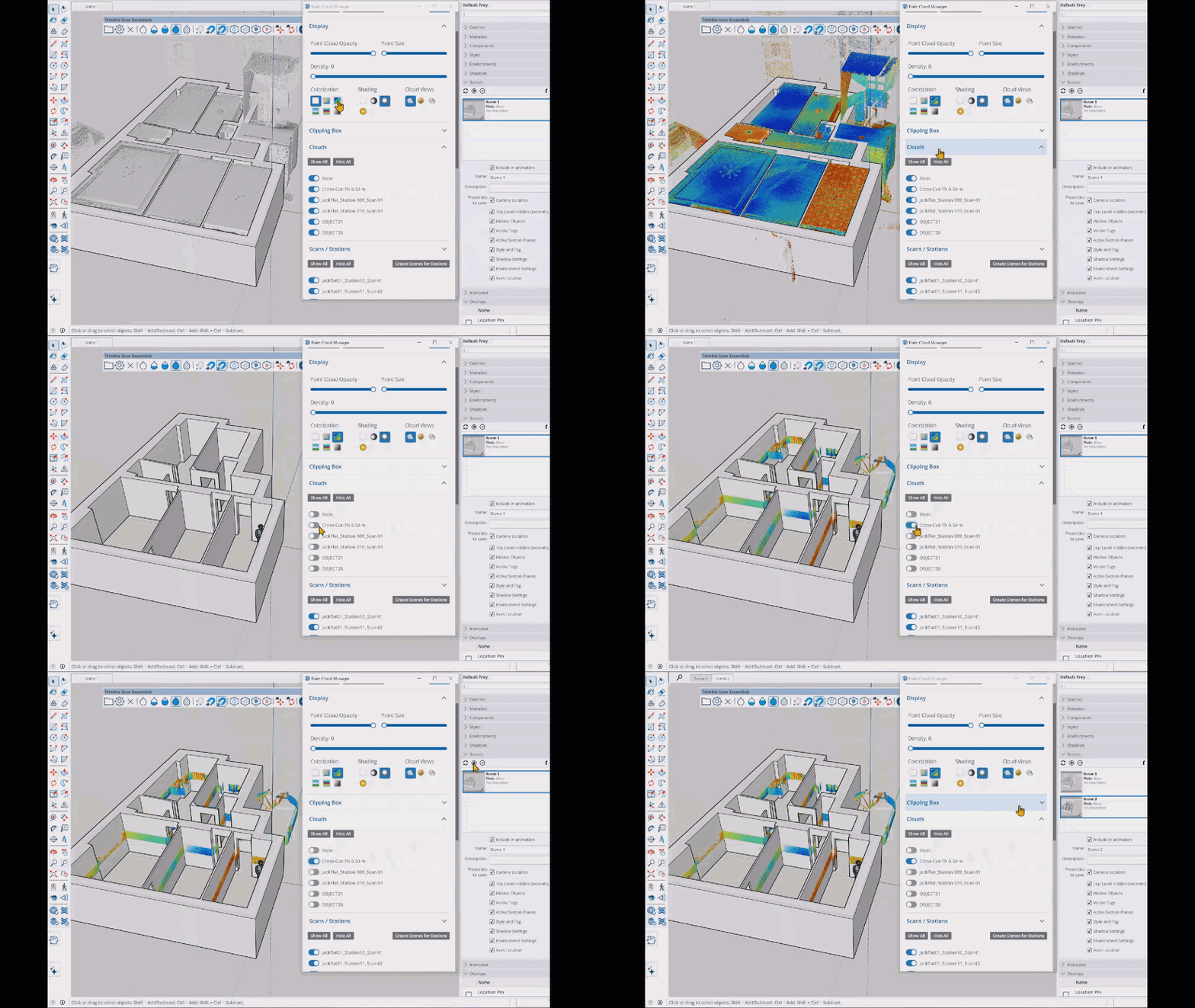
Scan Essentials – Scan Essentials obsahuje dva nové pracovní postupy modelování mračna bodů, nástroje Projekce textur (Texture Projection) a Generování sítě (Mesh Generation). Nový Správce scén lépe ovládá viditelnost mračen bodů v aplikaci SketchUp i Layout. S touto aktualizací se také můžete při exportu snadno vrátit k původnímu georeferencovanému souřadnicovému systému.
LayOut
Aktualizace rozhraní a výkonu aplikace LayOut – Rozhraní aplikace LayOut ve Windows vypadá a funguje více jako SketchUp díky aktualizované ikonografii, konfiguracím zásobníků a panelů a přizpůsobení panelu nástrojů.
Nástroje pro kreslení LayOut – Nyní jsou k dispozici čtyři nové nástroje pro kreslení – Oříznout (Trim), Prodloužit (Extend), Zaoblení (Fillet) a Zkosení (Chamfer). Tyto nástroje poskytují intuitivnější a efektivnější způsob vytváření a manipulace s 2D vektory.
Vylepšení knih výstřižků – Výchozí knihy výstřižků aplikace LayOut nyní obsahují 2D okna, dveře, nábytek, kuchyň, koupelnu v kategorii Architektura a další půdorysné zobrazení Knihovny osob.
Vylepšení importu a exportu – LayOut 2026.0 přináší několik aktualizací funkce DWG, které zlepšují efektivitu importu a exportu dokumentů v tomto formátu, včetně zachování značek SketchUp a jejich předávání jako vrstev DWG.
Opravy chyb a další vylepšení
SketchUp
Spolupráce v aplikaci SketchUp
Co jsme udělali
Nyní můžete sdílet modely SketchUp prostřednictvím soukromé pozvánky nebo vytvořením a sdílením veřejného odkazu. Ti, se kterými sdílíte svůj model, se v něm mohou pohybovat, provádět měření, psát komentáře a dokonce i sledovat aktualizace v reálném čase.
Podrobnosti
SketchUp 2026.0 zavádí několik nových funkcí, které vám pomohou sdílet vaše modely a spolupracovat s vašimi kolegy a zúčastněnými stranami. Tyto funkce, které najdete v novém panelu pro spolupráci, vám pomohou sdílet model, řídit úroveň přístupu těch, se kterými jste jej sdíleli, a vyzvat ostatní k poskytnutí zpětné vazby.
Sdílení pomocí panelu pro spolupráci
Panel spolupráce (  ) je k dispozici na výchozích panelech nástrojů aplikace SketchUp a také v panelu nástrojů Velká sada nástrojů. Můžete také kliknout na Okno (Window) > Panel spolupráce (Collaboration Bar) .
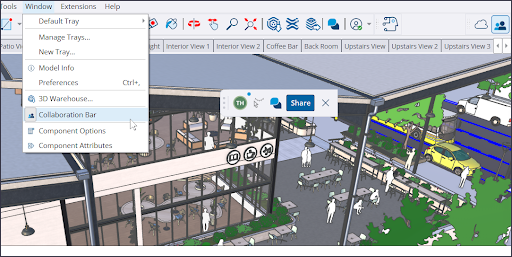
V panelu Spolupráce klikněte na Sdílet (Share) a pozvěte ostatní k zobrazení vašeho modelu. Pokud jste svůj model ještě neuložili do Trimble Connect, zobrazí se výzva k jeho uložení.
Chcete-li odeslat soukromé pozvánky, zadejte e-mailové adresy a určete úroveň přístupu. Čtenář obdrží e-mail se soukromým odkazem, který může použít k přístupu k vašemu modelu. Pokud u svého modelu nastavíte Obecný přístup, kliknutím na Kopírovat odkaz se vygeneruje veřejný odkaz, který umožní každému, kdo má odkaz, zobrazit váš model.
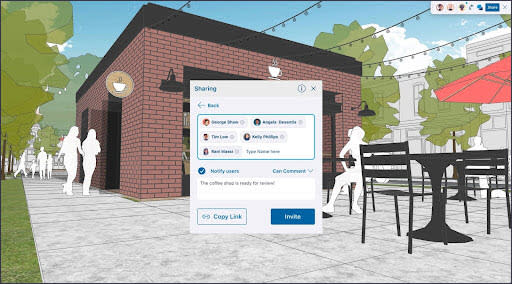
Odkazy, které sdílíte s ostatními, otevřou váš model v jejich webovém prohlížeči. Vaši čtenáři budou mít přístup k základním informacím a několika dalším možnostem v závislosti na úrovních přístupu, které jste nastavili. Přístup čtenářů můžete kdykoli nastavit nebo změnit. Čtenáři, kteří obdrželi soukromou pozvánku, mají následující oprávnění:
Vlastník – Vlastník modelu má vždy plný přístup ke všem funkcím prohlížení.
Prohlížení scén – Může zobrazit scény v modelu, ale nemůže model procházet ani psát komentáře.
Komentář – Můžete psát komentáře, používat všechny dostupné nástroje kamery a přistupovat ke všem nástrojům čtenáře.
Obecná oprávnění k přístupu definují, co se stane, když se někdo, kdo používá váš veřejný odkaz nebo přistupuje bez soukromé pozvánky, pokusí zobrazit váš model. Obecný přístup nezahrnuje možnost přidávat komentáře k modelu. Obecný přístup modelu lze nastavit na:
Žádný přístup – Když se ostatní pokusí o přístup k modelu, zobrazí se výzva, aby vás požádali o přístup. Poté můžete žádost schválit, zamítnout nebo ji dokonce ignorovat.
Prohlížení scén – Čtenáři, kteří přistupují prostřednictvím vašeho veřejného odkazu, si mohou prohlížet pouze scény.
Prohlížení modelu – Čtenáři, kteří přistupují prostřednictvím vašeho veřejného odkazu, mohou procházet a provádět měření.
Všichni čtenáři vidí kurzory ostatních čtenářů. Každý čtenář může tyto kurzory skrýt pomocí možnosti Skrýt kurzor (  ) v panelu Spolupráce.
Komentáře
Nový nástroj Komentář vytváří v modelu 3D značky komentářů. Chcete-li zanechat komentář ve svém vlastním modelu, aktivujte nástroj Komentář (  ) z panelu nástrojů nebo z panelu Spolupráce. Aktivací nástroje Komentář se otevře panel Komentáře (Comments). Na panelu Komentáře si můžete prohlížet vlákna komentářů, přidávat odpovědi a skrývat značky komentářů.
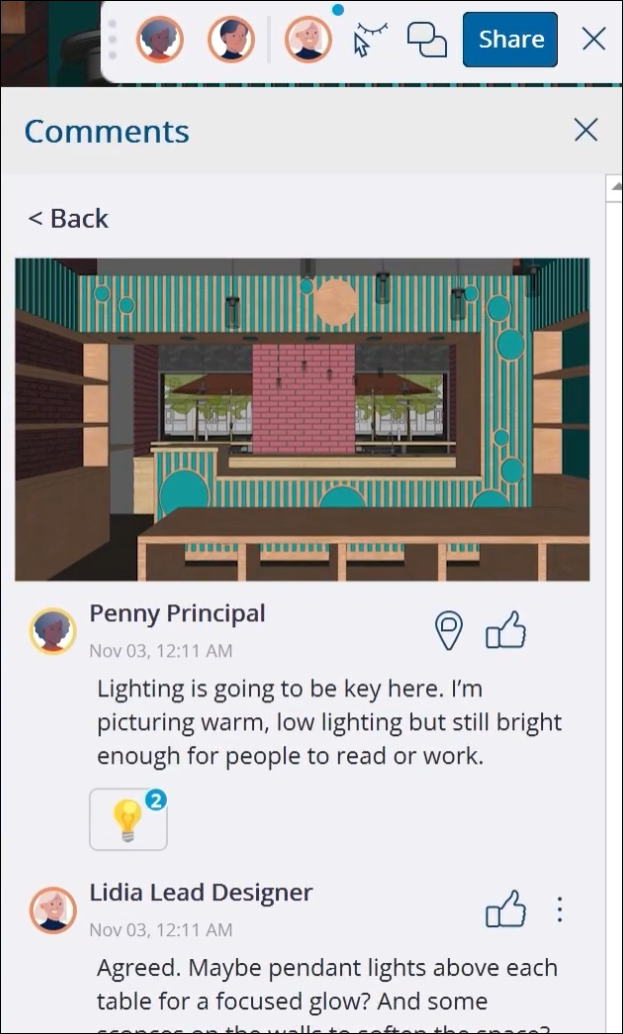
Čtenáři mohou zanechávat komentáře pomocí nástroje Komentář. Když je nástroj Komentář aktivní, můžete pomocí něj najet myší na objekty a vybrat přesné místo pro zanechání komentáře. Kromě výměny textových komentářů můžete do vlákna komentářů přidávat obrázky, odkazy a dokonce i různé pozice kamery.
Každý komentář lze přiřadit ke konkrétní scéně. To znamená, že kdykoli čtenář klikne na značku komentáře v okně modelování, SketchUp zobrazí dané vlákno komentářů, aktivuje poslední vybranou scénu a přesune se na pozici kamery komentáře. Můžete si také vybrat, zda chcete svůj komentář přiřadit k jiné scéně, nebo k žádné scéně.
Prohlížení v reálném čase a ovládání kamery
Ve výchozím nastavení uvidí vaši čtenáři aktualizace modelování v reálném čase. Jakákoli provedená změna se zobrazí všem a čtenáři dokonce uvidí nástroj, který používáte k provádění změn, pokud jsou viditelné kurzory. Navigační nástroje, které čtenáři používají, jako je Měřící pásmo, Posouvání nebo Otočení, jsou také viditelné pro všechny.
Pokud chcete, aby čtenáři viděli váš model z určitého úhlu pohledu, můžete kliknout na svého avatara na panelu Spolupráce. Úhel pohledu každého čtenáře se změní na váš. Pokud chcete vidět, na co se dívá jiný čtenář, můžete místo toho kliknout na jeho avatar.
Více informací
Další podrobnosti o všech nových funkcích spolupráce SketchUp najdete v části Připojení a spolupráce .
Vylepšení vizualizací
Co jsme udělali
SketchUp 26.0 zavádí multiplikátor vzdálenosti a ovládací prvky barev pro ambientní okluzi, možnost invertovat mapu drsnosti materiálu a dlouho žádanou možnost vybrat si preferovanou miniaturu při prohlížení materiálů.
Podrobnosti
Ambient Occlusion
Styl obličeje Ambient Occlusion se dočkal dvou hlavních vylepšení – posuvníku Násobitel vzdálenosti (Distance Multiplier) a ovládání barevného vzorku.
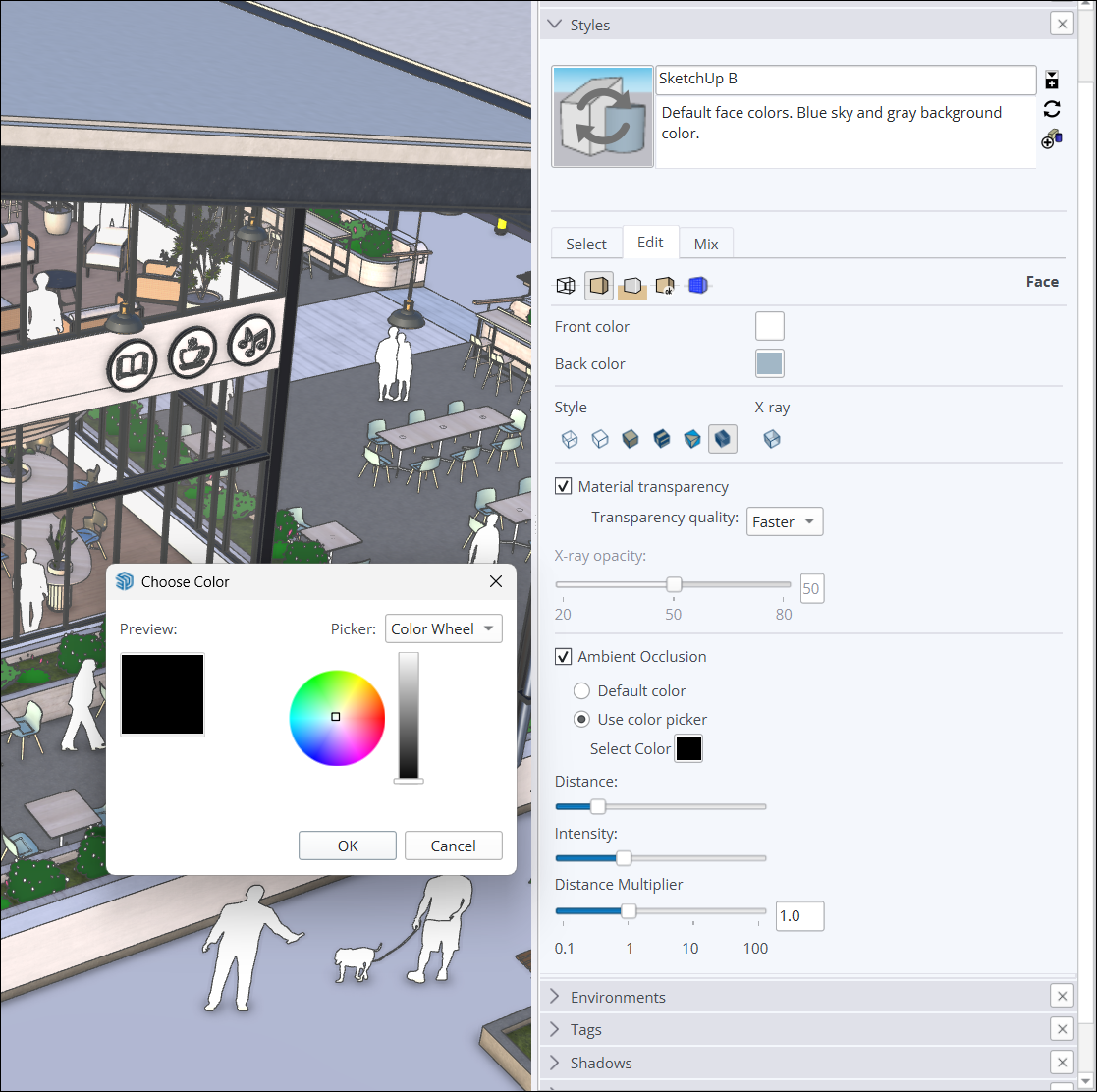
Posuvník Násobitel vzdálenosti pomáhá ovládat vzdálenost, ve které se v modelech objevují efekty okluze. Vyšší číslo znamená, že efekty okluze budou stále viditelné i při oddálení.
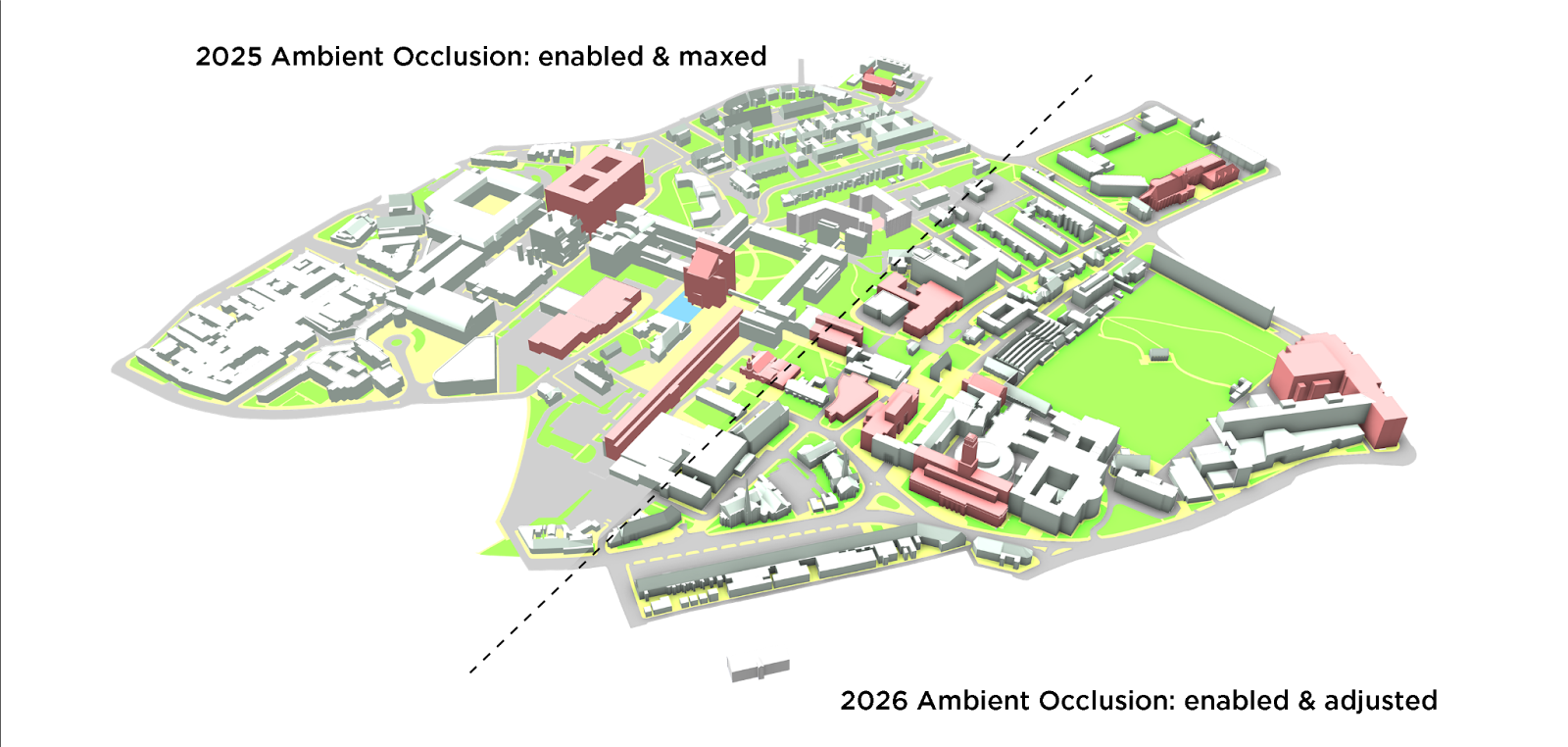
Nové ovládání vzorníku barev umožňuje dynamické efekty stínování na základě zvolené barvy. Barevné efekty se v modelu zobrazí při úpravě barev pomocí barevného kolečka, ovládacích prvků HLS, HSB nebo RGB.
Invertovat drsnost (Invert Roughness)
Fotorealistické materiály SketchUp nabízejí mnoho způsobů, jak přizpůsobit vzhled a dojem ploch v modelu. Pomocí nové možnosti Invertovat drsnost (Invert Roughness) můžete převrátit černé a bílé hodnoty v mapě drsnosti materiálu. Invertování drsnosti nabízí další možnost, jak lépe ovládat, jak hladký nebo drsný má být povrch.
Miniatury materiálů (pouze pro Windows)
Na základě velkého zájmu jsou nyní miniatury materiálů přizpůsobitelné a nabízejí jak krychlový, tak i plochý 2D obrázek.
Když kliknete na náhled materiálu, můžete si vybrat z možností Automatická miniatura , Krychlová miniatura nebo Plochá miniatura . Při výběru možnosti Automatická miniatura se fotorealistické textury zobrazí jako krychle. Krychlová miniatura vynutí, aby se materiál zobrazil jako krychle. Plochá miniatura zobrazí miniaturu jako klasický 2D obrázek.
Více informací
Další informace o vizualizačních funkcích SketchUpu naleznete v části Materiály, textury a prostředí .
Výkon
Co jsme udělali
Sketchup 2026.0 zlepšuje jak paměť, tak pracovní efektivitu. Díky těmto změnám je Sketchup efektivnější, rychlejší a spolehlivější, zejména při práci s velkými modely.
Podrobnosti
Vylepšení paměti
Aplikace SketchUp nyní lépe spravuje paměť a optimalizuje způsob, jakým software přiděluje a využívá paměť pro různé prvky a procesy, včetně:
Načítání modelu – SketchUp nyní načítá data modelu efektivněji a snižuje počáteční špičky paměti.
Nižší režie paměti – SketchUp optimalizuje množství paměti vyhrazené pro komponenty, což vede k menšímu plýtvání pamětí.
Efektivita grafiky systému Windows – Uživatelé systému Windows si mohou všimnout zlepšení ve zpracování grafických zdrojů, což zvyšuje efektivitu využití paměti.
Díky těmto vylepšením paměti využívá SketchUp celkově méně paměti. To znamená:
Méně pádů a zamrznutí, zejména u zařízení s menší pamětí RAM pracujících s velkými modely.
Stabilnější a rychleji reagující prostředí, které umožňuje delší práci bez přerušení.
Lepší plynulost a rychlost odezvy.
Efektivita práce
SketchUp 2026.0 zvyšuje rychlost často používaných operací a poskytuje lepší plynulost díky vylepšením:
Výběry a odvození – Optimalizace základního výběru a manipulačního kódu, což vede k vyšší rychlosti u úkolů, jako je výběr, otevírání a zavírání komponent a odvozování menších cílů.
Přechody scén – Vylepšená logika přechodů scén, která vede k plynulejším změnám scén u větších modelů a přibližně 86% zlepšení počtu snímků za sekundu.
Rozsahy přiblížení – Při použití funkce Rozsahy přiblížení (Zoom Extents) se rychlost zvýší přibližně o 90 %.
Vymazání nepoužívaných – Doba potřebná k vymazání nepoužívaných značek byla drasticky zkrácena.
Poznámka : Odhady výkonu vycházejí z interního srovnávacího testování s modely různé složitosti na různých hardwarových konfiguracích. Vaše zkušenosti se mohou lišit v závislosti na vašem hardwaru a datech modelu.
Learn More
For more information on running SketchUp see our Hardware and Software Requirements .
Live Components
What We Did
SketchUp 2026.0 adds additional Live Component gripping functionality to the Scale tool. These grips allow you to place and size Live Components by inference. We’ve also added several quality-of-life improvements to painting Live Components.
The Details
Scaling Live Components
The Scale tool ( ) can now be used with Live Components, allowing more flexibility when placing components in your models.
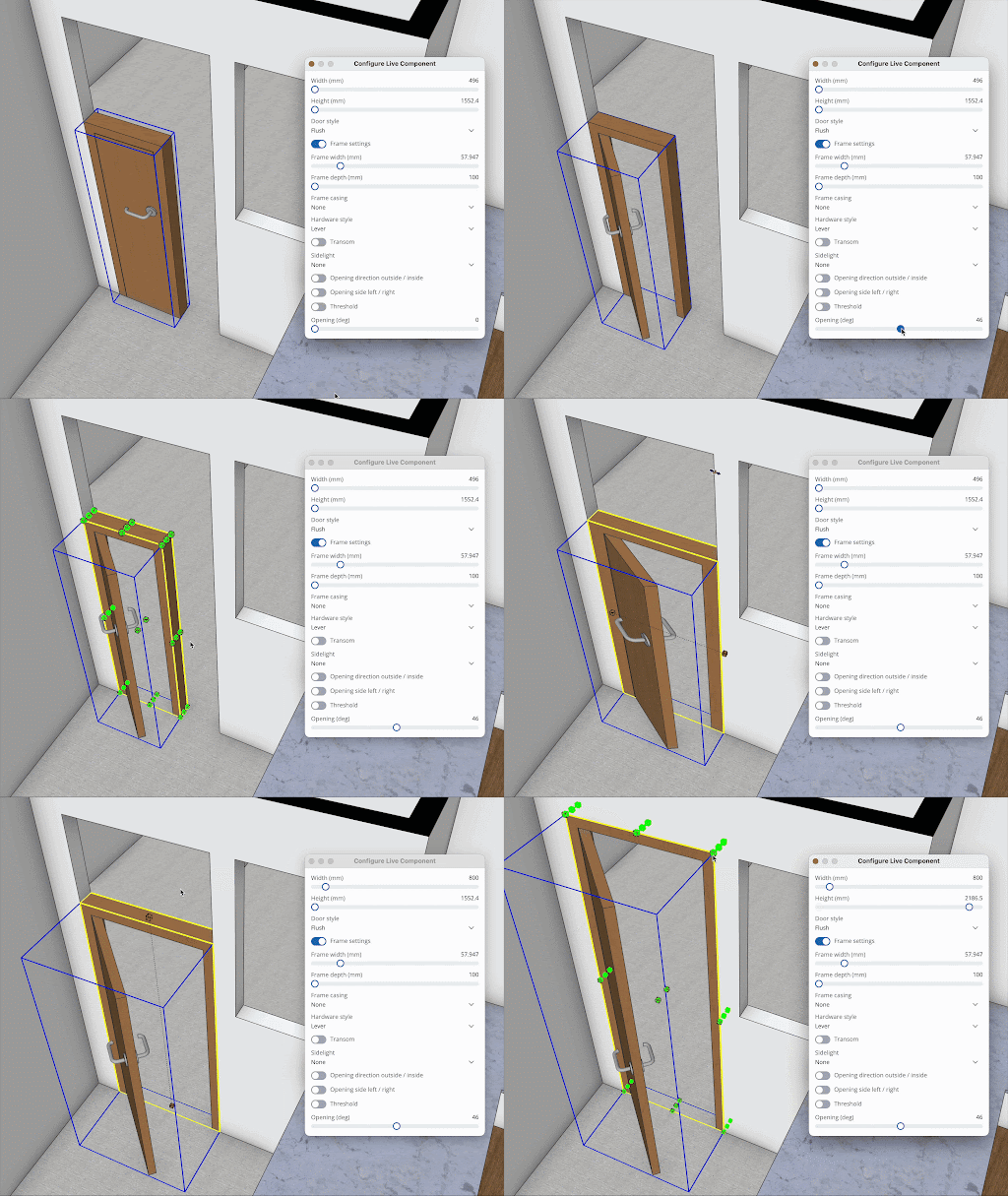
These grips are not always locked to the bounds of the component. That means you can better identify what you are sizing and how to best fit a component in your model. Check out 3D Warehouse’s SketchUp Content Library to browse sizable Live Components, available to SketchUp subscribers. Not all existing Live Components have scale grips, but more that do are coming soon!
Improved Material Workflows
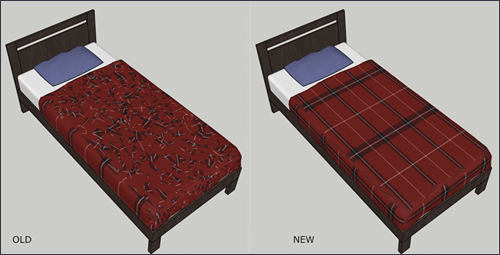
The Paint Bucket tool can apply custom materials to a Live Component, even materials not already available in that component. This updated workflow now includes better texture mapping, painting while a Live Component is selected, a better way of handling materials, and a few other behind-the-scenes changes to help with SketchUp Material Library compatibility.
Learn More
For more information see SketchUp Live Components .
General Modeling Improvements
What We Did
SketchUp 2026.0 includes several notable improvements across scaling, rotating, scenes, and inferencing.
The Details
Scaling Improvements
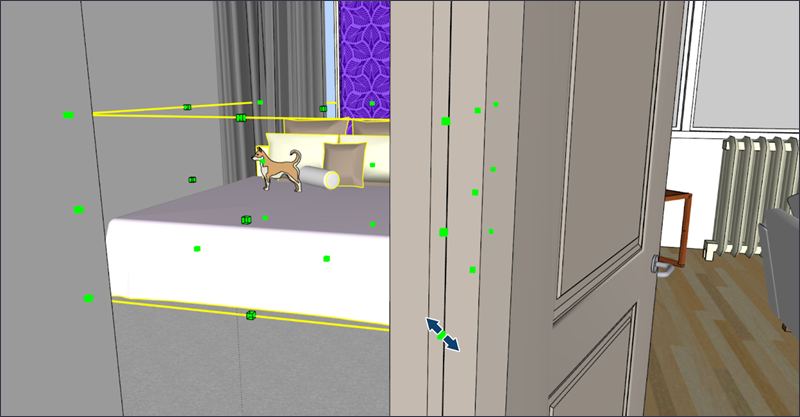
When scaling objects it can be hard to access grips hidden by other geometry without a lot of orbiting, panning, and adjusting visibility. In small spaces, scaling may require extra clicks. Now, scale grips display through other geometry, so that you can always see and click them.
Rotate Improvements
SketchUp 2025 introduced rotation handles to the Rotate tool. These handles allow for quick- two-click rotations, but cause unexpected results after locking the rotation plane. To avoid problems, rotation grips will not appear when you’ve locked a rotation plane.
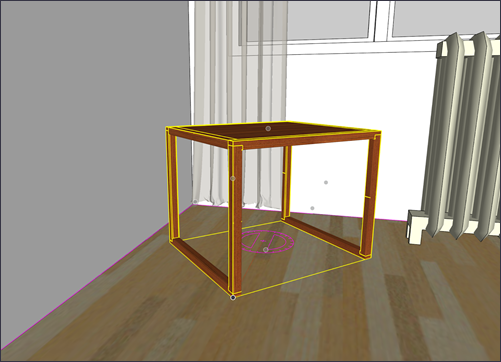
Moving from a profile edge
When placing objects, the object you are placing could obscure the background elements, making it hard to align things. Some workarounds include showing back edges, turning on X-ray, or cycling through bounding box grips.
To address these issues, groups and components can now be done using one of its profile edges. The object will become transparent, making it much easier to see and choose your placement target. Profiles don’t need to be visible for this to work, but still depends on camera position and the complexity of geometry.
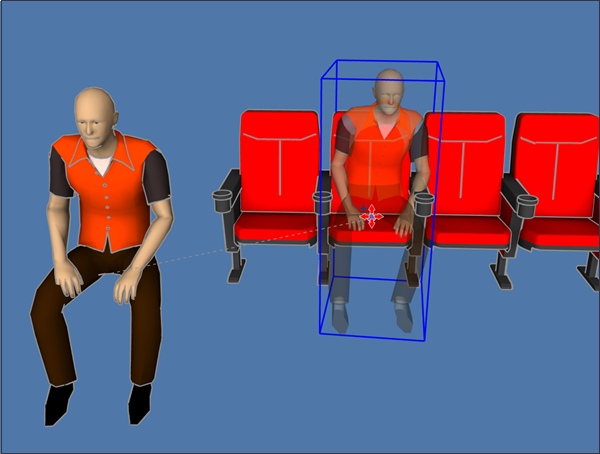
Scene Undo and Redo
Making the wrong update to a scene can be frustrating. Before 2026.0, it could require hours or discovering new extensions to get a scene back to where you want it. To address this issue, the ability to undo or redo scene updates is now available. Undo and Redo works just like it does when editing other parts of your model and will also respect creating, renaming, and deleting actions.
Purge Unused
The Purge Unused reminder seen when you save a model will now be off by default. You can still control this reminder in Preferences. When switched on, you can now control exactly what you want to purge, helping to make sure you aren’t purging useful assets. Purge Unused also appears in the Edit menu and can be assigned a shortcut, so that you can purge what you want, when you want.
Trays and Panels (Windows)
As part of ongoing work to update the SketchUp interface, you can control tray and panel visibility by right-clicking tray and panel headers. Selecting an unchecked panel makes it visible within the tray you clicked on. This new functionality is an alternative to using the Window menu whenever you want to activate trays or show panels within a tray.
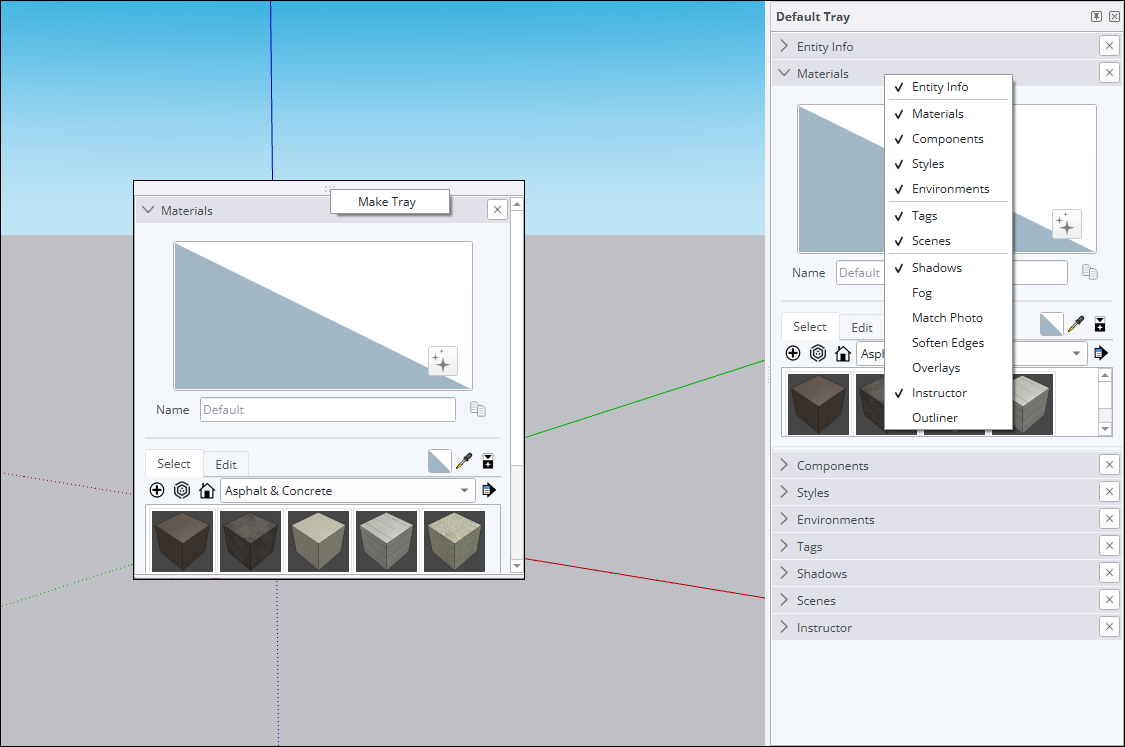
Additionally, panels can now be dragged between trays or out into open space to become an independent tray. If you want to turn that new window into a tray, you can context click the temporary tray click Make Tray .
Learn More
For more information on how to use these new features, see Drawing Lines, Shapes, and 3D Objects .
Manage Activations
What We Did
You can now reset all activations and authorize your current device without leaving SketchUp for Desktop.
The Details
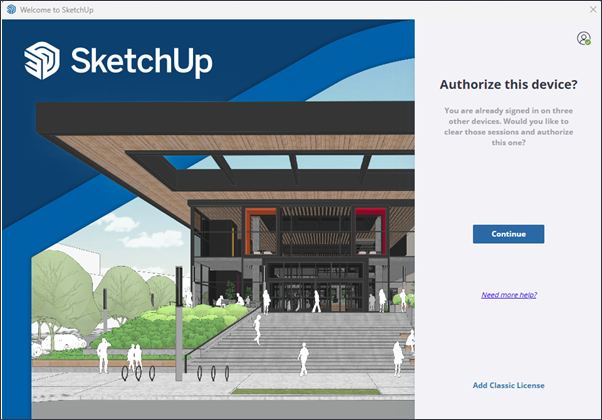
Sketchup’s End User License Agreement (EULA) limits the amount of installations and authorizations for each application included in your subscription to two instances or devices. If you try to install and authorize an application on a third device or open a third instance of an application, you'll see the message "You have exceeded your allowed activations."
If you reach that message when opening SketchUp for Desktop, an option now appears allowing you to reset all activations and authorize your current device without having to access your account management page.
Learn More
For more details on how you can manage your activations, see Managing Activations .
SketchUp Interoperability
What We Did
SketchUp 2026.0 now offers several fidelity and efficiency improvements for importing and exporting DWG files. This includes hatch support and preserving section planes. The IFC export workflow has also been enhanced, consolidating IFC 2x3 and IFC 4 into a single file type with expanded Export Options.
The Details
DWG Import Options
When importing a DWG file, two new options are now available – Import Layers as Groups and Import Linework Flattened .
Selecting Import Layers as Groups tells SketchUp to create groups corresponding to the imported DWG’s layer structure. These imported layers still have their own Tag, but now also have corresponding, grouped geometry allowing for improved visibility control in your imported model.
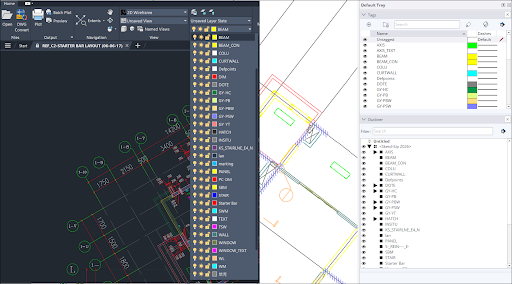
Selecting Import Linework Flattened sets the Z-value of imported geometry to 0, decreasing the common post-import cleanup needed when converting 2D CAD data into 3D models. By eliminating Z-axis discrepancies, the tool prevents disruptive issues like misalignments and helps you start with a clean, accurate foundation. If you are familiar with other CAD software, this works a lot like the Flatten feature found in those applications.
DWG Hatch Support
Sketchup now imports hatches from DWG files. Imported solid hatches become faces. Non-solid hatches become edges.
Exporting 3D Sections
SketchUp now preserves section planes when exporting 3D DWG files, resulting in DWG Sections. These sections can then be used with the Generate Section Block and 2D Section / Elevation features in AutoCAD.
Other DWG Improvements
SketchUp 2026.0 also includes the following DWG improvements:
Polylines from DWG files now import as welded SketchUp lines.
SketchUp now better handles component instance names, reducing duplicative data.
3D Polyline now appears as intended in the Import Results dialog.
Better results when exporting true curves.
Multiple issues with the 3D AutoCAD exporter were addressed.
3D polylines now export as intended to 2D DWG.
IFC Exporter Improvements
When exporting your model, the IFC 2x3 and IFC 4 options are now consolidated into a single IFC File option in the list of file types. You can then select a specific IFC version in the new Export Options dialog.
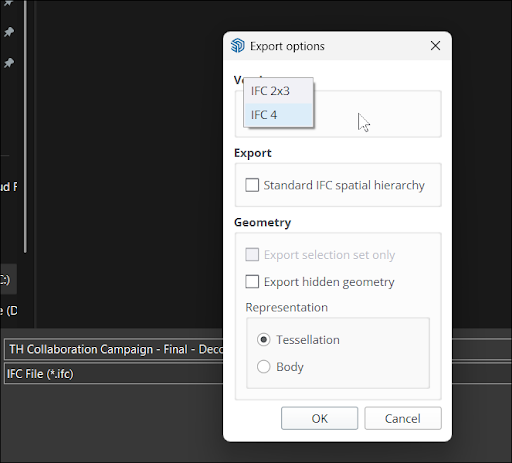
The new IFC Export Options dialog also includes a new Standard IFC Spatial Hierarchy option. Selecting this option creates essential entities like IfcProject, IfcSite, or IfcBuilding, even if they aren’t defined in your model’s Outliner structure.
Learn More
For more information on importing and exporting with SketchUp, see Using SketchUp Data with Other Modeling Programs or Tools .
Scan Essentials
What We Did
Scan Essentials includes two new point cloud modeling workflows, the Texture Projection and Mesh Generation tools, a new Scene Manager to better control the visibility of point clouds in both SketchUp and Layout, and the ability to reset transformations to the original georeferenced coordinate system when exporting.
The Details
SketchUp subscribers with access to Scan Essentials can now use two new tools – Texture Projection and Surface Mesh.
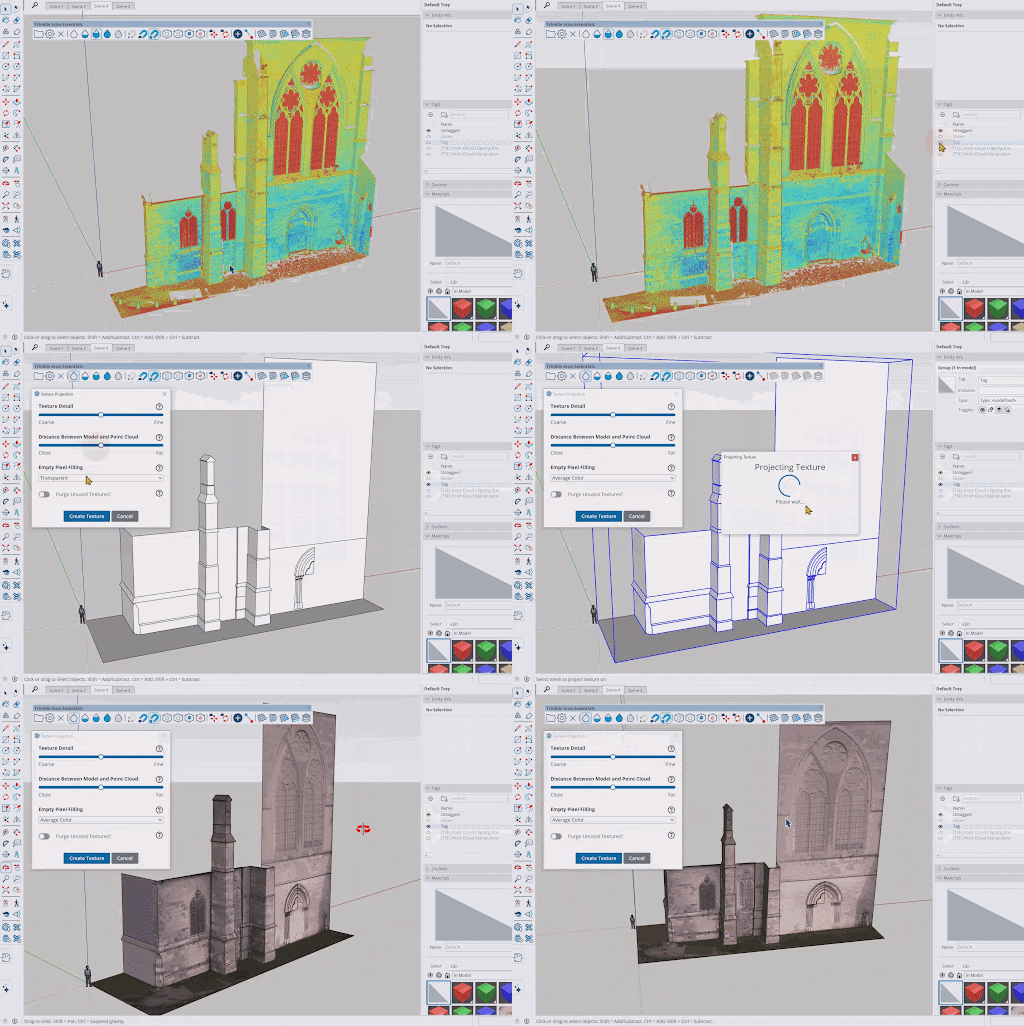
With Texture Projection, you can extract an image texture from scan data and project it onto SketchUp geometry. Projected textures turn into SketchUp materials you can reuse in other parts of your model, or even other models if you save them.
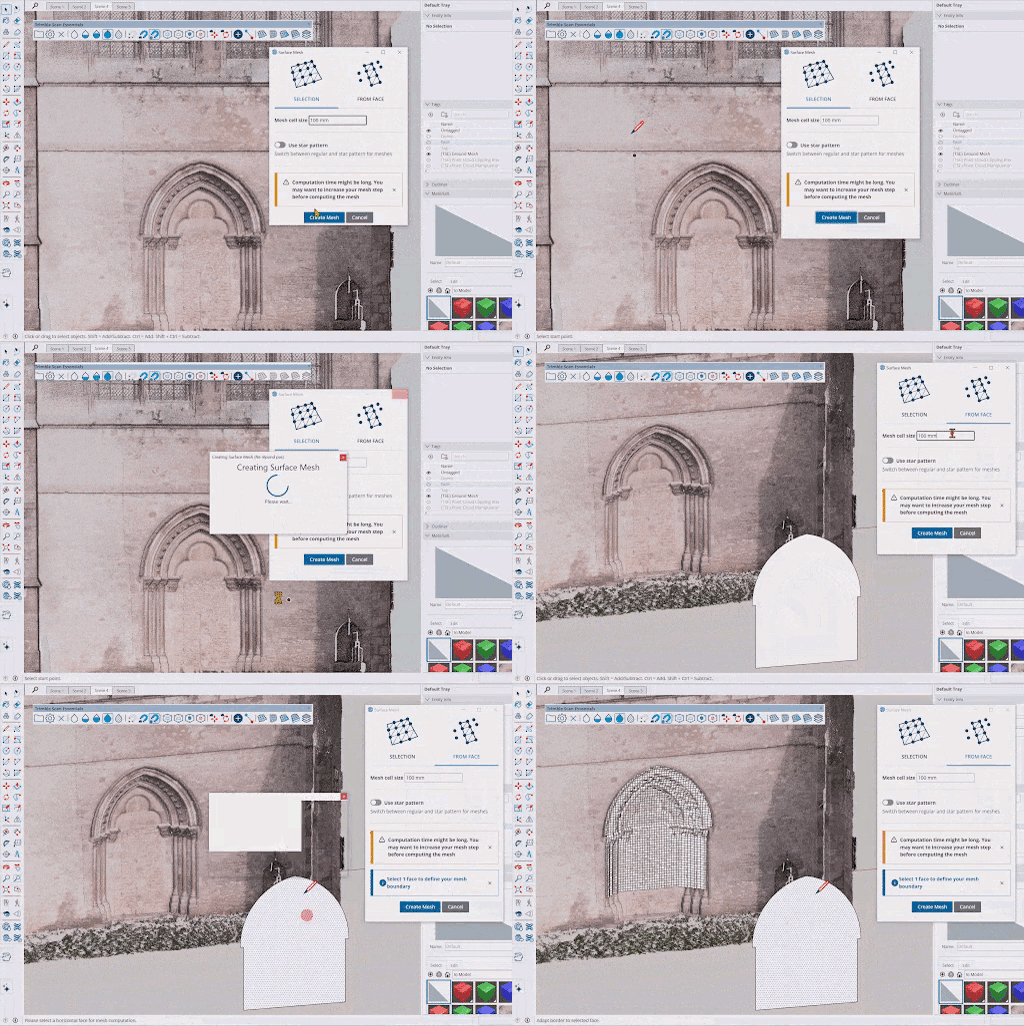
The new Surface Mesh tool makes extracting Sketchup geometry from point clouds easier. After selecting the Surface Mesh tool you can choose the area you want to extract from, define how you want to extract the geometry, and create a mesh in just a few steps.
Along with these new tools, you can now save visibility settings from the Point Cloud Manager as a scene in both SketchUp and LayOut.
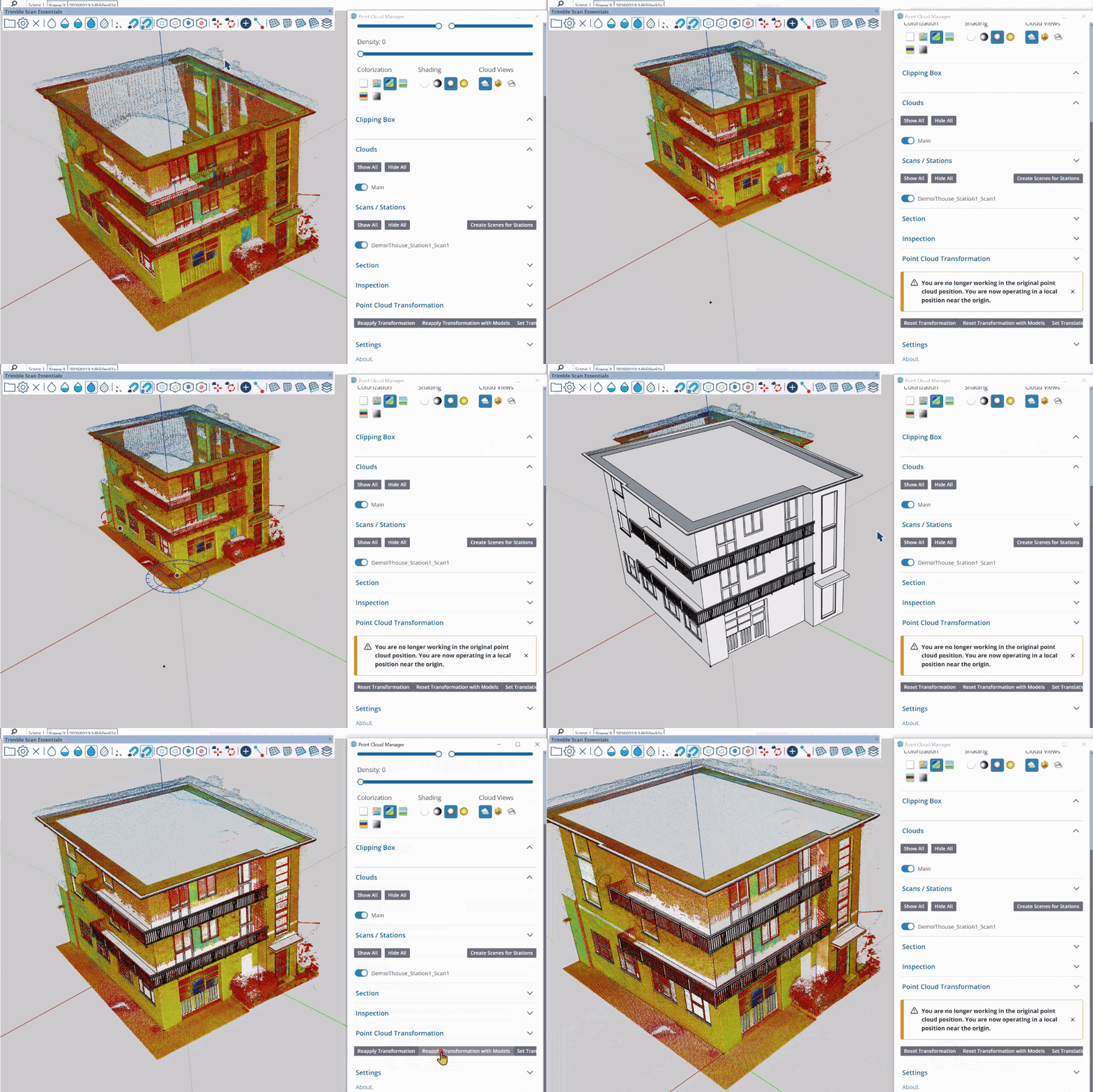
Finally, clicking Reset Transformations in the Point Cloud Manager now resets all transformations, including global transformations. This can be a great tool for those who want to export their original data for use with other apps.
Learn More
For more information, see Scan Essentials for SketchUp .
LayOut
LayOut Interface and Performance Updates
What We Did
The LayOut interface on Windows looks and operates more like SketchUp with updated iconography, tray and panel configurations, and toolbar customization.
The Details
LayOut’s new interface on Windows brings SketchUp style to your LayOut documents.
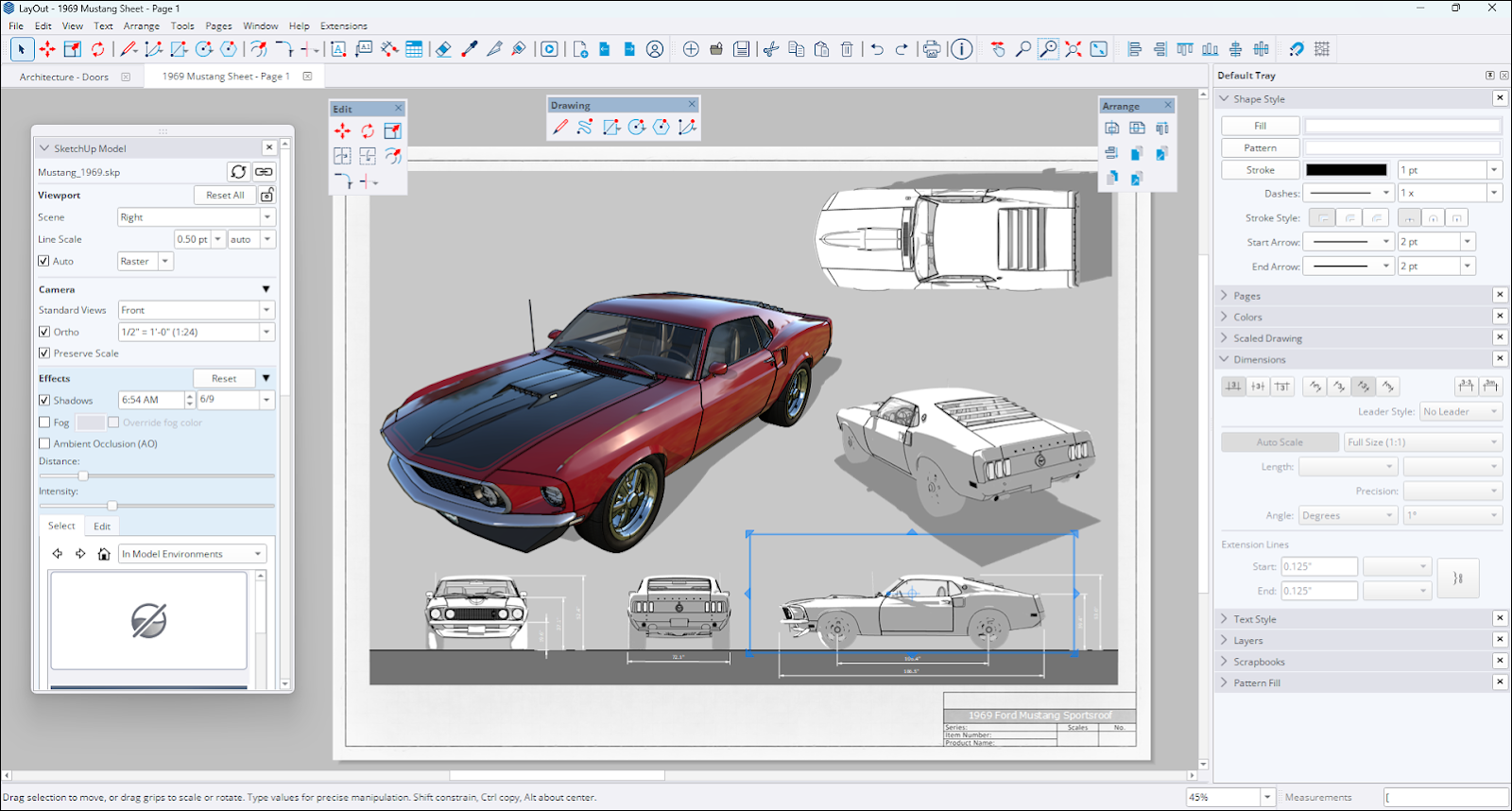
LayOut’s trays and panels now behave a lot more like their SketchUp counterparts. You can arrange them in your workspace, drag panels out, and create new trays to best fit your workflows. Toolbars received a similar uplift, allowing you to arrange them how you like in your workspace, similar to how it works in SketchUp.
Vector and Hybrid Rendering Performance
LayOut’s Hidden Line Rendering (HLR) code generates the vector linework used in vector and hybrid SketchUp model viewports. We’ve improved this process granting a significant speed increase.
Learn More
For more information see Creating Documents in LayOut .
LayOut Drafting Tools
What We Did
Four new drafting tools, Trim, Extend, Fillet, and Chamfer, are now available. These tools provide a more intuitive and effective way to create and manipulate 2D vectors.
The Details
LayOut’s new drafting tools can help bypass unnecessary selections and eliminate extra cleanup when performing simple 2D tasks like detailing and diagramming. Each of these tools performs a specific function:
Trim (
 ) – The Trim tool provides an efficient way to clear lines or shapes without the need to clean up additional vectors. Trim removes excess lines and creates clean intersections, improving both speed and accuracy. The default shortcut for Trim is Shift + T.
Extend (
 ) – The Extend tool simplifies 2D drafting by providing a quick and easy way to extend lines and other entities. The default shortcut for Extend is Shift + E.
Fillet (
 ) – The Fillet tool creates precise rounded corners between two entities based on a defined radius. The default shortcut for Fillet is Shift + F.
Chamfer (
 ) – The Chamfer tool adds a 45° angle between two lines at a defined distance. The default shortcut for Chamfer is Shift + C.
These tools can be found in the Main Toolbar. Trim and Extend share the same spot in the toolbar with a dropdown available to switch between the two. Fillet and Chamfer also share one toolbar icon.
Learn More
For more information see Using the Drafting Tools .
Scrapbook Improvements
What We Did
LayOut’s default Scrapbook libraries now include 2D Windows, Doors, Furniture, Kitchen, Bath, and People under the Architecture category.
The Details
The Scrapbook libraries shipped with LayOut provide common reusable elements that are simple to add and scale in your drawings. We’ve now added a new Scrapbook called Architecture. This new Scrapbook offers common architectural assemblies that work well with model viewports or plans drafted within LayOut.
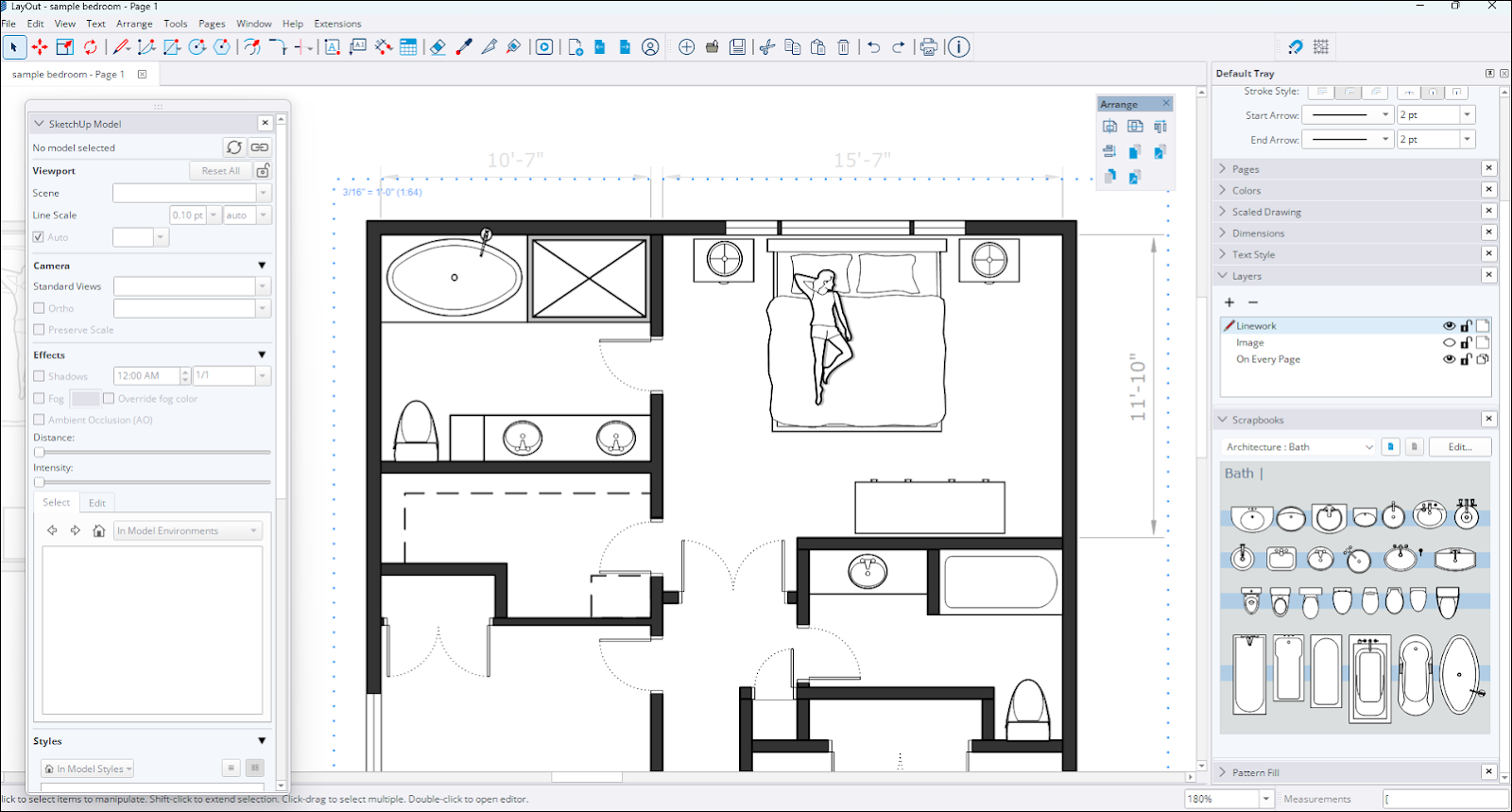
This new Architecture Scrapbook contains elements of the following types:
Doors with Wall Mask (Doors created with a rectangle ‘Masking’ out entities below)
Doors
Windows
Living
Bedroom
Kitchen
Bath
All the Architectural Scrapbook content is created as customizable Scaled Groups.
Learn More
For more information on the existing and new Scrapbook libraries, see Working with Scrapbooks .
LayOut Importing and Exporting Improvements
What We Did
LayOut 2026.0 brings multiple updates to DWG functionality, improving efficiency in how LayOut imports and exports your document using that file format.
The Details
If you use AutoCAD as part of your 2D workflows, LayOut can help you create and maintain drawings. LayOut received quite a few improvements to help when working with DWG files:
Page Export – When exporting a LayOut document you can now export each page in your document as a distinct DWG file.
Tag Preservation – Exporting to DWG now preserves tag naming structures of your SketchUp viewports.
Stacked Viewports – When multiple SketchUp viewports are located in the same position in your document, these models will now also be stacked on top of each other in the exported DWG model space.
Text, Hatches, and Tables – LayOut now accurately exports text, hatches and tables to DWG. This includes proper AutoCAD table elements with font and border settings. LayOut also better recognizes and imports these elements when importing a DWG into your document.
Broken Lines and Curves – LayOut now properly creates continued lines for elements exported from SketchUp viewports.
Learn More
For more information see Importing CAD Data into LayOut and Exporting CAD Data from LayOut .
Bug Fixes and Other Improvements
SketchUp
Stability and Performance
Fixed an issue where opening or expanding the Components tray while using tools like Paste, Component, Move (in Copy or Stamp mode), or Rotate (in Copy mode) would cause a crash.
Added the ability to change the material preview (flat, cube or automatic switching) style via a context menu
Added the ability to set a custom directory for templates in Preferences
Improved automatic association of .skp files. When multiple versions of SketchUp are installed, .skp files now correctly default to opening in the latest installed version.
Addressed an issue where notifications could be triggered three times through the Ruby API, but would fail on the fourth.
Fixed intermittent crashes when editing Live Components.
Improvements have been made to handle model corruption that previously showed a ‘file invalid’ error, with more cases now being automatically fixed.
A crashing issue that could occur when importing very large images while the new graphics engine was active has been fixed.
Improved V-Ray integration by allowing version specification on the download page.
Resolved a crash that occurred with certain example files when specific groups were selected and then exploded from the context menu.
Fixed a crashing issue that could happen if a model being opened had a corrupt Normal map.
Implemented better performance when selecting large areas of complex models.
Fixed a crash that could occur when copying text objects that used the auto-text feature.
Addressed a crash that could happen when using the Create Radius extension.
Dragging a corrupt component into the model scene from the Components panel will no longer cause a crash.
Certain components will no longer flicker while using the Orbit tool.
A crash that occurred during the import of a specific hatch has been fixed. Additionally, resolved an issue where the back and front faces of certain geometry were reversed during import.
Corrected a bug in the Component Options dialog where default attribute values from custom SKC files were not being imported by updating the import mechanism to correctly parse and assign these values from the XML schema.
Addressed an issue where notifications could be triggered three times through the Ruby API, but would fail on the fourth.
MacOS – Fixed an issue where CMD + Tab could cause tool interruptions when tabbing away from and back into SketchUp. SketchUp will no longer lose inferences or drawn lines when performing this action.
Windows – Added tool icons next to many items in the application menus
Windows – Fixed an issue where Ruby SketchUp would crash when an HtmlDialog was called from a WebDialog.
Windows – Fixed an issue on Windows where SketchUp would crash on launch after a period of inactivity.
Usability
Extension Migrator is now pre-installed and automatically launches on your first install, prompting you to migrate extensions from a previous installation.
Author is changed to "SketchUp" for Extension Migrator for consistency with other shipped Extensions.
Fixed an Extension Migrator issue where "\r" would appear in text strings in some translations, including French.
Reset Workspace in Preferences > Workspace now restores SketchUp’s out-of-the-box workspace as intended.
The initial import directory is now saved to File > Preferences for all 'import to model library' options (Materials, Environments, Styles).
Fixed an issue where Environments would not download directly into the model from 3D Warehouse
Fixed an issue where downloading an Environment from 3D Warehouse and importing a .ske file used the incorrect name.
Fixed an issue with a mismatch in the English resource folder path which resulted in an error in the Welcome Window.
A bug that could cause the Escape key to fail to exit from group or component editing mode has been fixed.
Fixed an issue where scene thumbnails would show a '?' instead of updating when changes were made in a Match Photo scene.
Improved the status bar text for painting Live Components. The Live Component can now be selected at the time of painting.
Fixed an issue where components with a corrupt transformation would disappear when scaled.
Improved the time it takes for the Live Component configuration panel to appear when switching between different Live Components.
Text or dimension elements now correctly show the assigned tag color when selecting Color by Tag .
Corrected an inaccurate bounding box report for groups that had been transformed with Ruby code.
Fixed an issue where materials used as tag colors were not appearing when using the Hidden Line face style with the new graphics engine enabled.
Addressed an issue where drawing a rectangle would show a help tip about squares, but the resulting rectangle was not a square.
The status bar text for the Lasso tool now displays as intended in languages other than English.
Objects set to glue to faces, when placed with the Move tool in Stamp mode, will no longer incorrectly rotate by 180 degrees.
Fixed an issue in tools where using the protractor could cause it to appear larger than normal.
Fixed an issue when navigation buttons were sometimes hidden when launching 3DWarehouse or Extension Warehouse.
Fixed an issue where dimensions inside a component being scaled would not update, and where the arrows would look stretched.
Fixed a crash that could occur when opening a model that had a corrupt style, or when choosing the Save Out > To 3D Warehouse option.
Fixed a flickering issue that could occur when animating between scenes with different section plane settings.
Fixed a crash that could occur while drawing by click-drag-release while using the Move tool’s Stamp mode.
Fixed an issue where resetting the scale of a group would make the contents disappear.
Fixed an issue where some animations weren’t always visible when transitioning Scenes with the New Graphics Engine.
Fixed an issue where some error messages were confusing or non-descript of what to do next.
Windows – A keyboard shortcut has been added in Preferences to show the Environment panel.
Windows – The tag color preview in the Tags panel now correctly displays textures instead of only a solid color.
Windows – An issue where having many scene tabs would cause the wrong scene to be selected when clicking on a tab has been fixed.
Windows – The materials panel no longer unexpectedly opens and scrolls when reactivating the Paint Bucket tool after using a camera tool.
Windows – The Create Material and Duplicate Material dialogs now show all controls when a scroll bar is present.
Windows – Pressing Enter/Return in text edit fields in the material panel now returns focus to the main window as expected.
Windows – Fixed an issue where copying text from the Ruby console would add another component in the viewport.
Windows – Fixed an issue where exported 2D images showed the background color through holes in the ground when the new graphics engine was enabled.
MacOS – An issue preventing the exploding of multiple Tag folders at once has been fixed.
MacOS – Fixed an issue where the materials dialog would jump to the top of the screen when editing an in-model material.
MacOS – Fixed a problem where if two materials had the same name, the first one would incorrectly appear where the second one was applied.
MacOS – Addressed issues in materials that could lead to a crash when an affected material was duplicated.
MacOS – Fixed an issue where thumbnail previews in file explorer are not generated when saving files.
MacOS – Fixed an issue where closing the SketchUp window, intentionally or unintentionally, during an upload to Trimble Connect blocked the ability to quit SketchUp, requiring a force quit.
LayOut
Interoperability and Organization
When exporting LayOut files to DWG, the tag name structure will now be maintained. - Existing files will require a re-render of SketchUp model viewports for the new export behavior to take effect.
Fixed an issue that could cause the camera to shift when scale-copying SketchUp model viewports from the top or left grips.
Addressed a bug where text justification could be changed for dimension text when a file was opened in a different version of LayOut.
A bug where a scaled drawing in a group could be resized, causing paper-space measurement errors, has been fixed.
Fixed an issue which would cause line paths being used as attached leaders to jump if the path was duplicated and then the entity was moved.
Fixed a sun location issue where the sun’s location would not update in a model that was a viewport in a LayOut page.
You can now export each LayOut page as a separate DWG file, named with the logic: "Layout file name_Page number_Page name."
Stacked SketchUp Model Viewports in LayOut will now be accurately exported in the same stacked position within the DWG model space.
Addressed a bug where importing large DWG files into LayOut with a scale less than 1:1 caused text and leader entities to appear with an incorrect size and position.
Windows – Fixed an issue that would show references in the Document Setup dialog for the wrong file when working with multiple documents in tab groups.
Windows – Fixed an issue where a model’s section plane symbols would not show when the model was in a LayOut document viewport.
MacOS – Fixed an issue where autotext in dimensions would be shortened or truncated after saving and reopening a file.
UI and Stability
Fixed an issue that could cause a 107 Error when saving a file after purging a pattern fill that was used in a clipping mask.
A crash that could occur when updating a model reference while on a blank page in the document has been fixed.
Fixed a bug which applied a double-click offset to the outside of an entity instead of inside.
Fixed an issue where snapping and inferencing could occur on parts of a model that were obscured by a clipping mask.
More issues related to font size and alignment discrepancies when using the Experimental Graphics Engine have been fixed.
An issue that prevented the creation of horizontal or vertical linear dimensions via the Ruby API has been fixed.
Fixed the behavior of dimensions on text entities to allow dimensioning text when there is a Stroke style applied to the text.
Windows – Fixed a crash that was caused by a third-party library when loading certain images in LayOut.
Windows – Fixed an issue where white text would become transparent while editing when using the Experimental Graphics Engine.
Notable Known Issues
Updating Table References may result in the wrong row or column data being updated. This can be fixed by setting the cell range through the Table Reference Options context menu dialog.
Localization
Addressed a number of localization issues including missing translations, incorrect product names, and broken links in our translated End User License Agreement (EULA).
Mitigated an issue that caused localized strings to revert to older translations. This regression affected all non-English languages, overwriting previously approved translations.
Fixed an issue where scrapbooks were missing when installing in languages other than English.
Interoperability
Importers & Exporters
DAE
Component and material names are no longer ignored by the importer.
DWG/DXF
Resolved an issue where importing DWG files created duplicate data by importing both Component Instance and Component Definition names.
Polylines from DWG files now import as welded SketchUp lines for more predictable behavior.
Fixed an issue that prevented 3D DWG files from exporting correctly. While DWG files now maintain proper geometry and sections, we are aware that active cross-sections created in SketchUp may not be visible when the file is opened in AutoCAD. We're continuing to investigate this behavior to ensure full section display in all compatible applications.
3DS
Corrected an underlying issue that caused exports to the 3DS format to fail with certain models.
IFC
All IfcSpace attributes can now be roundtripped.
Corrected an issue that caused broken or missing geometry when importing certain IFC files.
Custom SketchUp metadata, introduced in 2025, is now supported in Trimble Connect.
IFC Roofs, Stairs and Ramps attributes were updated to comply with buildingSMART Validation Service compliance.
IFC Export: Resolved an issue that caused Korean and Japanese characters to become corrupted in IFC exports due to incorrect multi-byte character processing. The exporter now correctly handles these characters using consistent UTF-8 encoding.
USDZ & TRB
Fixed a bug that caused textures to be lost when uploading models to Trimble Connect.
The USDZ import library has been updated, fixing an issue where files from phone scans would appear black by using emissive textures as a fallback.
Resolved a bug that created invalid USDZ files that failed to load in external viewers and corrected color mapping to ensure colors match the original SketchUp file.
An issue that caused TrimBIM (.TRB) file sizes to increase with each export attempt has been resolved.
API Release Notes (Ruby & C API)
Breaking Changes
Undoable Scene Operations
In SketchUp 2026.0 adding, deleting, and modifying scenes is now an undoable operation. Previously, these operations were not included in the undo stack. Now, if an extension modifies scenes using the API, an operation will be added to the undo stack. If these scene modifications are not called inside of an undo operation, extensions will inadvertently be adding extra operations to the undo stack.
We are asking developers to update and test their extensions that work with scenes. Please make sure to wrap all your scene operations between Sketchup::Model#start_operation and Sketchup::Model#commit_operation so that your extension does not flood the undo stack. Please test that you are able to update your extension to work as expected, and report any issues you might find to centercode early in the beta cycle.
Modifying the properties Sketchup::Axes, Sketchup::Camera, Sketchup::RenderingOptions, and Sketchup::ShadowInfo of a Sketchup::Page is now an undoable operation.
Scene changes must now be called between Sketchup::Model#start_operation and Sketchup::Model#commit_operation to avoid flooding the undo stack. This is an important new dynamic and we will start requiring this for extensions submitted to Extension Warehouse. Extensions not following this will be rejected from the Extension Warehouse.
Non-invertible transformations
{Sketchup::ComponentInstance#transformation=}, {Sketchup::ComponentInstance#transform!}, {Sketchup::Group#transformation=}, {Sketchup::Group#transform!}, {Sketchup::Image#transformation=} and {Sketchup::Image#transform!} no longer accepts non-inversible transformations (typically a transformation scaling to 0 in any axis).
{Sketchup::Entities#transform_entities} can no longer apply non-inversible transformations to {Sketchup::ComponentInstance}, {Sketchup::Group} and {Sketchup::Image}.
Crash Fixes
Fixed a crash in Layout::SketchUpModel when trying to render a model with an environment before the viewport was added to a Layout::Document.
Fixed a crash on quit when using Sketchup.send_action in an HTML dialog on_close event.
Fixed an undo crash related to using Sketchup::Classifications#load_schema and Sketchup::ComponentDefinition#add_classification in the same operation.
Resolved a crash that occurred during a transaction rollback triggered by an undo in the UI.
Windows – Fixed a crash during model.place_component().
Windows – Addressed a crash when placing an Empty Component Definition in SketchUp.
API Improvements
SketchUp Ruby API
Sketchup::Model#export now uses a new IFC exporter with new options (:ifc_version, :standard_ifc_hierarchy, :selectionset_only, :tessellated_geometry) and unsupported options (:doublesided_faces, :ifc_mapped_items, :ifc_types).
Added Sketchup::Model#active_section_planes and Sketchup::Page#active_section_planes.
Added Sketchup::Styles#remove_style and modified Sketchup::Styles#add_style to return the added style.
Added :show_version_warning_dialog optional argument to Sketchup.open_file.
Added Sketchup::Pages#unique_name.
Sketchup::Page#name= now automatically adjusts the name to make it unique if the given name is already in use.
Sketchup::ComponentDefinition#save_as and Sketchup::ComponentDefinition#save_copy now returns false if the save fails.
SketchUp C API
Added SUModelGetActiveSectionPlanes and SUModelGetNumActiveSectionPlanes.
SUEnvironmentCreateFromFile now allows an empty name parameter.
LayOut Ruby API
A new optional parameter for Layout::LinearDimension#initialize allows specifying the dimension line's alignment on creation (DIMENSION_LINE_ALIGNED, DIMENSION_LINE_VERTICAL, DIMENSION_LINE_HORIZONTAL).
Added Layout::LinearDimension#leader_line_visible?.
Added Layout::Style#text_strikethrough and Layout::Style#text_strikethrough= with constants (STRIKETHROUGH_NONE, STRIKETHROUGH_SINGLE).
Added API for LayOut Attribute Dictionaries:
Layout::Document#set_attribute
Layout::Document#get_attribute
Layout::Document#delete_attribute
Layout::Document#attribute_dictionary
Layout::Entity#set_attribute
Layout::Entity#get_attribute
Layout::Entity#delete_attribute
Layout::Entity#attribute_dictionary
Layout::Page#set_attribute
Layout::Page#get_attribute
Layout::Page#delete_attribute
Layout::Page#attribute_dictionary
Added {Layout::Dictionary} class
LayOut C API
Added LOLinearDimensionCreateWithAlignment() and the LOLinearDimensionAlignment enumeration.
Added LOLinearDimensionGetLeaderLineVisible().
Added LOStyleGetTextStrikeThrough(), LOStyleSetTextStrikeThrough(), and the LOTextStrikeThrough enumeration.
Added functions for SketchUp Model Camera and Viewport Overrides
LOSketchUpModelGetCamera(), LOSketchUpModelSetCamera()
LOSketchUpModelSetViewportOverridesOnModel()
LOSketchUpModelResetViewportOverridesOnModel()
Added API for LayOut Attribute Dictionaries:
LODocumentSetAttribute()
LODocumentGetAttribute()
LODocumentDeleteAttribute()
LOEntityCreateAttributeDictionaryCopy()
LOEntitySetAttribute()
LOEntityGetAttribute()
LOEntityDeleteAttribute()
LOPageCreateAttributeDictionaryCopy()
LOPageSetAttribute()
LOPageGetAttribute()
LOPageDeleteAttribute()
Added LOTypedValueType::LOTypedValueType_Dictionary enumeration value
Added LOTypedValueGetDictionary() and LOTypedValueSetDictionary()
IFC Export API
The Ruby API has been updated to align with the new unified IFC exporter, deprecating old methods and adding new functions to control IFC version and hierarchy.
API Bug Fixes
Ruby API
Fixed a regression in Sketchup::Model#drawing_element_visible? that threw an exception.
{Geom::Transformation#inverse} and {Geom::Transformation#invert!} raises ArgumentError for non-inversible transformations (typically a transformation scaling to 0 in any axis).
UI.inspector_names() now correctly lists the Environments panel.
Fixed an issue where saving with the SketchUp API could cause file corruption.
The same name can no longer be assigned to multiple scenes via the Ruby API.
Documentation for the rendering option now shows the accepted value, and setting edge type to 1 will not crash SketchUp.
Documentation update for DWG export now shows the materials option.
Few other Documentation issues have been fixed
C API
SUModelAddLayers() now ensures that layer names are unique.
Known Issues
{Sketchup::Image#transformation=} and {Sketchup::Image#transform!} fails silently for non-inversible transformations.
{Sketchup::Entities#transform_entities} fails silently for non-inversible transformations on {Sketchup::CompoenntInstance}, {Sketchup::Group} and {Sketchup::Image}.